> For the complete documentation index, see [llms.txt](https://wiki.secrets.ai/llms.txt). Markdown versions of documentation pages are available by appending `.md` to page URLs; this page is available as [Markdown](https://wiki.secrets.ai/create/chat-photos.md).

# Chat Photos

Request photos from your conversations, choose their shape and resolution, and control whether appearance changes in the story carry into Advanced photos.

Chat photos turn the current conversation into an image. Ask your companion for a picture, or use the **instant image button** to visualize the moment. Describe who should appear, what they are doing, and the setting.

For a prompt you want to write directly, use the [Generation Studio](/create/image-generation.md#the-generation-studio). Chat photo settings apply to photos created from the conversation.

## Request a photo

1. Establish the scene in chat: the place, people, clothing, and activity.
2. Ask for a photo, such as “Send a photo of yourself beside the lighthouse, holding the map in the morning light.”
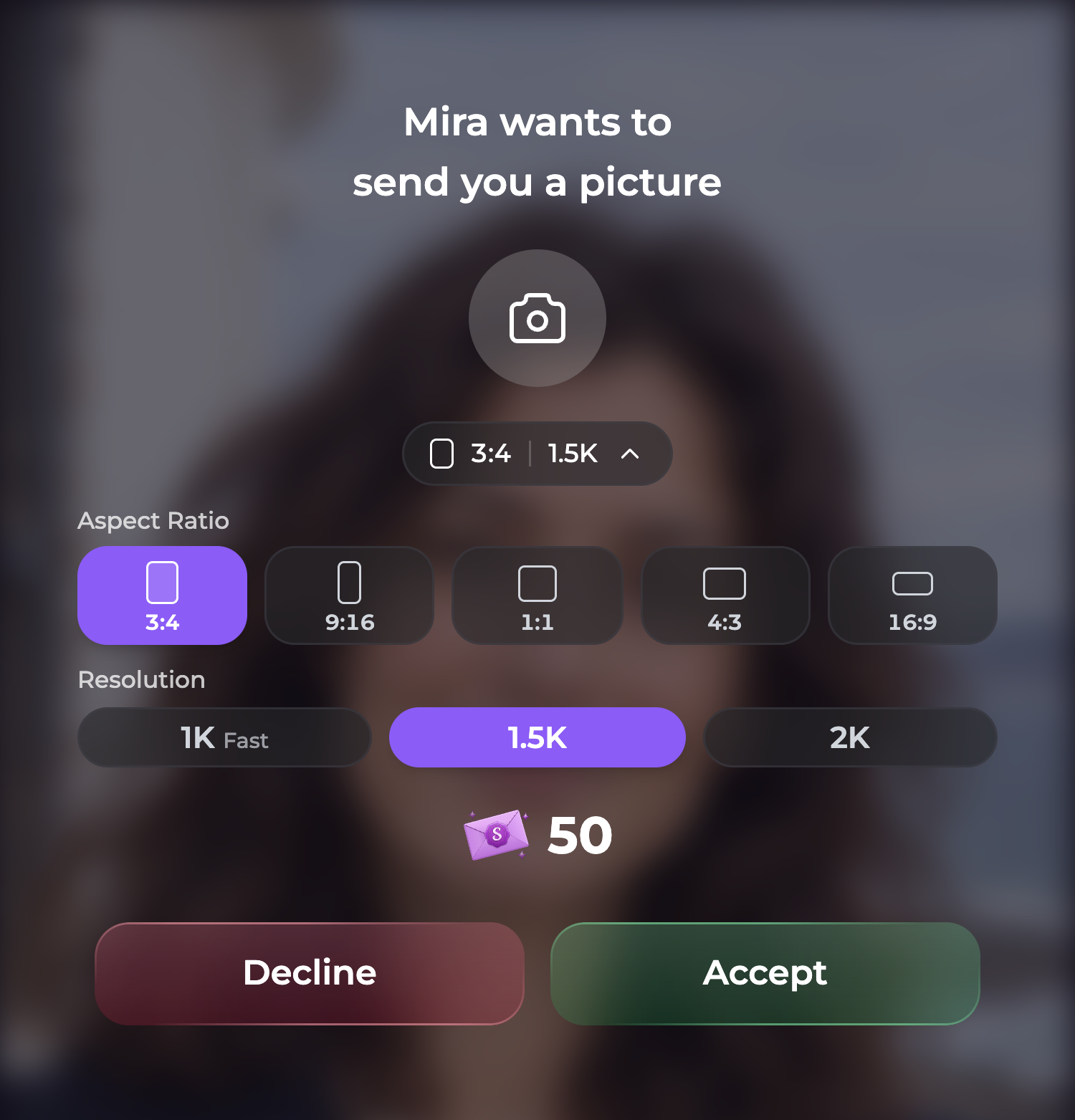
3. Review the offered photo and its Moments cost. Where available, choose **Premium** or **Advanced**; some companions use Advanced only.
4. For an Advanced photo, expand the size control if you want a different aspect ratio or resolution for this picture.
5. Accept the request to generate it.

<figure><img src="https://3286776735-files.gitbook.io/~/files/v0/b/gitbook-x-prod.appspot.com/o/spaces%2F9ACKOAU4nFWSXPeE2B4s%2Fuploads%2Fgit-blob-71013dfe6130f05e41312053b136258eda734161%2Fchat-photo-offer.png?alt=media" alt="An Advanced chat photo offer with the size picker expanded, a 50-Moment total, and Accept and Decline actions." width="500"><figcaption><p>Expand the size summary to choose the shape and resolution for this photo before accepting.</p></figcaption></figure>

The **instant image button** uses the current conversation too. Check its confirmation and displayed price before generating.

## Set the default size for this chat

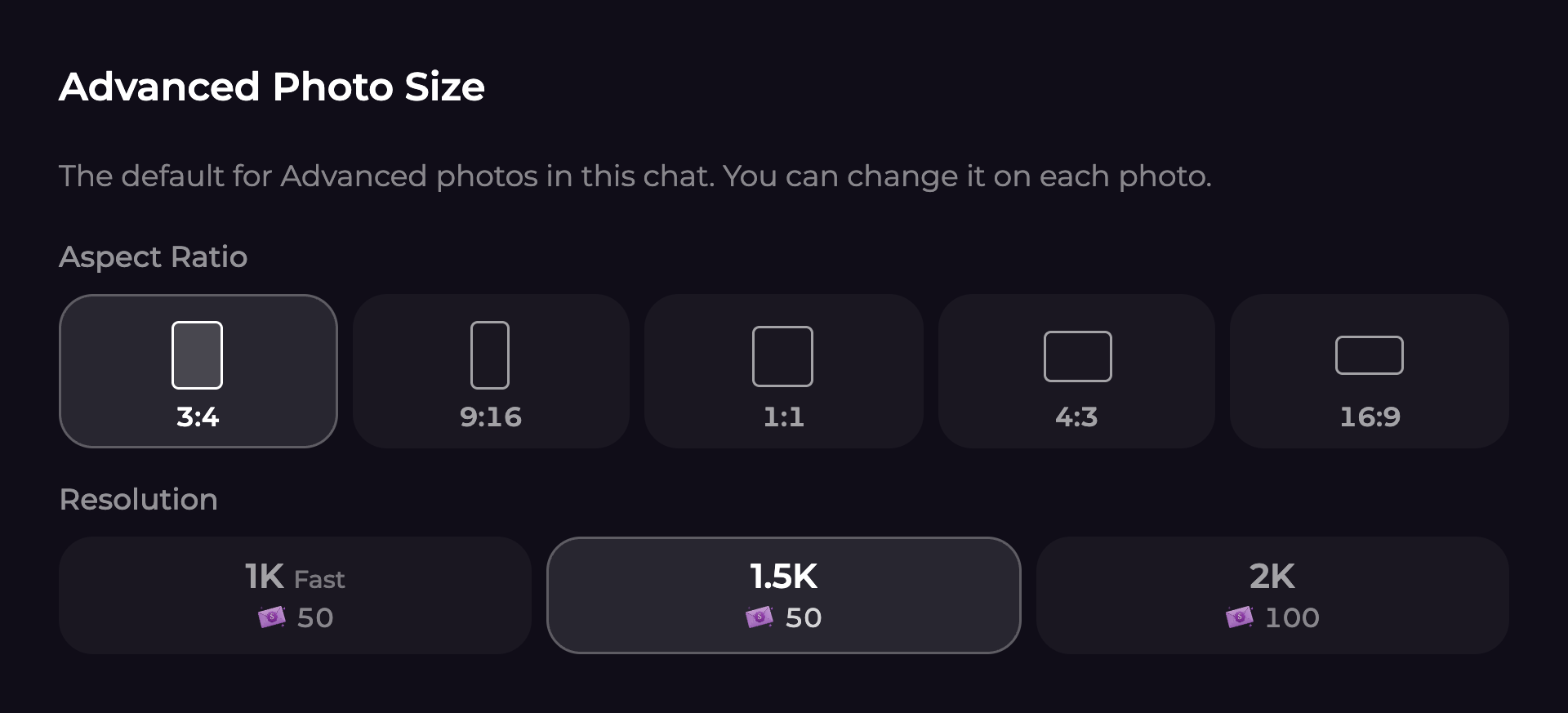
In a one-to-one chat, open **Chat Settings → Advanced Photo Size**. Choose the aspect ratio and resolution, then select **Save** or **Save Changes**. The starting default is **3:4 at 1.5K**.

<figure><img src="https://3286776735-files.gitbook.io/~/files/v0/b/gitbook-x-prod.appspot.com/o/spaces%2F9ACKOAU4nFWSXPeE2B4s%2Fuploads%2Fgit-blob-3ba8e13dacb30eaed49b92ab3af156ff2be525aa%2Fchat-photo-size.png?alt=media" alt="Advanced Photo Size settings with five aspect ratios and 1K, 1.5K, and 2K resolution options." width="640"><figcaption><p>Set a default here, or change the size on an individual Advanced photo offer.</p></figcaption></figure>

| Aspect ratio | Useful for                                          |
| ------------ | --------------------------------------------------- |
| **3:4**      | Portraits with room for an outfit and pose          |
| **9:16**     | Tall, phone-shaped compositions                     |
| **1:1**      | Square portraits and balanced scenes                |
| **4:3**      | A wider view of a person and their surroundings     |
| **16:9**     | Landscape scenes with more space around the subject |

| Resolution  | What to expect                    | One companion, without a persona |
| ----------- | --------------------------------- | -------------------------------- |
| **1K Fast** | Faster generation, fewer pixels   | 50 Moments                       |
| **1.5K**    | More detail at the standard price | 50 Moments                       |
| **2K**      | Higher resolution                 | 100 Moments                      |

The saved size applies to subsequent Advanced photos, including instant photos, in that chat. Changing the size on a photo offer applies to **that photo only**. It does not overwrite the chat default or resize an existing image.

These size controls are for **Advanced photos in one-to-one chats**. Premium photos do not offer this picker, and the one-to-one size setting is not a group-chat setting. Always check the displayed total before generating.

## Keep a consistent appearance or allow story changes

Advanced chat photos use reference photos to keep people recognizable. **Lock appearance** controls whether changes from the conversation can alter that referenced look.

| Setting              | How to use it                                                                                                                                                                |
| -------------------- | ---------------------------------------------------------------------------------------------------------------------------------------------------------------------------- |
| **On** — the default | Keep the appearance from the reference photo. Describe the scene, clothing, activity, lighting, and mood in chat.                                                            |
| **Off**              | Allow appearance changes established in the conversation, such as a new hairstyle, glasses, or a tattoo, to show in subsequent photos while retaining the person's identity. |

For example, turn the lock off, establish that your companion has dyed their hair copper, then ask for a photo showing the new hairstyle. Be explicit about who changed and what changed. Generated images can still vary, so review the result.

### Change one conversation

Open **Chat Settings → Lock appearance**, switch it on or off, then select **Save** or **Save Changes**. Use this when one story should allow changes while your other chats keep their usual behavior.

### Change the account default

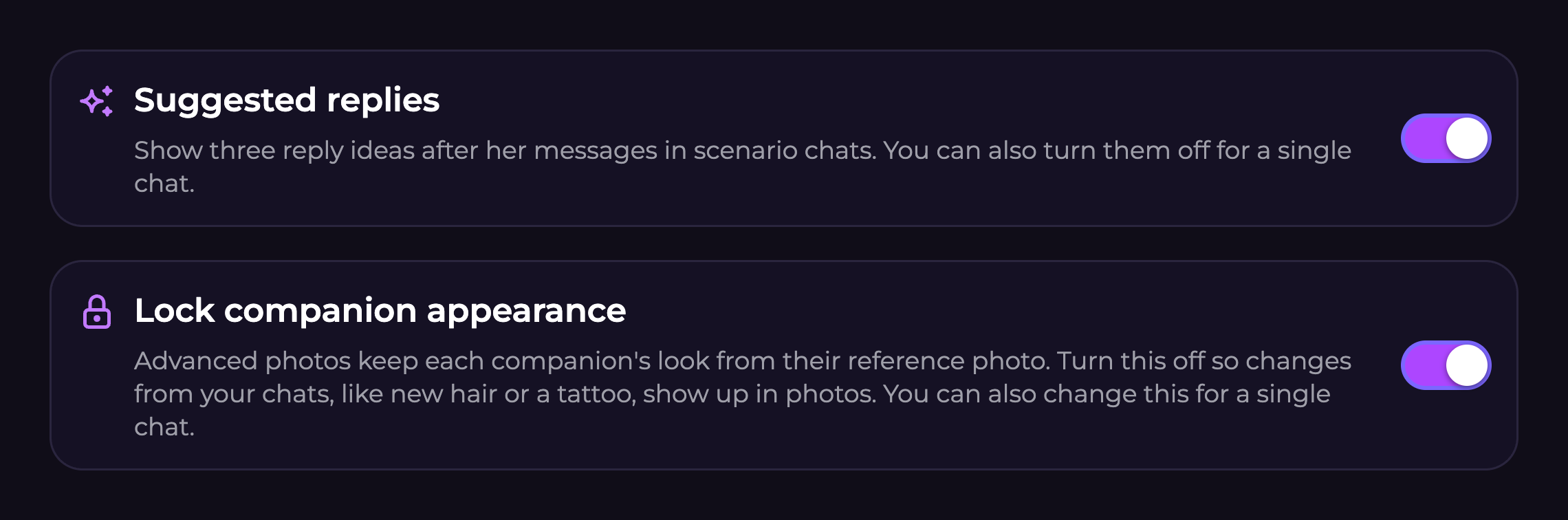
Open **User Settings → Companion Preferences → Lock companion appearance**. This switch saves automatically. Chats without their own saved override follow it, including existing chats. A chat where you saved a different lock setting keeps that choice.

<figure><img src="https://3286776735-files.gitbook.io/~/files/v0/b/gitbook-x-prod.appspot.com/o/spaces%2F9ACKOAU4nFWSXPeE2B4s%2Fuploads%2Fgit-blob-ff71cacc305420e49b8dc7f68cd6cdf8a629cdcf%2Fcompanion-preferences.png?alt=media" alt="Companion Preferences showing the Suggested replies and Lock companion appearance switches." width="760"><figcaption><p>Lock companion appearance sets the default; each chat can have its own choice.</p></figcaption></figure>

The lock affects reference-based chat photos, including relevant group and persona references. It does not change a companion's saved profile, replace a persona's current photo, or edit pictures already made. To change a permanent reference for your own character, use [Character Studio](/create/custom-characters.md#advanced-image-reference-optional); for yourself, use [Use this photo](/create/persona-photos.md#choose-the-photo-used-in-future-images).

## Include yourself

On **Ultimate**, set the conversation's **Active persona** to a persona with a saved photo, then ask for a scene that includes you. An offered image that uses it shows **Includes your persona photo**. Selecting a persona makes it available when the scene calls for you; it does not place you in every picture.

A one-to-one Advanced chat photo with your persona costs **60 Moments at 1K/1.5K**, or **110 Moments at 2K**. The persona adds 10 Moments to the base photo price. Group-chat costs depend on the people included. Follow [Persona Photos](/create/persona-photos.md#include-yourself-in-chat-photos) for setup and examples.

## Troubleshooting

**I changed the hair in the story, but the picture keeps the old look.** Check **Lock appearance** in this chat. Turn it off, save, and clearly establish the change before requesting another photo.

**I changed my account default, but one chat behaves differently.** It may have its own saved lock setting. Open that conversation's settings to check it.

**I cannot find the size controls.** Check that you're in a one-to-one chat and using Advanced image mode. Expand the size summary on an offered Advanced photo, or use Advanced Photo Size in chat settings.

**I want all future photos in this conversation to be landscape.** Save **16:9** in the chat's Advanced Photo Size settings. Changing it on a single offer affects only that image.

**I selected a persona, but the image does not include me.** Check the chat's Active persona and its saved photo, then ask explicitly for a photo together. **None** does not fall back to your account's default persona.

For generation failures and safety-check notices, see [Image Generation troubleshooting](/create/image-generation.md#troubleshooting-image-generation).