> For the complete documentation index, see [llms.txt](https://wiki.secrets.ai/llms.txt). Markdown versions of documentation pages are available by appending `.md` to page URLs; this page is available as [Markdown](https://wiki.secrets.ai/create/chat-photos.md).

# Chat Photos

Request photos from your conversations, choose Ultra, Advanced, or Premium, pick their shape and resolution, and control whether appearance changes in the story carry into reference-based photos.

Chat photos turn the current conversation into an image. Ask your companion for a picture, or use the **instant image button** to visualize the moment. Describe who should appear, what they are doing, and the setting.

For a prompt you want to write directly, use the [Generation Studio](https://wiki.secrets.ai/create/image-generation.md#the-generation-studio). Chat photo settings apply to photos created from the conversation.

{% hint style="success" %}
**New chats start on Ultra at 2K**, our most realistic image model with the strongest character consistency. In an older chat, the first instant photo asks once whether to switch that chat to Ultra. See [Ultra Image Model](https://wiki.secrets.ai/create/ultra-image-model.md#use-ultra-in-chat).
{% endhint %}

## Request a photo

1. Establish the scene in chat: the place, people, clothing, and activity.
2. Ask for a photo, such as “Send a photo of yourself beside the lighthouse, holding the map in the morning light.”
3. Find the photo offer below your companion's reply and review its Moments cost. Choose **Premium**, **Advanced**, or **Ultra** where offered; some companions offer Advanced and Ultra only. In a chat set to Ultra, the offer starts on Ultra.
4. For an Advanced or Ultra photo, select a shape in the **top row** and a resolution in the row below it: **1K Fast**, **1.5K**, or **2K**. There are eight shapes, from tall 9:16 to wide 21:9 (Cinematic). The selected options are highlighted in purple, and the price updates with your choice.
5. Accept the request to generate it.

<figure><img src="https://3286776735-files.gitbook.io/~/files/v0/b/gitbook-x-prod.appspot.com/o/spaces%2F9ACKOAU4nFWSXPeE2B4s%2Fuploads%2Fgit-blob-0bb85b9675200da3714199d049eff72cb2a0e088%2Fchat-photo.webp?alt=media" alt="Advanced chat photo offer with all five shapes, three resolution options, a 50-Moment total, and Accept and Decline." width="320"><figcaption><p>Choose the shape and quality directly on the offer, then review the price before accepting.</p></figcaption></figure>

After you accept, the generation placeholder uses your chosen shape, and the finished photo appears in its place. Newly generated chat photos also appear in **Shared media** without reopening the chat.

The **instant image button** uses the current conversation too. Check its confirmation and displayed price before generating.

### Switch a chat to Ultra

The first time you use the instant image button in a chat that isn't on Ultra, you are asked once whether to switch. **Switch to Ultra** saves the chat on Ultra at 2K and generates the photo; **Keep current model** generates it as before. Both show their price.

To change it at any time, open **Chat Settings → Instant Image Mode** and choose **Ultra**, **Advanced**, or **Premium** where offered, then save.

## Set the default size for this chat

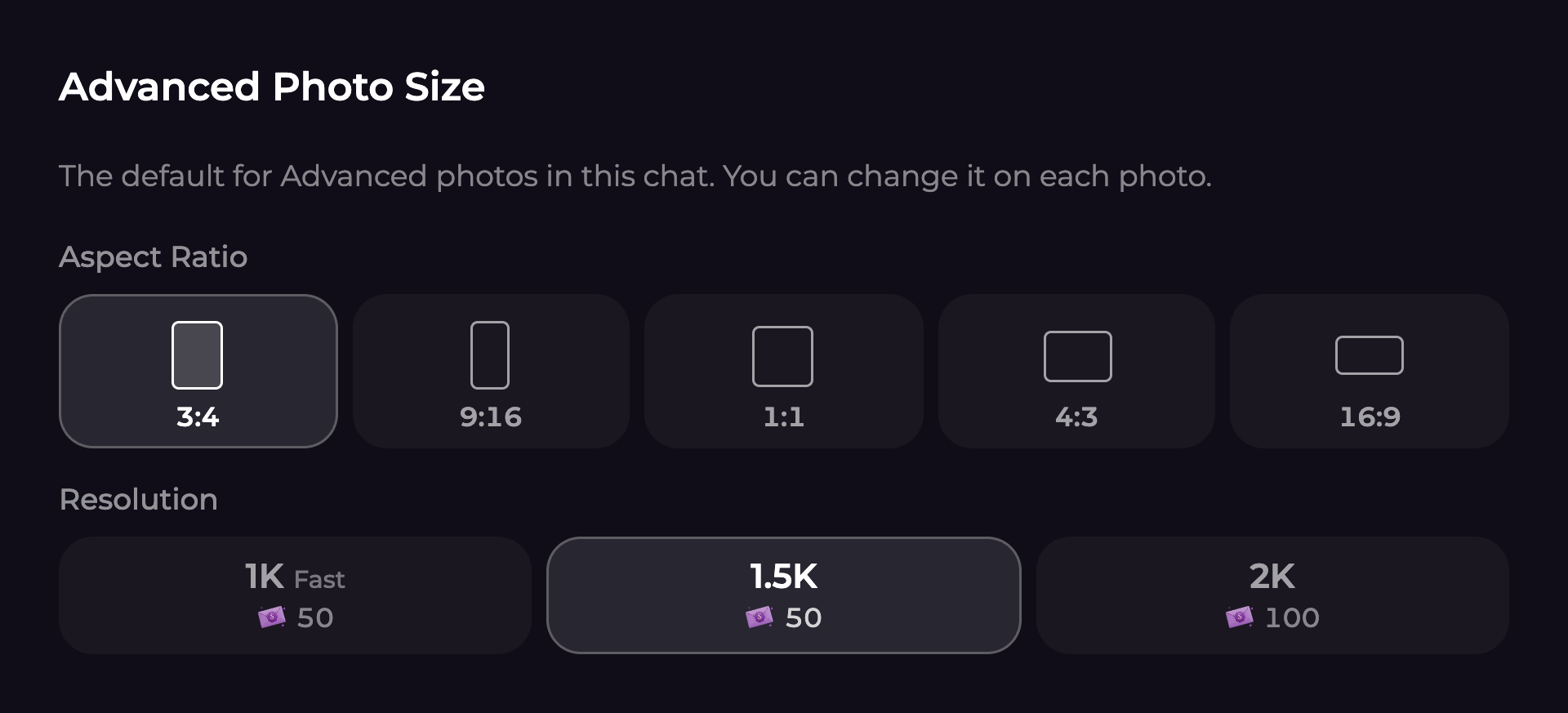
In a one-to-one chat, open **Chat Settings → Advanced Photo Size**. Choose the aspect ratio and resolution, then select **Save** or **Save Changes**. New chats start at **3:4 on Ultra at 2K**; older Advanced chats start at **3:4 at 1.5K**.

Ultra offers **1K Fast**, **1.5K**, and **2K**. Switching a 1.5K chat to Ultra starts it on 2K; pick 1.5K while Ultra is selected to use it.

<figure><img src="https://3286776735-files.gitbook.io/~/files/v0/b/gitbook-x-prod.appspot.com/o/spaces%2F9ACKOAU4nFWSXPeE2B4s%2Fuploads%2Fgit-blob-3ba8e13dacb30eaed49b92ab3af156ff2be525aa%2Fchat-photo-size.png?alt=media" alt="Advanced Photo Size settings with five aspect ratios and 1K, 1.5K, and 2K resolution options." width="640"><figcaption><p>Set a default here, or change the size on an individual Advanced photo offer.</p></figcaption></figure>

| Aspect ratio             | Useful for                                          |
| ------------------------ | --------------------------------------------------- |
| **9:16**                 | Tall, phone-shaped compositions                     |
| **2:3** (Photo Portrait) | Classic portrait photos                             |
| **3:4**                  | Portraits with room for an outfit and pose          |
| **1:1**                  | Square portraits and balanced scenes                |
| **4:3**                  | A wider view of a person and their surroundings     |
| **3:2** (Photo)          | Classic landscape photos                            |
| **16:9**                 | Landscape scenes with more space around the subject |
| **21:9** (Cinematic)     | Wide, movie-style scenes                            |

| Resolution  | What to expect                       | One companion, without a persona            |
| ----------- | ------------------------------------ | ------------------------------------------- |
| **1K Fast** | Faster generation, fewer pixels      | 50 Moments                                  |
| **1.5K**    | More detail                          | 50 Moments (Advanced) or 75 Moments (Ultra) |
| **2K**      | Higher resolution; the Ultra default | 100 Moments                                 |

The saved size applies to subsequent Advanced and Ultra photos, including instant photos, in that chat. Changing the size on a photo offer applies to **that photo only**. It does not overwrite the chat default or resize an existing image.

These size controls are for **Advanced and Ultra photos in one-to-one chats**. Premium photos do not offer this picker, and the one-to-one size setting is not a group-chat setting. Always check the displayed total before generating.

## Keep a consistent appearance or allow story changes

Advanced chat photos use reference photos to keep people recognizable. **Lock appearance** controls whether changes from the conversation can alter that referenced look.

| Setting              | How to use it                                                                                                                                                                |
| -------------------- | ---------------------------------------------------------------------------------------------------------------------------------------------------------------------------- |
| **On** — the default | Keep the appearance from the reference photo. Describe the scene, clothing, activity, lighting, and mood in chat.                                                            |
| **Off**              | Allow appearance changes established in the conversation, such as a new hairstyle, glasses, or a tattoo, to show in subsequent photos while retaining the person's identity. |

For example, turn the lock off, establish that your companion has dyed their hair copper, then ask for a photo showing the new hairstyle. Be explicit about who changed and what changed. Generated images can still vary, so review the result.

### Change one conversation

Open **Chat Settings → Lock appearance**, switch it on or off, then select **Save** or **Save Changes**. Use this when one story should allow changes while your other chats keep their usual behavior.

### Change the account default

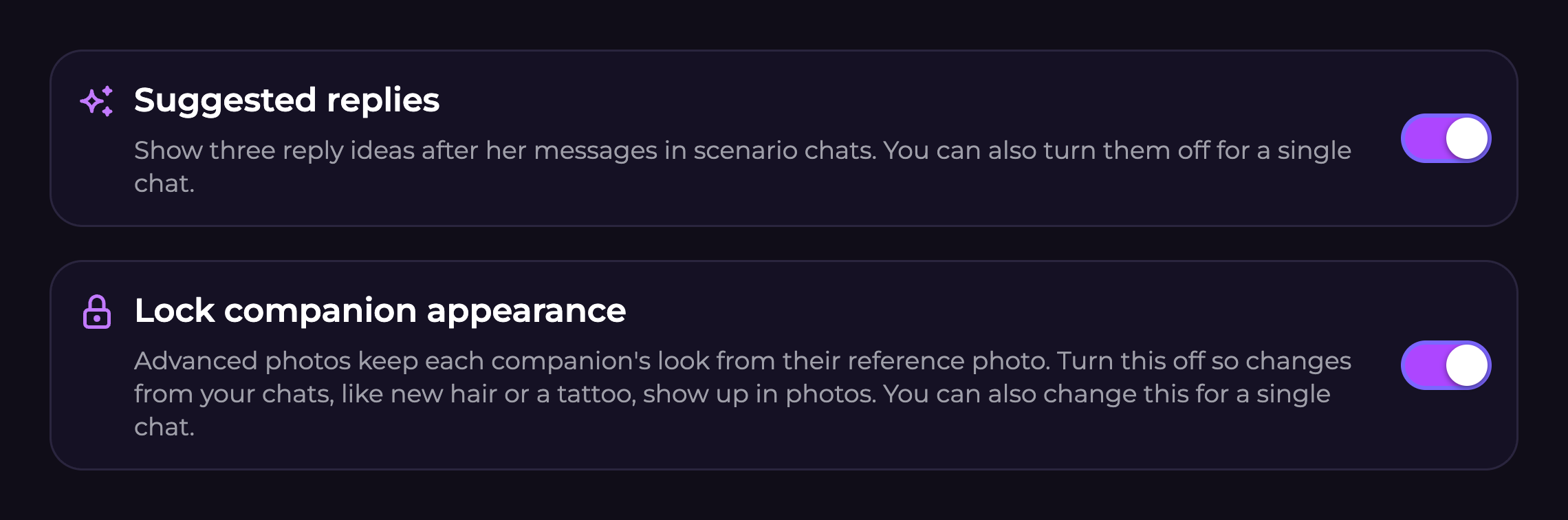
Open **User Settings → Companion Preferences → Lock companion appearance**. This switch saves automatically. Chats without their own saved override follow it, including existing chats. A chat where you saved a different lock setting keeps that choice.

<figure><img src="https://3286776735-files.gitbook.io/~/files/v0/b/gitbook-x-prod.appspot.com/o/spaces%2F9ACKOAU4nFWSXPeE2B4s%2Fuploads%2Fgit-blob-ff71cacc305420e49b8dc7f68cd6cdf8a629cdcf%2Fcompanion-preferences.png?alt=media" alt="Companion Preferences showing the Suggested replies and Lock companion appearance switches." width="760"><figcaption><p>Lock companion appearance sets the default; each chat can have its own choice.</p></figcaption></figure>

The lock affects reference-based chat photos, including relevant group and persona references. It does not change a companion's saved profile, replace a persona's current photo, or edit pictures already made. To change a permanent reference for your own character, use [Character Studio](https://wiki.secrets.ai/create/custom-characters.md#advanced-image-reference-optional); for yourself, use [Use this photo](https://wiki.secrets.ai/create/persona-photos.md#choose-the-photo-used-in-future-images).

## Include yourself

On **Ultimate**, set the conversation's **Active persona** to a persona with a saved photo, then ask for a scene that includes you. An offered image that uses it shows **Includes your persona photo**. Selecting a persona makes it available when the scene calls for you; it does not place you in every picture.

A one-to-one Advanced or Ultra chat photo with your persona costs **60 Moments at 1K** (or Advanced 1.5K), **85 Moments at Ultra 1.5K**, or **110 Moments at 2K**. The persona adds 10 Moments to the base photo price. Group-chat costs depend on the people included. Follow [Persona Photos](https://wiki.secrets.ai/create/persona-photos.md#include-yourself-in-chat-photos) for setup and examples.

## Open, edit, or animate a chat photo

Select a photo in the conversation or **Shared media** to open **Image Preview**. It brings the photo, available prompt and details, and actions together. Use **Download** to save it, **Edit Image** for a specific change, or **Create Video** to animate it. Public images can also show a share link.

**Edit Image** opens the same compact editor used in Studio. Edits run on Ultra, so the photo stays sharp across repeated edits. Describe the change in up to **800 characters**, keep anything important in your instructions, choose **1K Fast** (50 Moments), **1.5K** (75 Moments), or **2K** (100 Moments), and review the price before selecting **Generate**. See [Image Editing](https://wiki.secrets.ai/create/image-editing.md) for examples.

### Make a video without leaving chat

1. Open a photo from the current conversation and choose **Create Video**.
2. Describe the movement and choose the video model, resolution, and duration. The form uses the same **Frames / References** controls as Studio, where supported by the model. When opened from a chat message, the starting photo stays fixed to that message.
3. Review the total on **Generate** and submit. You can keep chatting while the video renders.
4. Watch for a video placeholder in the conversation. When it finishes, select its **play button** to watch directly in chat. Select elsewhere on the clip to open **Video Preview** and its available actions.

<figure><img src="https://3286776735-files.gitbook.io/~/files/v0/b/gitbook-x-prod.appspot.com/o/spaces%2F9ACKOAU4nFWSXPeE2B4s%2Fuploads%2Fgit-blob-cf83c2e3d6d7951096e1b7ca35157284d90df765%2Fchat-video.webp?alt=media" alt="A completed chat video with a central play button over a cafe portrait." width="348"><figcaption><p>The play button starts the clip in the conversation; selecting elsewhere opens its preview.</p></figcaption></figure>

The video also appears in your generation gallery. In a group chat, it appears under the companion who sent the original photo. If you reload during generation, the placeholder can continue showing progress. Wait for a video from the same photo to finish before starting another from it.

**Shared media currently lists photos.** Find these videos in the conversation or Studio's **Videos / All** gallery. Videos started independently in Studio appear in the gallery. Follow [Video Generation](https://wiki.secrets.ai/create/video-generation.md#make-a-video-from-a-chat-photo) for model choices and more detail.

Deleting a generated video also removes its linked video message. Deleting its source photo removes the videos made from that photo too, so download anything you want to keep before confirming deletion.

## Troubleshooting

**I changed the hair in the story, but the picture keeps the old look.** Check **Lock appearance** in this chat. Turn it off, save, and clearly establish the change before requesting another photo.

**I changed my account default, but one chat behaves differently.** It may have its own saved lock setting. Open that conversation's settings to check it.

**I cannot find the size controls.** Check that you're in a one-to-one chat and using Advanced or Ultra. Use the two rows of choices on an offered Advanced photo, or use Advanced Photo Size in chat settings.

**I want all future photos in this conversation to be landscape.** Save **16:9** in the chat's Advanced Photo Size settings. Changing it on a single offer affects only that image.

**I selected a persona, but the image does not include me.** Check the chat's Active persona and its saved photo, then ask explicitly for a photo together. **None** does not fall back to your account's default persona.

For generation failures and safety-check notices, see [Image Generation troubleshooting](https://wiki.secrets.ai/create/image-generation.md#troubleshooting-image-generation).