> For the complete documentation index, see [llms.txt](https://wiki.secrets.ai/llms.txt). Markdown versions of documentation pages are available by appending `.md` to page URLs; this page is available as [Markdown](https://wiki.secrets.ai/create/image-editing.md).
# Image Editing
Refine your generated images with precise text instructions.
On **Ultimate**, you can also edit your persona photos directly in Studio: open a photo’s **More actions → Edit photo**. Follow [Edit an existing persona photo](/create/persona-photos.md#edit-an-existing-persona-photo) for the steps and how to make the result your current reference.
### What is Image Editing?
Image editing allows you to modify an existing generated image using a text prompt. Instead of generating a completely new image from scratch, you can keep the parts you like and change specific details.
{% hint style="info" %}
Edits cost **50 moments** per edit.
{% endhint %}
### How to Edit an Image
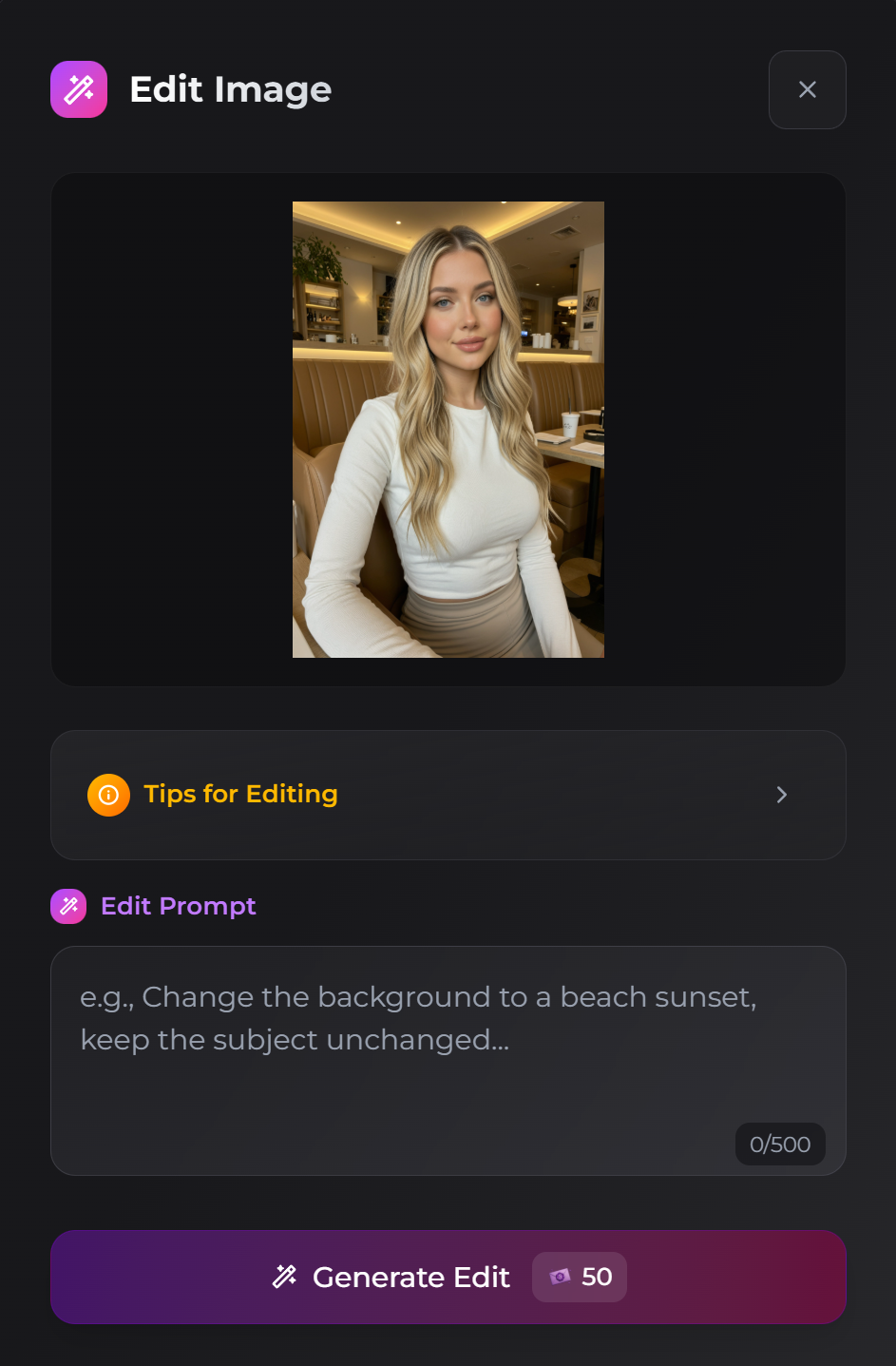
1. **Select an Image:** Choose which image on the generate page.
2. **Click Edit:** Click the **Edit** (wand icon) button.
3. **Enter Instructions:** Describe exactly what you want to change in the text box.
4. **Generate:** Click **Generate Edit** to create a new version of the image.
### Prompting Guide
For the best results, your instructions should be clear, unambiguous, and focused on the specific change.
#### 1. Be Clear and Specific
Name the exact element you want to change and state the operation clearly. Avoid vague pronouns like "it" or "that one."
* **Do:** "Add matching silver earrings and a necklace."
* **Do:** "Remove the hat."
* **Do:** "Replace the bread with a croissant."
* **Avoid:** "Change that thing to something else."
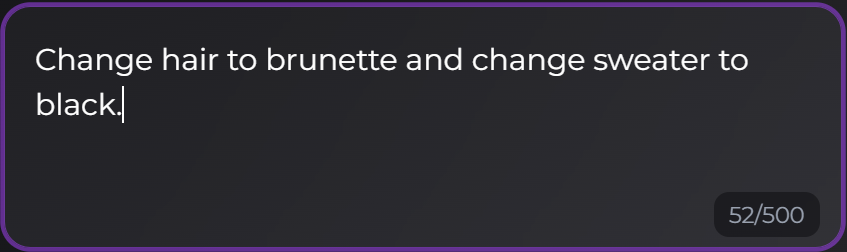
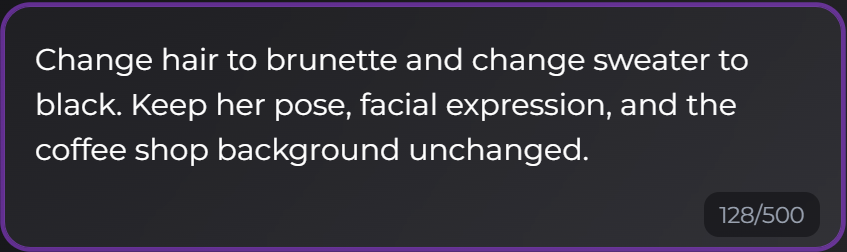
#### 2. "Lock" What Should Stay the Same
To prevent accidental changes to the rest of the image, explicitly state what should remain untouched.
* "Keep the pose unchanged."
* "Keep facial expression unchanged."
* "Keep the background unchanged."
* "Preserve the original lighting and composition."
#### 3. Use a Structured Format
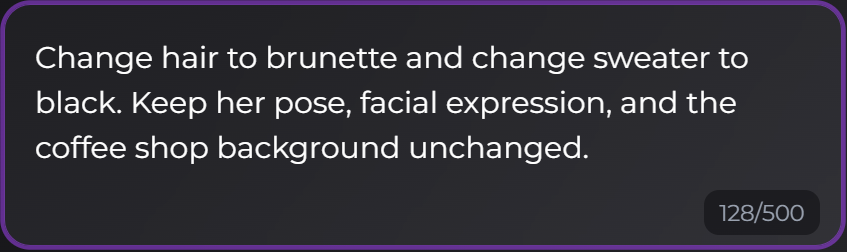
A simple structure often works best: **\[Operation] + \[Target] + \[Change Details] + \[Constraints]**
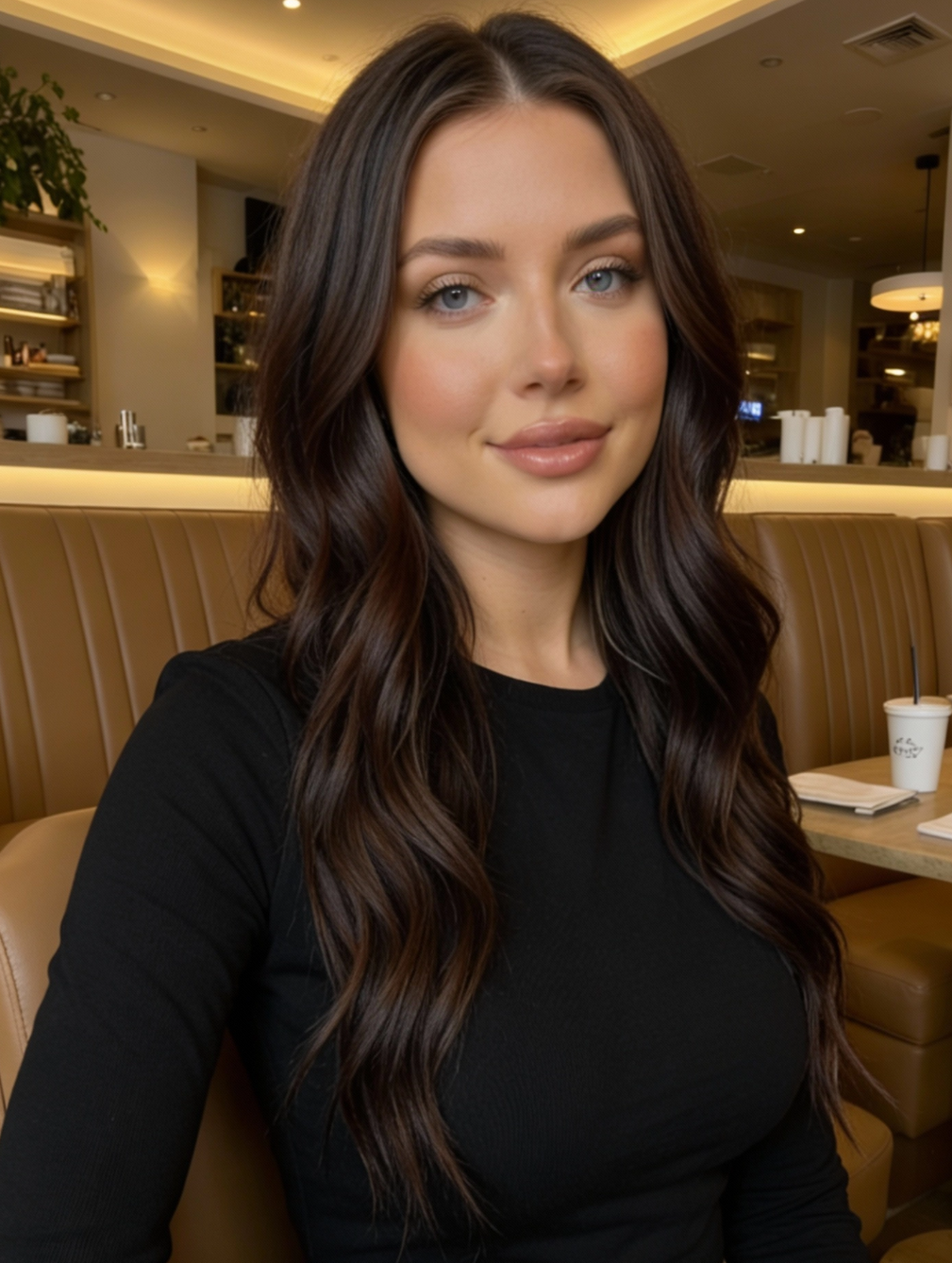
* **Example:** "Replace the red dress with a blue summer dress, matching the fabric style, keeping her pose and the beach background unchanged."
{% columns %}
{% column %}
{% endcolumn %}
{% column %}
{% endcolumn %}
{% endcolumns %}
#### 4. Common Operations & Templates
**Add an Item**
* Add **sunglasses** to **the woman**, matching **the modern style**, consistent with existing lighting. Keep **her expression and the background** unchanged.
**Remove an Item**
* Remove **the hat** from the image. Fill the area naturally to match the surrounding **hair texture**. Keep everything else unchanged.
**Replace an Object**
* Replace **the coffee cup** with **a wine glass**, keeping her **hand position** unchanged. Match the original **evening lighting**.
**Modify Attributes (Color/Material)**
* Change **the dress** to **red silk**. Keep **the jewelry and shoes** unchanged.
### Frequently Asked Questions
**Q: Can I edit an image multiple times?**
* Yes. You can edit an edited image again to refine details or add more changes. Each edit costs 50 moments.
**Q: Why did my edit change the whole image?**
* If the edit changed too much, try being more specific about what *not* to change. Adding "Keep the background and pose unchanged" to your prompt helps "lock" those elements.
**Q: Can I use editing to change the character's identity?**
* Sometimes, but results vary.
* Editing works best for outfits, backgrounds, and small details.
* If you want a different person, start with a fresh generation.
**Q: My edit was stopped by a safety check. What now?**
* Edit instructions and edited results go through the same safety checks as image generation. The notice names what was flagged, for example a real person's likeness or an instruction the safety check couldn't approve, so you can adjust your wording. Edits stopped before generation aren't charged. See [Safety Check Messages](/create/image-generation.md#safety-check-messages).
***
Next steps: See [Image Generation](/create/image-generation.md) and [Moments & Payments](/extra/moments-and-payments.md).