> For the complete documentation index, see [llms.txt](https://wiki.secrets.ai/llms.txt). Markdown versions of documentation pages are available by appending `.md` to page URLs; this page is available as [Markdown](https://wiki.secrets.ai/create/persona-photos.md).

# Persona Photos

Generate photos of your persona, choose your reference photo, and include yourself in companion images.

{% hint style="info" %}
**Ultimate exclusive.** Personas and all persona photo features are available to every Ultimate subscriber. Free and Premium plans do not include personas or persona photos.
{% endhint %}

Your persona photo gives image generation a visual reference for **you**. Create solo portraits, put yourself in a scene with companions, and choose which saved photo guides your appearance in future images.

### Before you start

You need an **Ultimate** subscription and a [persona with a saved appearance photo](/get-started/personas.md#create-your-appearance). A name and backstory alone are not enough: image pickers only list personas that have a photo.

There are three ways to use persona photos:

| What you want to make                            | Where to go                   | Which persona is used                                              |
| ------------------------------------------------ | ----------------------------- | ------------------------------------------------------------------ |
| A photo of just you                              | **Generate → Images → Solo**  | The persona selected under **Your personas** in the subject picker |
| A photo of you with companions                   | **Generate → Images → Group** | The persona selected under **You in the photo**                    |
| A photo from your conversation that includes you | Your private or group chat    | That conversation's **Active persona**                             |

Choosing a persona in Studio does not change the active persona in your chats.

### Generate photos of just you

1. Open **Personas** and select **Photos** on your persona's card, or **More actions → Open photo studio**. You can also open **Generate → Images** and choose the persona under **Your personas** in the subject picker.
2. Keep **Solo** selected. The form says **Photos of just you**.
3. If you have several saved photos, choose the look to copy under **Based on**. It starts with your current persona photo.
4. Choose **1, 2, 4, or 8** photos.
5. Describe the outfit, pose, setting, lighting, and mood. You have up to **2,000 characters**.
6. Optionally add reference photos for outfit, pose, or scene guidance, then choose the aspect ratio and resolution.
7. Check the total Moments cost, then select **Generate photo** or the batch button.
8. Review the results in **Persona photos**. To make a result your new reference, select **Use this photo**.

**Choose photo → Generate new photos** also opens Studio with that persona selected.

<figure><img src="https://3286776735-files.gitbook.io/~/files/v0/b/gitbook-x-prod.appspot.com/o/spaces%2F9ACKOAU4nFWSXPeE2B4s%2Fuploads%2Fgit-blob-06e66dcc313eae4690dc9207e05ddda895b5c0ce%2Fpersona-studio.png?alt=media" alt="Persona photo form with Based on photos, counts of 1, 2, 4, or 8, a scene prompt, reference photos, and size settings." width="550"><figcaption><p>Choose the base look, describe the scene, and check the total before generating.</p></figcaption></figure>

**Generating a photo does not automatically make it your current photo.** You can try different scenes and compare results before choosing a new reference.

#### Write a useful prompt

Your selected **Based on** photo supplies your appearance. If you have not picked another base, this is your **current persona photo**. Use the prompt to describe what you are doing and where you are, rather than repeating your face, hair, or body details.

For example:

> Standing by the lighthouse in a forest green raincoat and cream scarf, holding a folded map. Soft morning light, relaxed smile, full-length portrait.

Or:

> Sitting beside a café window with a sketchbook and a cup of tea. Navy sweater, relaxed pose, soft afternoon light, waist-up portrait.

If another saved photo has the look you want, select it under **Based on**, or choose **Base new photos on this** from its photo menu. This changes the source for new Studio photos without changing your current persona photo in chats.

#### Add reference photos

Under **Reference photos**, select **Add** and choose up to **four** images from the available gallery. Use them to guide an outfit, pose, or setting. Refer to them in the prompt as **Image 1**, **Image 2**, and so on, matching their order in the picker.

For example:

> Wearing the green coat from Image 1, seated at a cafe table like Image 2, holding a folded map and smiling toward the camera.

Your **Based on** photo supplies the persona's likeness. Additional references supply the details you ask to borrow. Remove an unwanted reference with its **×** control. Each selected reference adds **10 Moments per generated photo**, so the extra cost also increases with the batch count.

#### Edit an existing persona photo

1. In Studio's **Persona photos** gallery, open a photo's **More actions** menu and choose **Edit photo**.
2. Describe only what should change. The edit prompt allows up to **800 characters**.
3. Check the price and choose **Generate Edit**. A persona photo edit costs **50 Moments**.
4. Review the new result. Select **Use this photo** only if you want it to become your current persona reference.

<figure><img src="https://3286776735-files.gitbook.io/~/files/v0/b/gitbook-x-prod.appspot.com/o/spaces%2F9ACKOAU4nFWSXPeE2B4s%2Fuploads%2Fgit-blob-6c6b2d1f82dadb71505bf28e063343b2a1490e23%2Fpersona-photo-edit.png?alt=media" alt="Edit Image dialog with a persona photo, an instruction to change the coat, and Generate Edit for 50 Moments." width="512"><figcaption><p>Use editing for a specific change to an existing photo; use the main form for a new scene.</p></figcaption></figure>

The photo menu also offers **Base new photos on this**, **Reuse prompt**, and **Download**. Reusing a prompt fills the main form so you can revise it before generating; it does not automatically start a generation.

#### Choose the shape and resolution

| Setting       | When to use it                                             |
| ------------- | ---------------------------------------------------------- |
| **1:1**       | Square portraits or balanced compositions                  |
| **16:9**      | Wide scenes with more of the surroundings                  |
| **9:16**      | Tall portraits                                             |
| **4:3**       | A slightly wider scene                                     |
| **3:4**       | A portrait with room for your outfit and pose; the default |
| **1K (Fast)** | Faster results at the same price as 1.5K                   |
| **1.5K**      | More detail at the standard price; the default             |
| **2K**        | Higher resolution at double the per-photo price            |

**4K** is shown as coming soon and cannot currently be selected. Persona solo photos are part of **Images**; this guide does not describe persona video generation.

### Choose the photo used in future images

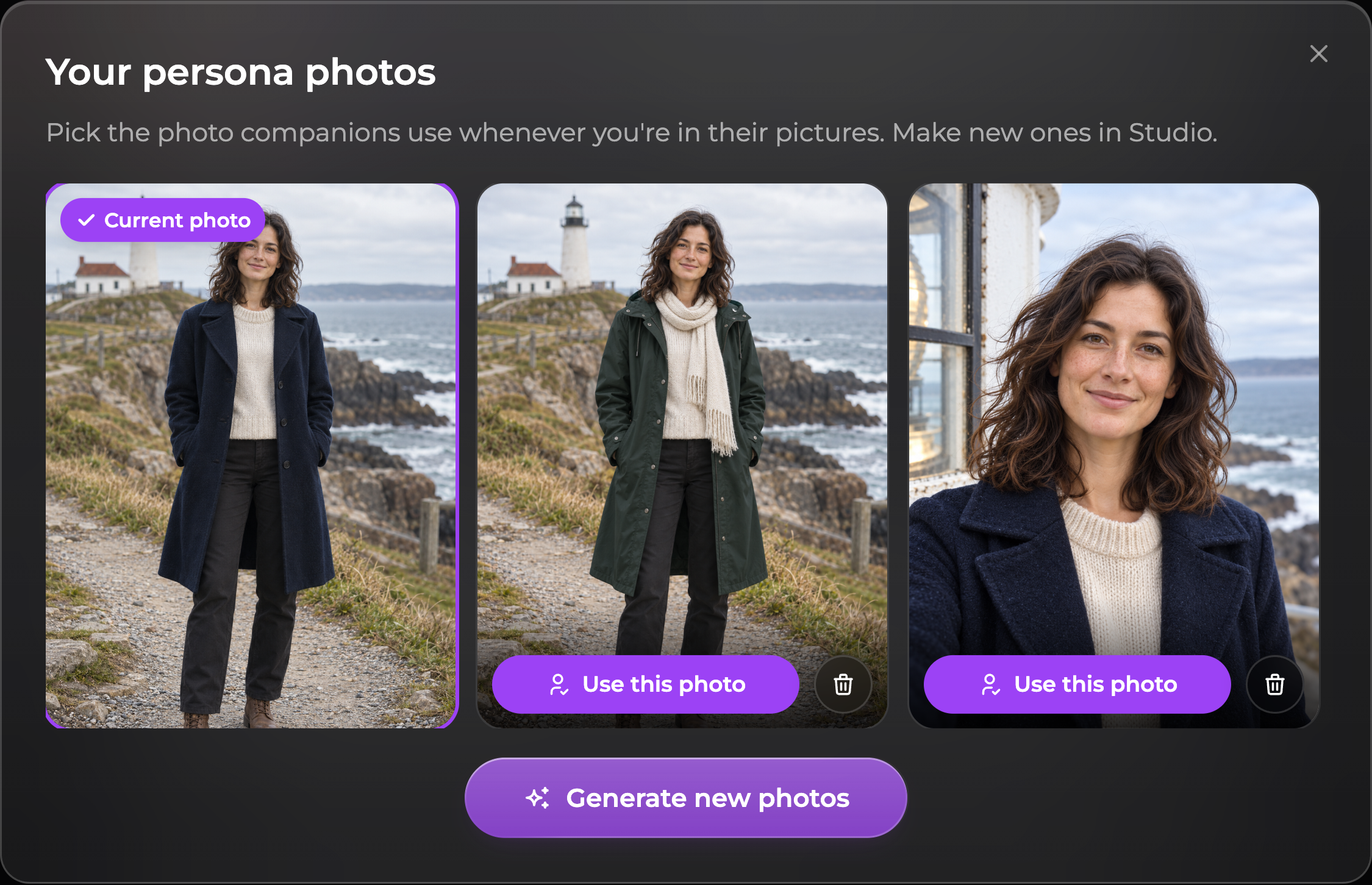
Open your persona's **Choose photo** control, either beside its details or in its **More actions** menu. The **Your persona photos** window shows that persona's saved photos.

<figure><img src="https://3286776735-files.gitbook.io/~/files/v0/b/gitbook-x-prod.appspot.com/o/spaces%2F9ACKOAU4nFWSXPeE2B4s%2Fuploads%2Fgit-blob-0d91e148355ef6323144078e8e50ef73cac1922e%2F05-choose-persona-photo.png?alt=media" alt="The Your persona photos window showing three photos of Mira Vale, with Current photo on the saved reference and Use this photo on another portrait."><figcaption><p>Current photo marks the reference in use. Choose another with Use this photo.</p></figcaption></figure>

* **View a photo:** select the image to open a larger preview.
* **Change your reference:** select **Use this photo** on another result or in its preview. On desktop, hover over a tile to reveal its actions.
* **Make more photos:** select **Generate new photos** to open Studio.
* **Delete an unwanted photo:** use its trash button and confirm **Delete**. You cannot delete the **Current photo**; choose another reference first.

You can also use **Use this photo** in Studio's persona gallery. Photos are kept with the persona they belong to, so switch personas to work on a different identity.

Changing the current photo affects future images that use this persona, including chats where it is active. It does not edit images you already generated or change your persona's name, backstory, or preferences.

For a useful reference, choose a clear photo where your face is visible. If you care about full-body consistency, choose one that shows more of your body. A reference helps maintain likeness, but generated results can still vary.

### Include yourself in a Studio group photo

1. Open **Generate → Images** and select **Group**.
2. Choose **one or two companions**.
3. Under **You in the photo · +10 Moments**, select the persona you want to include.
4. Write a scene description. Use your persona's name and each companion's name to make their positions, outfits, and actions clear.
5. Choose the aspect ratio and resolution, check the displayed total, and generate the group photo.

For example, with a companion named Alex:

> Mira and Alex stand beside the lighthouse at sunrise. Mira, on the left, wears a green raincoat and holds an unfolded map. Alex, on the right, points toward the harbor. Full-length composition with soft golden light.

A group photo supports **up to three people total**: up to three companions without you, or one/two companions plus your persona. Only one persona can be included. If three companions are already selected, remove one before adding yourself.

Choose **Not included** under **You in the photo** to leave your persona out. When moving from a solo persona photo to **Group**, select yourself in the group's **You in the photo** control as well.

### Include yourself in chat photos

1. Open the companion or group panel from the chat header.
2. Set **Active persona** to the persona whose photo you want to use.
3. Ask for a scene that includes you, for example: “Send a photo of us standing beside the lighthouse, with me holding the map.”
4. If the proposed image includes your persona reference, the request shows **Includes your persona photo**. Review the request and Moments cost before accepting it.

The **instant image button** can also use your active persona's photo when the conversation calls for you to appear. In a group chat, the scene determines which companions and whether your persona are included; everyone in the conversation does not have to appear in every picture.

Selecting a persona does **not** add you to every image. Ask clearly for a photo of you together when that is what you want.

{% hint style="info" %}
**The chat's selection is what matters.** If **Active persona** is **None**, chat photos do not fall back to your account's default persona. Select the persona in that conversation first. If your persona has no saved photo, create one before using it as an image reference.
{% endhint %}

### Moments and costs

The table below shows photo costs before adding optional gallery references. Check the displayed price before generating.

| Photo                       | 1K / 1.5K   | 2K          |
| --------------------------- | ----------- | ----------- |
| Just your persona, 1 photo  | 50 Moments  | 100 Moments |
| Just your persona, 2 photos | 100 Moments | 200 Moments |
| Just your persona, 4 photos | 200 Moments | 400 Moments |
| Just your persona, 8 photos | 400 Moments | 800 Moments |
| Your persona + 1 companion  | 60 Moments  | 110 Moments |
| Your persona + 2 companions | 110 Moments | 210 Moments |

For solo persona photos, each extra gallery reference adds **10 Moments per photo**. For example, four 1.5K photos with two extra references cost **4 × (50 + 20) = 280 Moments**. Choosing a different **Based on** photo does not add a reference surcharge.

For a Studio group photo, each companion costs **50 Moments** at 1K/1.5K or **100 Moments** at 2K. Including your persona adds **10 Moments** to the image, including at 2K. Any extra gallery reference photos you pick add **10 Moments each** on top of these totals.

A one-to-one chat image that includes your persona uses Advanced generation and costs **60 Moments at 1K/1.5K**, or **110 Moments at 2K**. Group chat costs depend on the companions included. See [Chat Photos](/create/chat-photos.md) for size and appearance-lock settings.

The free first appearance and subsequent **150-Moment appearance creations** are described under [Persona appearance creation](/get-started/personas.md#appearance-creation-costs). They are separate from these Studio photo costs.

### Troubleshooting

**I can't see Your personas, Choose photo, or You in the photo.**

Persona photos require **Ultimate**. If you're on Ultimate, check that you're signed in to the correct account, your persona has a saved photo, you're on **Images**, and you're using the correct **Solo** or **Group** form. Free and Premium accounts do not have access to personas or persona photos.

**I generated a new photo, but future images still use my old look.**

Select **Use this photo** on the new result. Creating it alone does not replace the photo marked **Current photo**. In a chat, also check that the correct persona is active.

**I set a default persona, but it wasn't used in my existing chat.**

Open that chat's **Active persona** selector and choose it there. Changing your account default does not update existing conversations.

**My persona is missing from a group image.**

In Studio, check **You in the photo** and the three-person limit. In chat, check your active persona and request a scene that explicitly includes you. An active persona is available for relevant photos, not automatically inserted into every image.

**The image looks different from my persona.**

Check the **Based on** photo for a Studio generation, or the current persona photo for a chat generation, and simplify conflicting appearance instructions. Describe the scene and clothing you want, and use names to separate people in group prompts. Generated images can still vary from their references.

**A photo failed or is still generating.**

Check the notice shown in Studio and your Moments balance. If the photo is still marked as generating, let it finish before starting the same request again. For safety-check notices, follow the displayed guidance and see [Image Generation troubleshooting](/create/image-generation.md#troubleshooting-image-generation).

***

Related guides: [Personas](/get-started/personas.md), [Image Generation](/create/image-generation.md), and [Group Chats](/get-started/group-chats.md).