> For the complete documentation index, see [llms.txt](https://wiki.secrets.ai/llms.txt). Markdown versions of documentation pages are available by appending `.md` to page URLs; this page is available as [Markdown](https://wiki.secrets.ai/create/updating-public-characters.md).

# Updating a Public Character

Edit your own public character in a private draft, test the changes, request team review, and respond to feedback.

You can update a public character you created through **Character Studio → Edit**. Appearance, reference photo, voice, personality, details, and gallery changes are saved to your private draft. Send that draft for review when it is ready; the published character changes for other users after approval.

**Your own chats follow your draft**, so you can try the updated character before requesting approval. Other users continue chatting with the published version. Switching the Studio to **Published** lets you compare the public version; it does not switch your own chats back to it.

To customize someone else's public character, [fork it](/create/custom-characters.md#forking-characters) into your own private copy instead. Update requests are for public characters you own.

## Open the published version or your draft

1. Open your character's **Character Studio**.
2. Select **Published** to see the current public version.
3. Select **Edit**, or **Edit character**, to work on its draft.

<figure><img src="https://3286776735-files.gitbook.io/~/files/v0/b/gitbook-x-prod.appspot.com/o/spaces%2F9ACKOAU4nFWSXPeE2B4s%2Fuploads%2Fgit-blob-8b49e11a1802a9d0f52f50361feab81543cdc347%2Fpublic-edit-entry.png?alt=media" alt="Published character notice explaining that appearance, reference, voice, personality, and details are changed through Edit and review"><figcaption><p>Published shows the public version. Edit opens the draft you can prepare for review.</p></figcaption></figure>

In Edit, use **Appearance**, **Personality**, **Details**, **Gallery**, **Request update**, and **History**. On a phone, some tab names are shortened to **Looks**, **Persona**, and **Request**. Swipe the tab row to reach more tabs. The appearance tools depend on the character version. Use **Appearance** for the Advanced reference photo and **Gallery** for profile, avatar, and gallery selections.

| What you want to change                                 | Where to go                           | When others see it                                                     |
| ------------------------------------------------------- | ------------------------------------- | ---------------------------------------------------------------------- |
| The character's look                                    | **Edit → Appearance**, when available | After the update is approved.                                          |
| Personality                                             | **Edit → Personality**                | After approval. Editing an existing personality requires **Ultimate**. |
| Name, age, location, or profile description             | **Edit → Details**                    | After approval.                                                        |
| Profile photo, avatar, gallery photos, or preview video | **Edit → Gallery**                    | After approval.                                                        |
| Voice                                                   | **Edit → Details**                    | After approval; save the voice selection into the draft.               |
| Advanced image reference photo                          | **Edit → Appearance**                 | After approval; save the reference selection into the draft.           |

## Save the changes you want reviewed

Each editor has its own save or apply action. A generated image, typed description, or selected photo is not automatically a finished draft change.

### Appearance

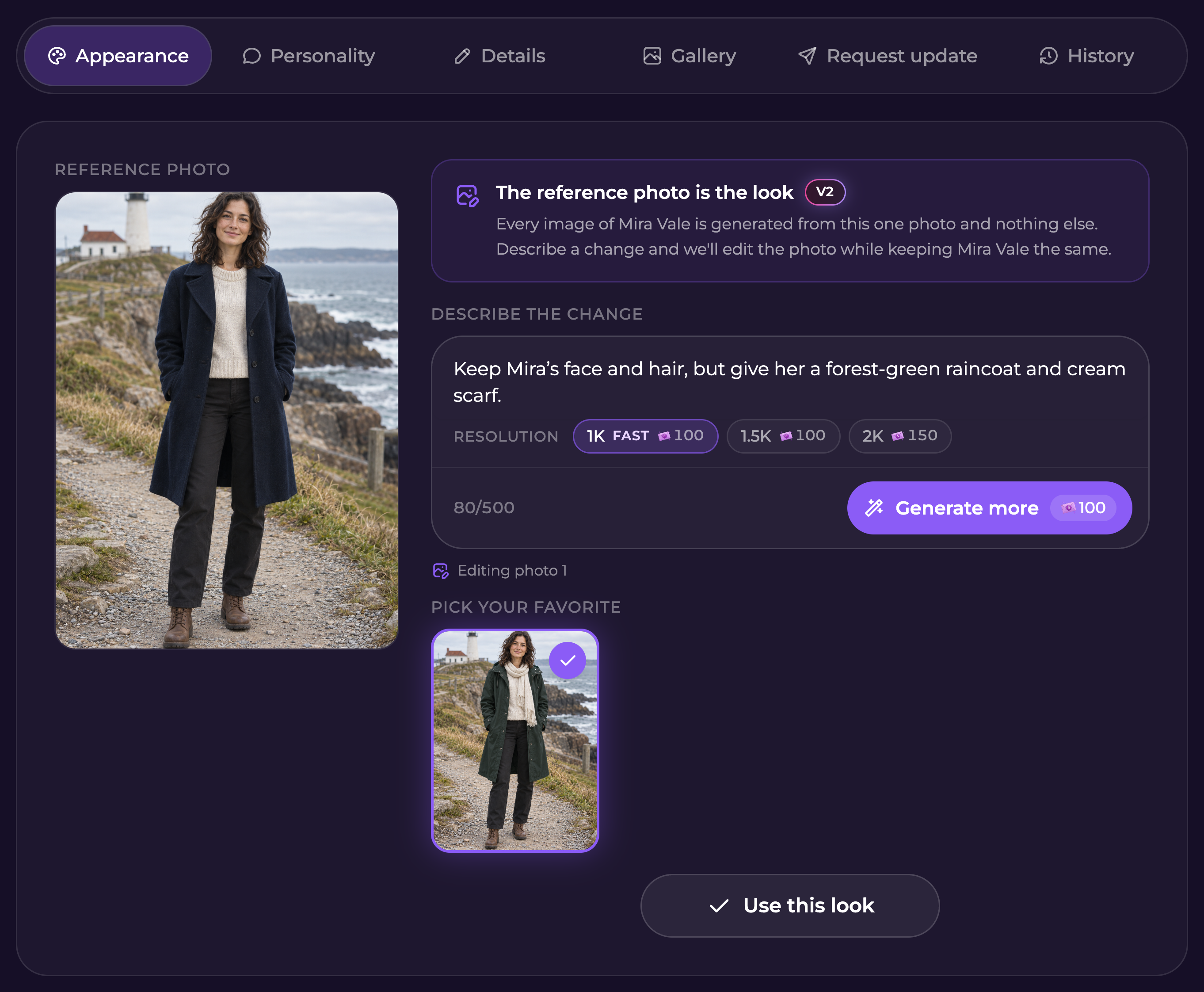
Describe what you want changed, generate a photo, select the result, and choose **Use this look**. Check the displayed Moments cost before generating. Applying the look saves it to your draft.

Use a clear instruction, such as “Keep Mira's face and hair, but give her a forest-green raincoat and cream scarf.” Check the resulting image carefully before applying it.

<figure><img src="https://3286776735-files.gitbook.io/~/files/v0/b/gitbook-x-prod.appspot.com/o/spaces%2F9ACKOAU4nFWSXPeE2B4s%2Fuploads%2Fgit-blob-7de3447760301427c71bcae1b85911cf1e0339b6%2F03-appearance-edit.png?alt=media" alt="Appearance editor with an outfit change, a selected generated photo, and Use this look"><figcaption><p>Select the result you want, then use it to update the draft.</p></figcaption></figure>

### Personality

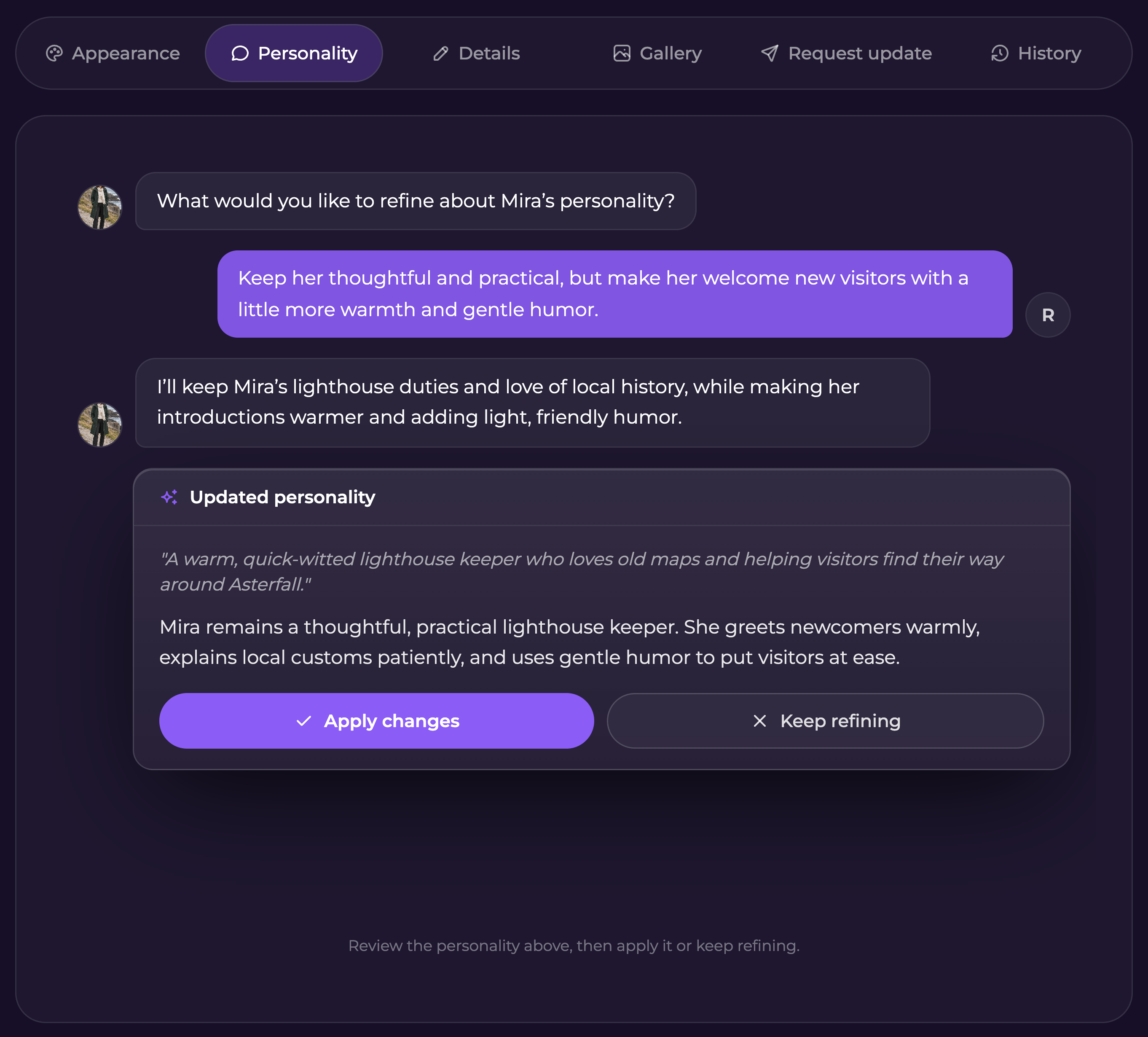
Open **Edit personality**, describe what to keep and what to change, then read the proposed personality. Select **Apply changes** to save it to the draft, or **Keep refining** to continue editing.

For example: “Keep her thoughtful and practical, but make her welcome new visitors with more warmth and gentle humor.”

<figure><img src="https://3286776735-files.gitbook.io/~/files/v0/b/gitbook-x-prod.appspot.com/o/spaces%2F9ACKOAU4nFWSXPeE2B4s%2Fuploads%2Fgit-blob-ef856a9f54ccf0a5bd0596aca84ccfc810212b5b%2F04-personality-edit.png?alt=media" alt="Personality conversation showing a proposed update and Apply changes and Keep refining actions"><figcaption><p>Review the proposed personality before applying it to your draft.</p></figcaption></figure>

### Details

Edit the character's name, age, location, or description, then select **Save changes**. Use the description for the short introduction people will see on the character's profile.

<figure><img src="https://3286776735-files.gitbook.io/~/files/v0/b/gitbook-x-prod.appspot.com/o/spaces%2F9ACKOAU4nFWSXPeE2B4s%2Fuploads%2Fgit-blob-edafa6d3cf39bc1cf111b9c1d3b289080af0af64%2F02-edit-details.png?alt=media" alt="Mira Vale&#x27;s draft Details form with her coastal location and profile description"><figcaption><p>Save changes here to include the revised details in your draft.</p></figcaption></figure>

### Gallery

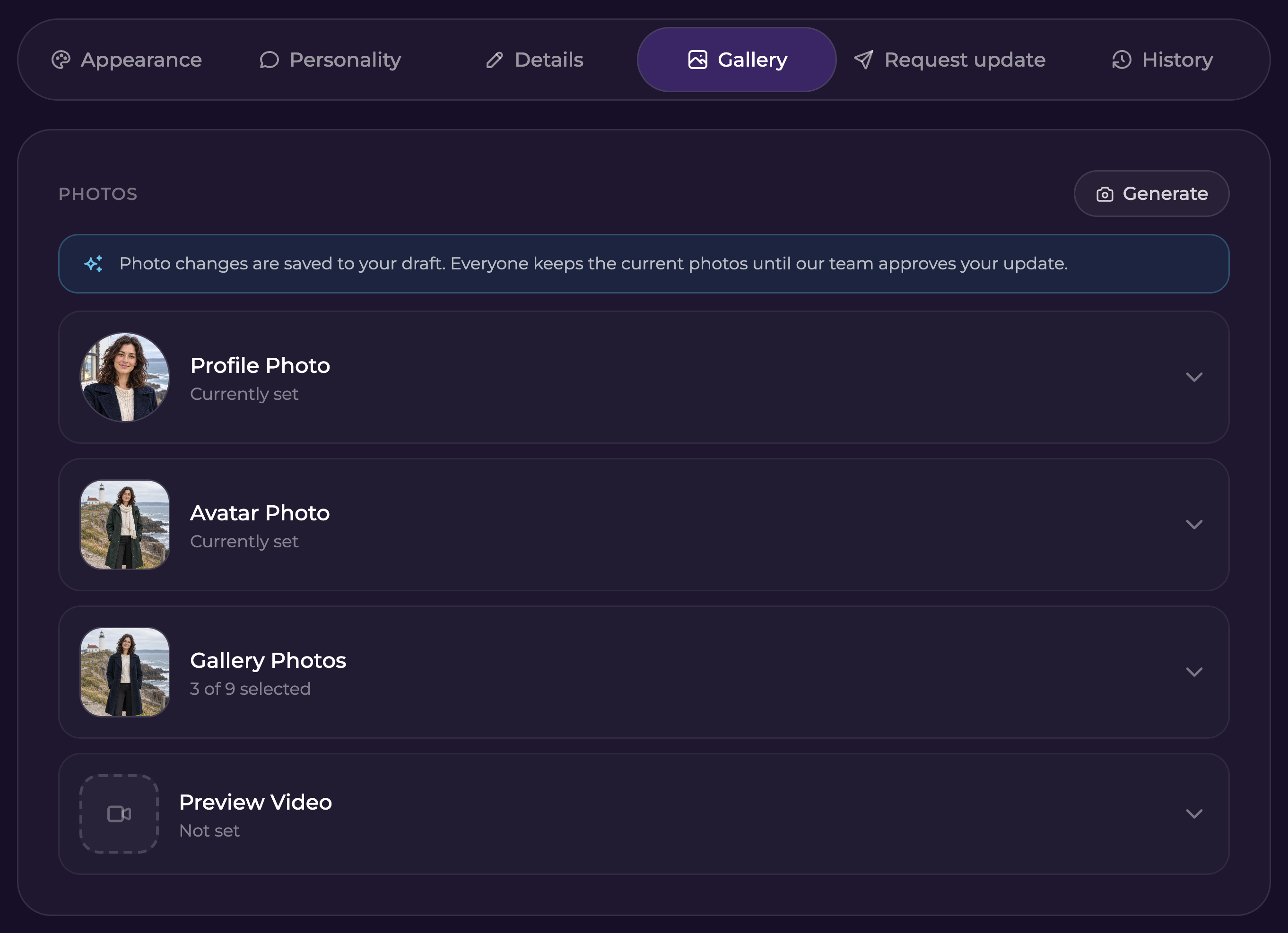
Open the relevant photo or video section, choose the replacement, and save your selection. You can keep existing gallery photos while changing individual choices. The Gallery's draft notice confirms that these edits will be reviewed before becoming public.

<figure><img src="https://3286776735-files.gitbook.io/~/files/v0/b/gitbook-x-prod.appspot.com/o/spaces%2F9ACKOAU4nFWSXPeE2B4s%2Fuploads%2Fgit-blob-ace488716e40f6c111cce835f17d6ed1dd9255cb%2F05-gallery-edit.png?alt=media" alt="Draft Gallery with a notice that photos are saved for review and controls for profile photo, avatar, gallery, and preview video"><figcaption><p>Gallery selections belong to the draft. Save them before requesting an update.</p></figcaption></figure>

If you change the avatar, check the preview video too: it should start from the avatar's frame, showing the full head and body. Gallery and video generation can use the draft's avatar when no separate reference photo is set. Follow the [visual requirements](/create/custom-characters.md#visual-requirements-for-public-approval) before submitting.

### Reference photo and voice

For an Advanced reference change, open **Edit → Appearance**, choose the replacement in **Advanced Image Reference**, and select **Set as reference**. For a voice change, open **Edit → Details**, preview a voice, and save the selection. These now belong to the update request and require approval before other users receive them.

For **V2 characters**, the reference photo supplies the character's look. Editing it does **not** replace the profile photo, avatar, or preview video. If those should also change, select and save them separately in **Gallery**. Likewise, choosing a new profile photo does not replace the separate reference.

The request's **Changes in your draft** chips show **Reference photo** and **Voice** when you change those areas. Test the draft before submitting: your own generations use the draft reference, and your own chat audio and one-to-one calls can use the draft voice.

## Test your draft

Use the Studio preview to check the character card, profile, and gallery. Save your edits, then open your own chat with the character to try the updated version. Your draft's name, personality, and appearance can be used in your own chats and generations while other users keep the public version.

Return to **Published** when you want to compare against the public version. Make reference-photo and voice changes in **Edit** too; they stay in the draft until approval.

## Request an update

1. Open **Edit → Request update**.
2. Check **Changes in your draft**. Its chips identify the areas you changed.
3. Complete every item in **Overall Progress**.
4. Write a **Note for our team**, up to **1,000 characters**, explaining what changed and why.
5. Confirm that the update meets every submission guideline.
6. Select **Request update**.

<figure><img src="https://3286776735-files.gitbook.io/~/files/v0/b/gitbook-x-prod.appspot.com/o/spaces%2F9ACKOAU4nFWSXPeE2B4s%2Fuploads%2Fgit-blob-38b04d7585a1c95ed18d2a547149778f6a41be99%2F08-request-ready.png?alt=media" alt="Draft update request for Mira with changed-area chips, a completed checklist, a filled team note, and the guideline confirmation selected"><figcaption><p>A saved draft, completed requirements, a note, and the guideline confirmation are all needed to submit.</p></figcaption></figure>

A useful note is specific:

> Updated the winter outfit and lighthouse duties, with a warmer welcome. Mira’s coastal setting and core personality are unchanged.

The checklist covers public sharing, a profile photo, an avatar, nine gallery images, a preview video, a voice, and your account's public profile. It checks the **draft**, so a missing or unsuitable replacement can prevent submission even though the character is already public. Follow the same [public submission requirements](/create/custom-characters.md#making-characters-public).

| Requirement         | What to check                                                                                                          |
| ------------------- | ---------------------------------------------------------------------------------------------------------------------- |
| Public sharing      | Sharing remains enabled for the public character.                                                                      |
| Profile image       | In **Gallery**, choose a photo that works well in the small circular chat avatar.                                      |
| Avatar image        | In **Gallery**, choose a full-body, standing photo.                                                                    |
| Nine preview images | Finish the nine gallery selections and save them. Follow the public image requirements.                                |
| Preview video       | Choose and save the video in **Gallery**. Check its starting frame, motion, and quality against the visual guidelines. |
| Voice               | Select and save a voice in **Edit → Details** if one is missing. The checklist checks the draft voice.                 |
| Public profile      | Make sure your account has an active [public profile](/get-started/public-profiles.md).                                |

If an item is incomplete, return to the relevant section, save the correction, and reopen Request update. In this example, the gallery needs more images and the preview video has not been selected:

<figure><img src="https://3286776735-files.gitbook.io/~/files/v0/b/gitbook-x-prod.appspot.com/o/spaces%2F9ACKOAU4nFWSXPeE2B4s%2Fuploads%2Fgit-blob-8b5ec14c1781f7cbdd57142d63ef735e65220a10%2F07-request-incomplete.png?alt=media" alt="An update draft with five of seven requirements complete, three of nine gallery images, and a missing preview video"><figcaption><p>The checklist identifies what still needs attention.</p></figcaption></figure>

### Understand the request status

| Status                                            | What it means                                                         | Next step                                                          |
| ------------------------------------------------- | --------------------------------------------------------------------- | ------------------------------------------------------------------ |
| **No changes**                                    | There are no saved draft changes to submit.                           | Make and save a change in an editing tab.                          |
| **Draft — not sent**                              | Your changes are saved privately, but the team has not received them. | Check the requirements, write a note, and request the update.      |
| **Under review**                                  | The draft was sent to the team.                                       | Wait for the decision, or withdraw to unlock and revise the draft. |
| **Your last update was declined**                 | The update was not published.                                         | Read the feedback, improve the kept draft, and submit again.       |
| **Your last update was approved and is now live** | The reviewed changes are now published.                               | Check Published; make a new draft if you want another update.      |

If you see **No changes**, save an edit first. A complete checklist alone does not create an update request.

<figure><img src="https://3286776735-files.gitbook.io/~/files/v0/b/gitbook-x-prod.appspot.com/o/spaces%2F9ACKOAU4nFWSXPeE2B4s%2Fuploads%2Fgit-blob-6bd36351182d2c035621a1426d5d6e10d80022ef%2F06-request-empty.png?alt=media" alt="No changes status with guidance to save a change before submitting"><figcaption><p>Save at least one draft change before requesting review.</p></figcaption></figure>

## While the request is under review

The request tab shows **Waiting for team review**, your submitted note, and the areas changed. Draft editing and **Discard draft** are locked while the request is submitted. Other users continue seeing the existing published character.

<figure><img src="https://3286776735-files.gitbook.io/~/files/v0/b/gitbook-x-prod.appspot.com/o/spaces%2F9ACKOAU4nFWSXPeE2B4s%2Fuploads%2Fgit-blob-11f4a0661abddaaa9ea6d0b1c2cde3c43092e462%2Fpublic-update-review.png?alt=media" alt="Update request under review with Reference photo, Voice, and Details chips and Withdraw request."><figcaption><p>Withdraw the request if you need to make more changes before approval.</p></figcaption></figure>

### Withdraw an update request

1. Open **Edit → Request update**.
2. Select **Withdraw request**.
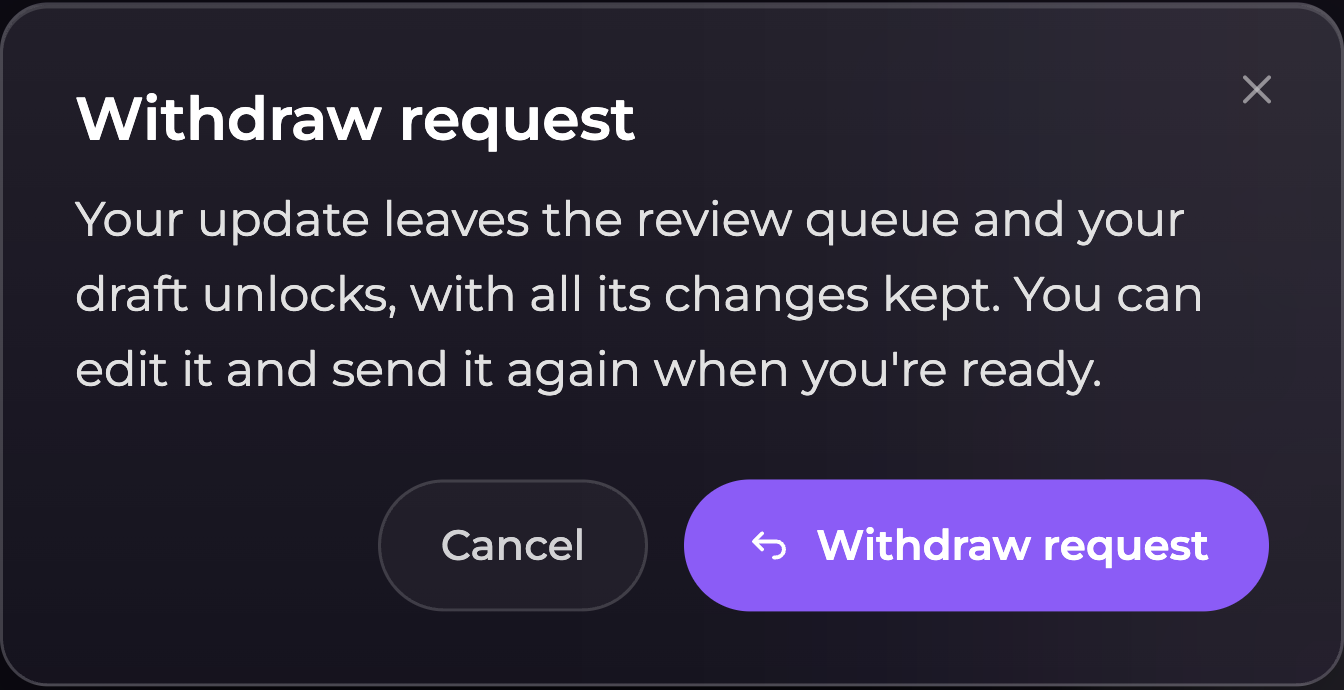
3. Read the confirmation and select **Withdraw request** again.
4. Your draft unlocks with its changes and history kept. Edit it, then write a new team note, confirm the guidelines, and request review again when ready.

<figure><img src="https://3286776735-files.gitbook.io/~/files/v0/b/gitbook-x-prod.appspot.com/o/spaces%2F9ACKOAU4nFWSXPeE2B4s%2Fuploads%2Fgit-blob-5e37c7fbff7275753dfbd8b730a786bab091722b%2Fwithdraw-update.png?alt=media" alt="Withdraw request confirmation explaining that the draft unlocks and keeps all its changes." width="448"><figcaption><p>Withdrawing removes the request from review while keeping the draft.</p></figcaption></figure>

Withdrawing does not delete the public character or discard your work. If review has already progressed and withdrawal fails, refresh the Studio and check the current status before trying again. To abandon the draft entirely, withdraw successfully first, then use **Discard draft**.

## Respond to a decline

Open **Request update** and read **Team feedback**. Your draft is kept, so you can correct the requested parts without starting from the published version again.

<figure><img src="https://3286776735-files.gitbook.io/~/files/v0/b/gitbook-x-prod.appspot.com/o/spaces%2F9ACKOAU4nFWSXPeE2B4s%2Fuploads%2Fgit-blob-bfc6cddf915fbdb3f2ced8fabf38ce7aafe54fa4%2F10-request-declined.png?alt=media" alt="Declined update with team feedback asking for a steady preview video and a message confirming that the draft is kept"><figcaption><p>Use the feedback to improve the kept draft, then request review again.</p></figcaption></figure>

Save the corrections in the relevant tabs, recheck the requirements, and write a new note explaining what you fixed. Confirm the guidelines and send the request again. A declined update does not replace the published character.

## Check an approved update

The request tab shows **Your last update was approved and is now live**, with a team message when one was provided. Select **Published** to inspect the new public version.

<figure><img src="https://3286776735-files.gitbook.io/~/files/v0/b/gitbook-x-prod.appspot.com/o/spaces%2F9ACKOAU4nFWSXPeE2B4s%2Fuploads%2Fgit-blob-bd514f312e3a92bf4d37f11d61753aabb9231b8a%2F11-request-approved.png?alt=media" alt="An approved update with confirmation that Mira&#x27;s new version is live"><figcaption><p>After approval, the updated version is public.</p></figcaption></figure>

## Restore an earlier draft step

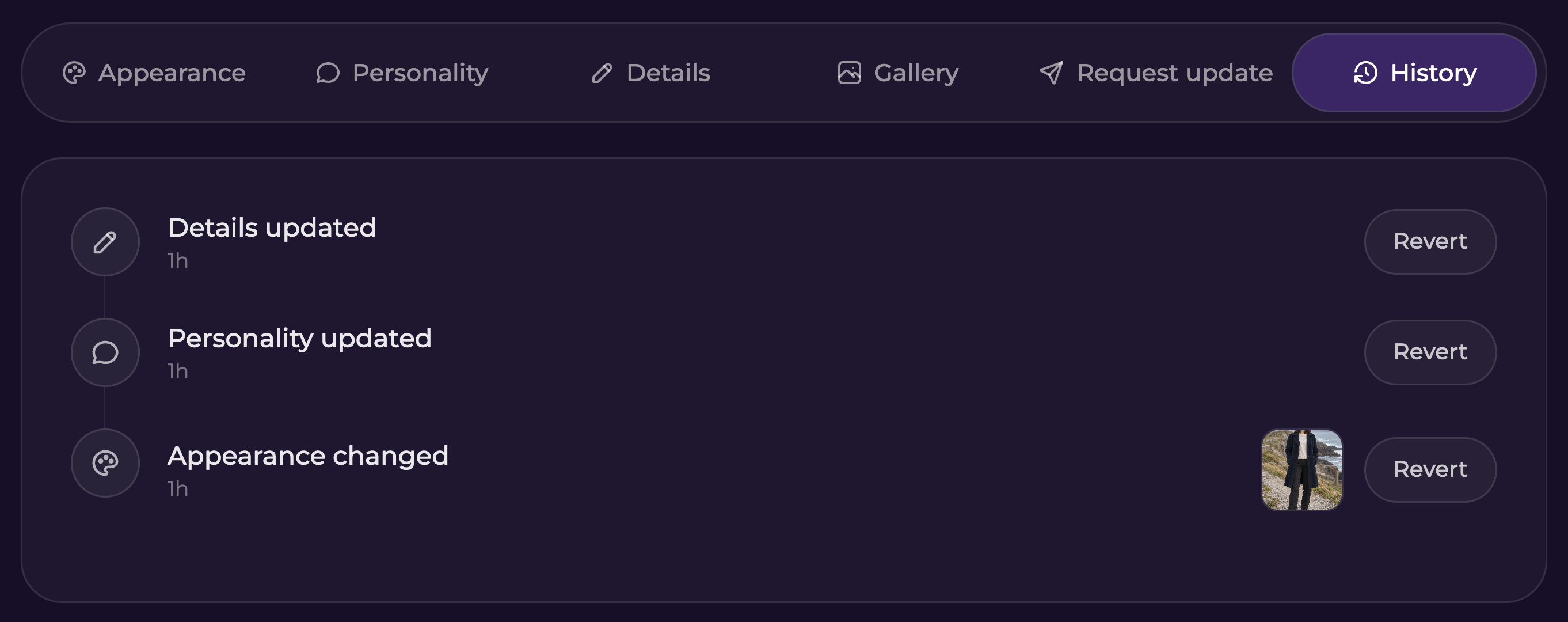
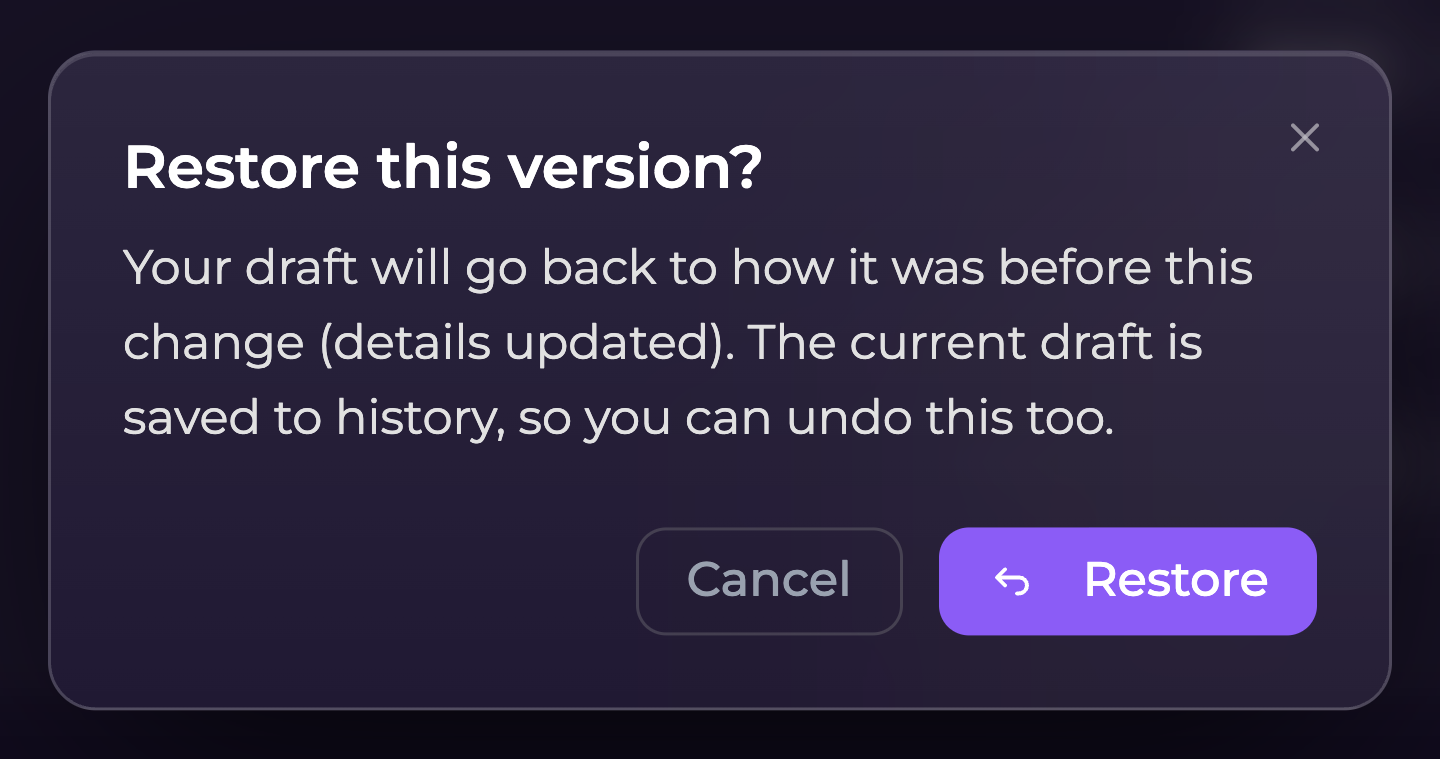
Open **Edit → History**, find the change, and select **Revert**. Read the confirmation, then choose **Restore** to return the draft to how it was before that change.

<figure><img src="https://3286776735-files.gitbook.io/~/files/v0/b/gitbook-x-prod.appspot.com/o/spaces%2F9ACKOAU4nFWSXPeE2B4s%2Fuploads%2Fgit-blob-3bf1054e8184218e6557cdd6d7df8c1f3b8ae93b%2F12-draft-history.png?alt=media" alt="Draft History showing details, personality, and appearance changes with Revert actions"><figcaption><p>Choose the draft step you want to restore.</p></figcaption></figure>

<figure><img src="https://3286776735-files.gitbook.io/~/files/v0/b/gitbook-x-prod.appspot.com/o/spaces%2F9ACKOAU4nFWSXPeE2B4s%2Fuploads%2Fgit-blob-f9b88740eed70f1a4dc847959835e7acf2617221%2F13-revert-draft-confirmation.png?alt=media" alt="Restore this version confirmation explaining that the current draft is saved to history" width="448"><figcaption><p>Restoring a step updates the draft and can itself be undone.</p></figcaption></figure>

History for a public character covers its draft changes. It does not restore versions from before the character went public, and reverting a draft step does not immediately rewrite the published version. The current draft is saved as another history step, so you can undo the restore too. Reverts are unavailable while the update is under review.

## Discard the whole draft

If you want to abandon the update, open **Request update → Discard draft**. Choose **Keep editing** to cancel, or **Discard draft** to confirm.

<figure><img src="https://3286776735-files.gitbook.io/~/files/v0/b/gitbook-x-prod.appspot.com/o/spaces%2F9ACKOAU4nFWSXPeE2B4s%2Fuploads%2Fgit-blob-c0df08e6d1d2614a799ed59d26ba07a61d9ae758%2F14-discard-draft-confirmation.png?alt=media" alt="Discard your draft confirmation explaining that its changes and history will be deleted, with Keep editing and Discard draft buttons" width="448"><figcaption><p>Discarding returns you to the published version and cannot be undone.</p></figcaption></figure>

Discarding deletes the draft and its history, including changes kept after a decline. It does not delete the published character. Your own chats stop using the discarded draft and follow the published character again. You cannot discard an update while it is under review; withdraw it first to unlock the draft.

## On a phone

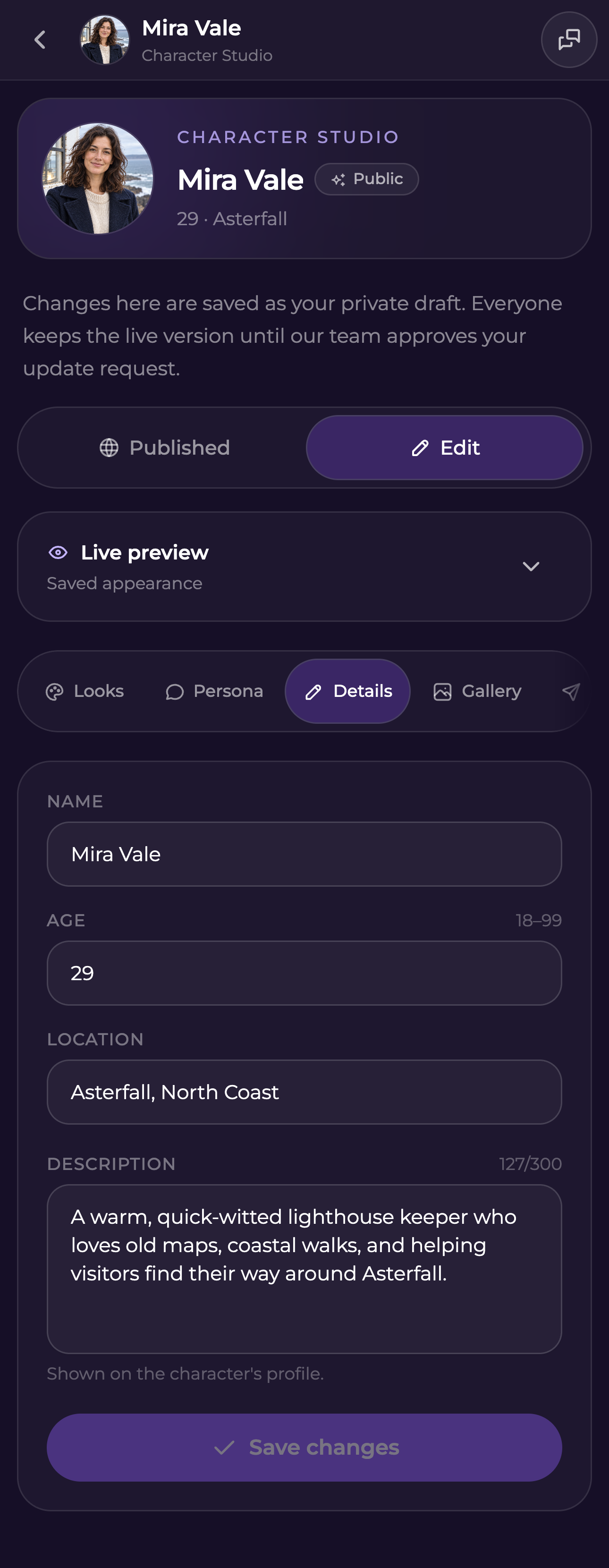
Open the same character's Studio and select **Edit**. The tab row scrolls horizontally: **Looks** opens Appearance, **Persona** opens Personality, and **Request** opens Request update. Expand **Live preview** when you want to check the character's card, profile, or gallery.

<figure><img src="https://3286776735-files.gitbook.io/~/files/v0/b/gitbook-x-prod.appspot.com/o/spaces%2F9ACKOAU4nFWSXPeE2B4s%2Fuploads%2Fgit-blob-332ef5b8875e5d3d4399ec775d8dd224842f3da6%2F15-mobile-edit.png?alt=media" alt="Mobile Character Studio showing the private draft, Edit selected, and the Details form" width="375"><figcaption><p>Use the mobile tabs to edit each part of the draft.</p></figcaption></figure>

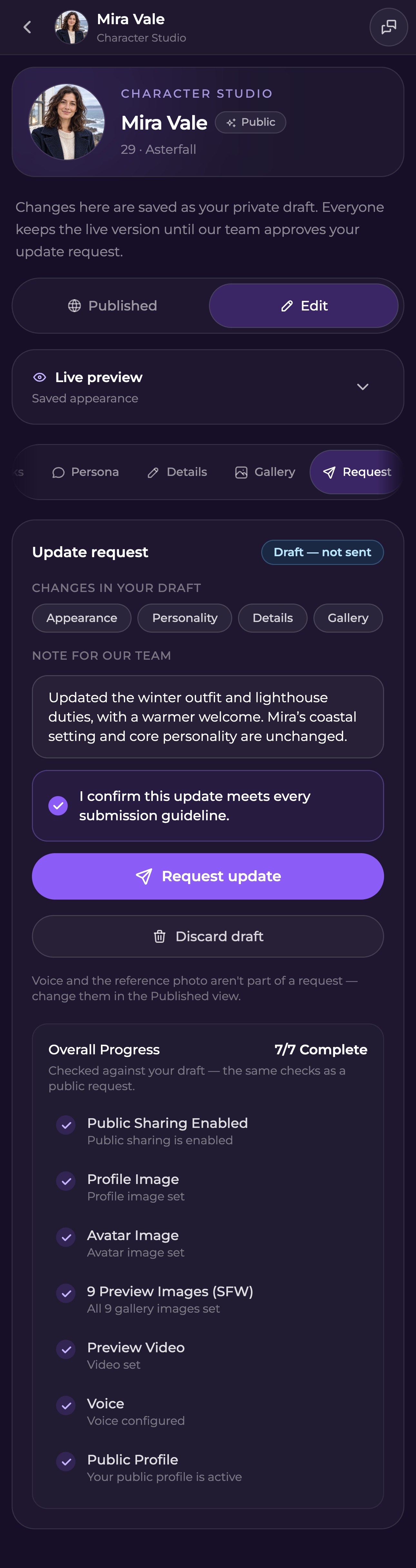
On **Request**, scroll down to check every requirement. Add your note, confirm the guidelines, and tap **Request update**. Saving edits in another tab does not submit the request.

<figure><img src="https://3286776735-files.gitbook.io/~/files/v0/b/gitbook-x-prod.appspot.com/o/spaces%2F9ACKOAU4nFWSXPeE2B4s%2Fuploads%2Fgit-blob-d8de497c43408bb1b959fb787436b4daa42963a9%2F16-mobile-request.png?alt=media" alt="Mobile update request with a filled note, selected confirmation, submit action, and completed requirements" width="375"><figcaption><p>The mobile request uses the same requirements and review process.</p></figcaption></figure>

## Common questions

**Why can’t I delete a photo from my collection?** A saved draft or its history may still use that image. Keep it while the update needs it. Replacing one selection may not be enough if an earlier draft step still references the photo. If you want to abandon all those edits, discard the draft; withdrawing alone keeps its changes and history.

**Why is Request update disabled?** Check that there is at least one saved draft change, every requirement is complete, your note contains text, and you have confirmed the guidelines. Generating a photo without applying it is not a saved appearance change.

**Why does my own chat already use the changes?** Your own chats let you try your draft. Other users continue using the published version until approval.

**Can I request an update to someone else's character?** This workflow is for characters you own. To customize another public community character for yourself, use [Fork](/create/custom-characters.md#forking-characters).

**Do I have to fork my own public character to fix it?** No. Use Edit and request approval for changes to the same public character. Fork when you want a separate private character instead.

**Do reference and voice changes need approval?** Yes. Save them in **Edit** and include them in the update request. Your own chats can use the draft before approval; other users keep the published version.

**I left the Studio before submitting. Was the update sent?** Saved edits remain a draft. Look for **Draft — not sent** or **Under review** in Request update to check whether you submitted it.