> For the complete documentation index, see [llms.txt](https://wiki.secrets.ai/llms.txt). Markdown versions of documentation pages are available by appending `.md` to page URLs; this page is available as [Markdown](https://wiki.secrets.ai/get-started/install-the-app.md).
# Install the App
Install Secrets as an app on your phone, tablet, or computer and enable push notifications so you never miss a moment.
Secrets can now be installed directly from your browser as an app, no app store required. Installing gives you a full-screen experience, an icon on your home screen or desktop, and support for **push notifications**.
{% hint style="info" %}
Secrets is **not** on the Apple App Store or Google Play Store. Installing from your browser at **secrets.ai** is the official (and only) way to get the Secrets app. If you see a Secrets AI app listed on any app store, it is not affiliated with us.
{% endhint %}
### Why install?
* **Home screen icon**: Launch Secrets with one tap, just like a native app
* **Full-screen experience**: No browser bars or clutter
* **Notifications**: Get notified even when the app is closed, on both mobile and desktop
* **Faster loading**: The app shell loads instantly after the first visit
### Install on iPhone & iPad
Installation on iOS requires **Safari**:
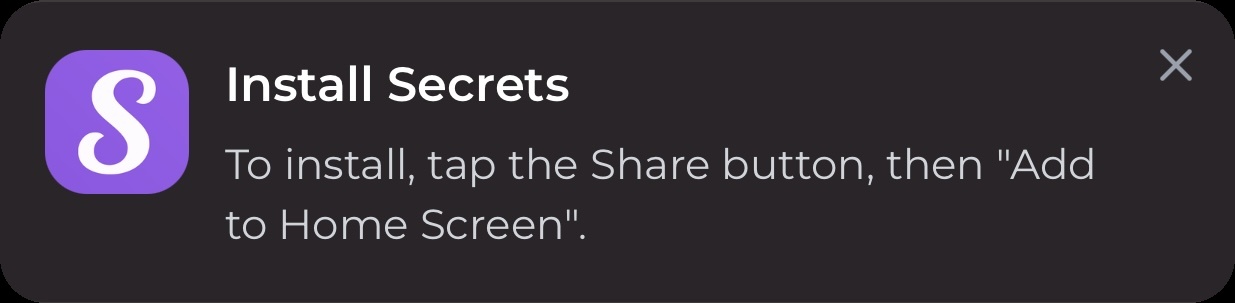
1. Open **secrets.ai** in Safari.
2. Tap the **Share** button (square with an arrow) in the toolbar.
3. Scroll down and tap **Add to Home Screen**.
4. Tap **Add** to confirm.
Secrets will also show you an install prompt with these instructions when you visit on mobile:
The Secrets icon will appear on your home screen. Open the app from there going forward.
{% hint style="warning" %}
On iOS, push notifications only work when Secrets is opened **from the home screen icon**, not from a Safari tab. iOS 16.4 or later is required.
{% endhint %}
### Install on Android
Installation on Android works best in **Chrome**:
1. Open **secrets.ai** in Chrome.
2. Tap the **⋮** menu in the top-right corner.
3. Tap **Install app** (or **Add to Home screen**).
4. Confirm the installation.
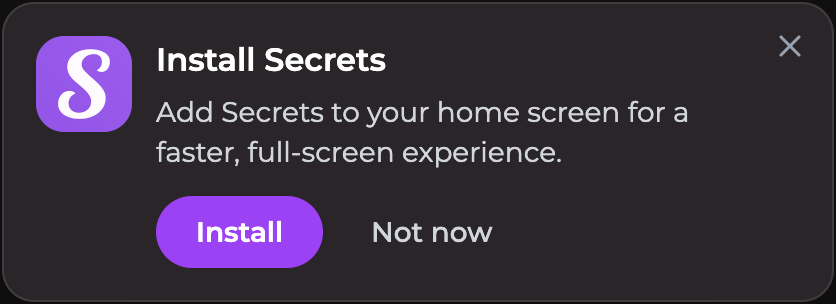
You may also see an install prompt appear automatically. Tapping it does the same thing.
### Install on desktop
In a supported browser on Windows, macOS, or Linux:
1. Open **secrets.ai**.
2. When the **Install Secrets** prompt appears, click **Install**.
3. Confirm the installation.
You can also install anytime by clicking the **install icon** (a monitor with a down arrow) on the right side of the address bar.
Secrets opens in its own window and appears in your dock, taskbar, or app launcher.
### Notifications
Secrets now supports notifications on both mobile and desktop, so you can stay up to date even when the app is closed.
#### Enabling notifications
{% hint style="info" %}
On desktop, notifications work right in your browser, with no installation needed. On mobile, you'll need to install the app first (see above).
{% endhint %}
1. Open Secrets (the installed app on mobile, or **secrets.ai** in your browser on desktop).
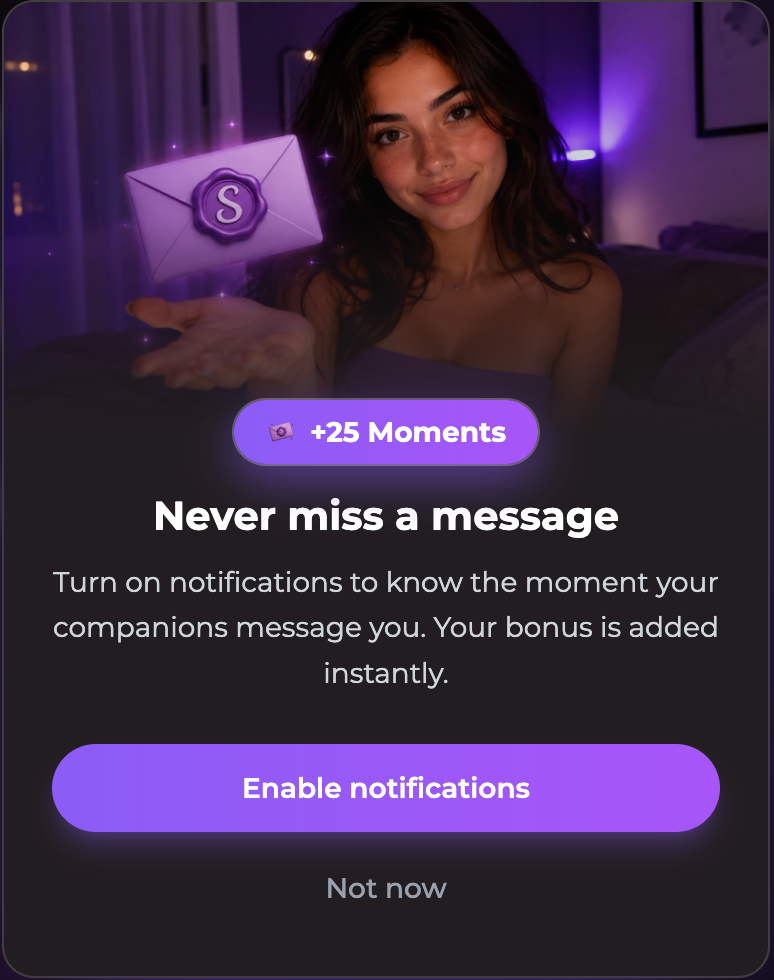
2. When the **Never miss a message** prompt appears, tap **Enable notifications**.
3. When your browser or device asks for permission, choose **Allow**.
{% hint style="success" %}
Turning on notifications earns you **25 free Moments**, added to your balance instantly. This is a one-time bonus per account, so enabling notifications on additional devices later won't grant it again.
{% endhint %}
#### What you'll be notified about
You'll be the first notified about **new feature releases and sales**.
On **ULTIMATE**, push notifications also let you receive [Proactive Messaging](/get-started/proactive-messaging.md): your companions may reach out to you on their own after you've been away. Eligible accounts without a push subscription can receive these notifications by **email** instead; installing the app isn't required for email delivery.
#### Managing notifications
* **In Secrets**: Check whether push notifications are enabled under [User Settings](/extra/user-settings.md#notifications)
* **In your browser**: Enable or disable notifications from your browser's address bar or site settings
* **On your device**: You can also mute or disable notifications from your device's notification settings at any time
* **Companion outreach**: Turn off **Proactive messages** under **User Settings → Companion Preferences** to stop proactive messages across all chats and both delivery channels. You can also turn them off for an individual conversation in **Chat Settings** and select **Save Changes**.
### Frequently asked questions
**Q: Is the installed app different from the website?**
* No, it's the same Secrets, installed straight from your browser. You get the same account, chats, and features, plus notifications and a full-screen experience.
**Q: Do I need to reinstall when Secrets updates?**
* No. The app updates automatically, so you always get the latest version.
**Q: I don't see the install option. What's wrong?**
* On iOS, make sure you're using **Safari**, as other browsers on iOS can't install apps.
* On Android and desktop, make sure you're using a supported browser such as **Chrome** or **Edge**.
* If Secrets is already installed, the install option won't appear again.
**Q: Notifications aren't coming through. How do I fix it?**
* On iOS, make sure you opened Secrets from the **home screen icon** and are on iOS 16.4 or later.
* Check that notifications are allowed for Secrets in your device or browser settings.
* Check that push notifications are enabled in your [User Settings](/extra/user-settings.md#notifications).
**Q: How do I uninstall?**
* **iOS**: Long-press the icon and choose **Delete Bookmark**.
* **Android**: Long-press the icon and drag it to **Uninstall**.
* **Desktop**: Open the app menu inside the Secrets window and choose **Uninstall Secrets**.
***
Need help? Contact .