> For the complete documentation index, see [llms.txt](https://wiki.secrets.ai/llms.txt). Markdown versions of documentation pages are available by appending `.md` to page URLs; this page is available as [Markdown](https://wiki.secrets.ai/get-started/multiple-chats.md).
# Multiple Chats
Explore different storylines with the same companion using Multiple Chats and Memory Groups, or lorebooks on PREMIUM and ULTIMATE.
Start fresh conversations without losing your previous history.
Use Memory Groups to share continuity across chats on the existing memory system. [Lorebooks](/lorebooks/managing-books.md) are available on **PREMIUM and ULTIMATE**; on either plan, you can choose the same book across chats or separate books for separate storylines.
Want multiple companions in one conversation? Try [Group Chats](/get-started/group-chats.md) (ULTIMATE).
### Multiple Chats
You can have multiple independent conversation threads with the same AI companion. Each chat tracks its own message history, allowing you to play out different scenarios simultaneously.
#### Creating a New Chat
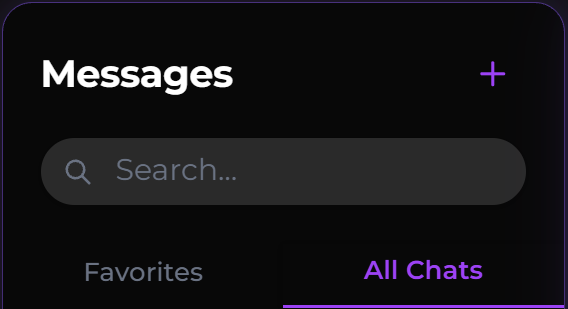
1. **Open the chat list:** Go to **Messages**.
2. **Click New Chat:** Click the **+** icon next to **Messages**.
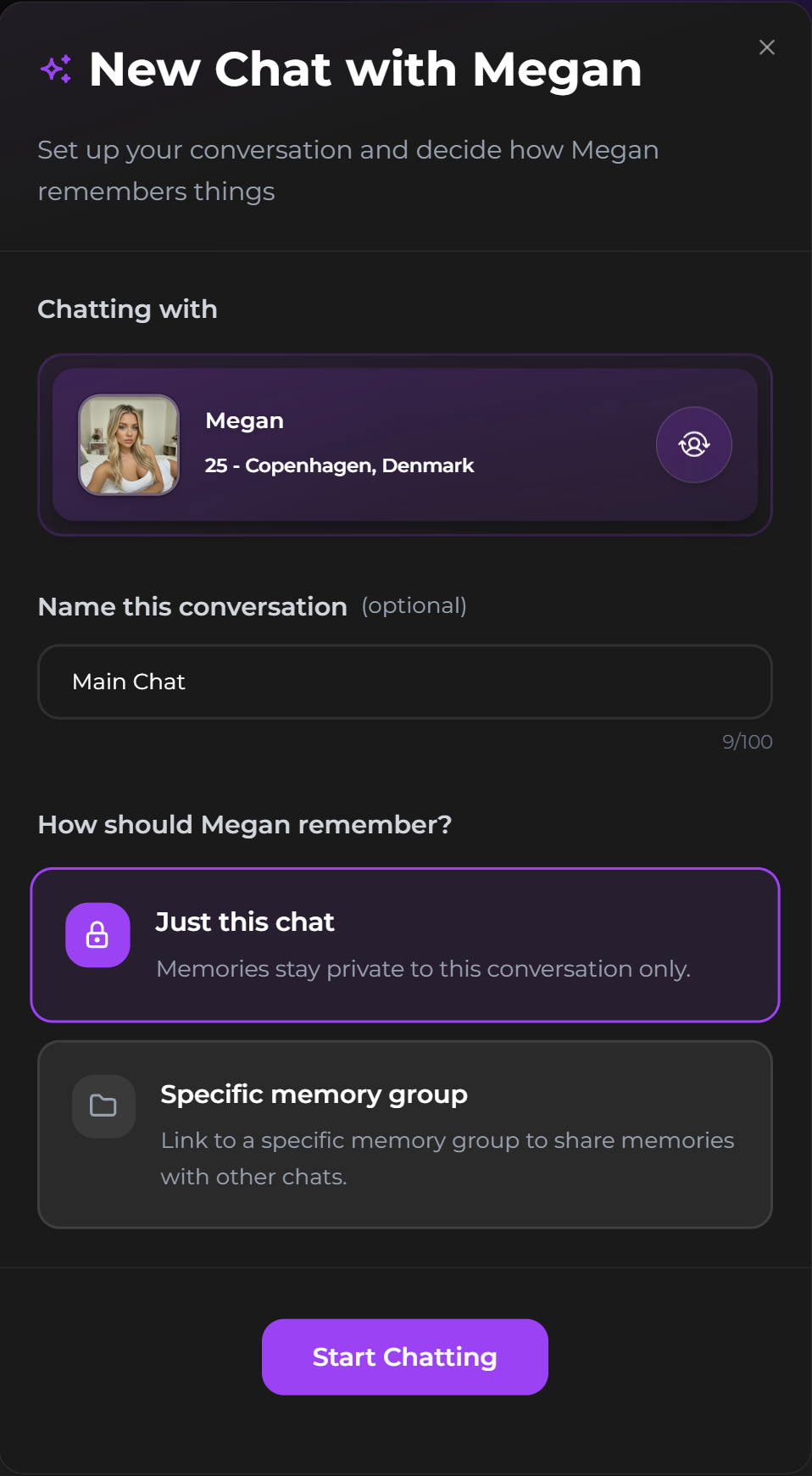
3. **Configure your chat:**
* **Chatting with:** Confirm the companion you want to chat with.
* **Chat Name:** Give your chat a unique name (e.g., "Main Chat", "Fantasy RP").
* **Memory:** Choose a Memory Scope for the older memory system (see below). On PREMIUM or ULTIMATE, you can instead choose a lorebook for the chat.
#### Switching Between Chats
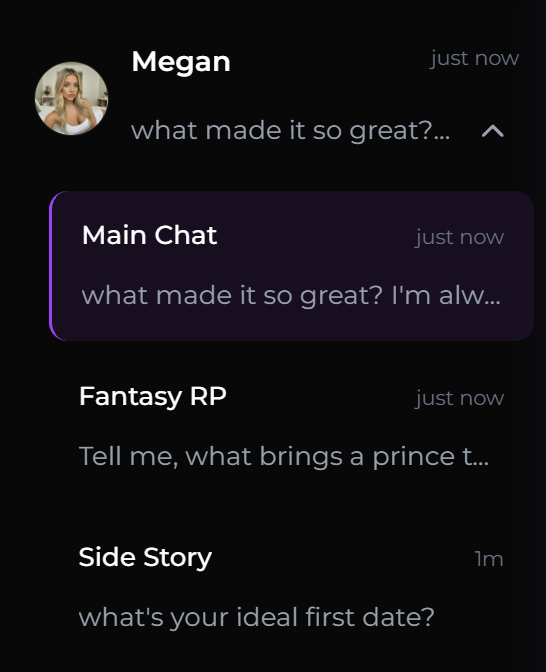
Your chats are organized by companion in the Chat List.
* Click a companion's group to expand and see all your active chats with them.
* Select a specific chat to jump right back in.
***
### Lorebooks across chats
**PREMIUM and ULTIMATE:** The following controls apply to chats that use Lorebooks.
In a lorebook chat, **Which lorebook \[companion] reads** selects its memory. Choose the same book for shared continuity, or use **Start a separate book** for different lorebook content. A separate book starts empty; it does not copy the old book or erase the chat's messages. For a fresh conversation too, create a new chat with a separate book.
Changes to a book affect every chat using it. See [Managing Books Across Chats](/lorebooks/managing-books.md) for illustrated steps, naming, switching, and group chats.
### Memory Groups (legacy memory)
The controls below apply to chats still using the older memory system.
Memory Groups control how your companion "remembers" things about you across different conversations.
#### Memory Scopes
When creating or editing a chat, you can select one of two Memory Scopes:
**1. Private to this Chat**
* **Behavior:** Memories created in this chat stay in this chat.
* **Best For:** One-off roleplays, distinct scenarios, or "what if" storylines where you don't want facts from your main chat to bleed over.
* **Example:** You have a **"Main"** chat where you are married, and a separate **"Dating"** chat where you are just meeting for the first time. Selecting "**Just this chat"** for you **"Dating"** chat ensures the AI doesn't get confused about your relationship status.
**2. Specific Memory Group**
* **Behavior:** Memories are saved to a shared "Group." Any chat assigned to this group will have access to the same set of memories.
* **Best For:** Continuing a consistent identity across different storylines.
* **Example:** You have a "Main" chat and a "Dating" chat. If you tell your companion your favorite color in the "Main" chat, it will remember it in the "Dating" chat because they share the same Memory Group.
#### Managing Memory Groups
* **Creating a Group:** In the "New Chat" modal, select **Shared Memory Group** and click **Create new group**.
* **Assigning a Group:** You can assign multiple chats to the same group to link their memories.
***
### Editing Chat Settings
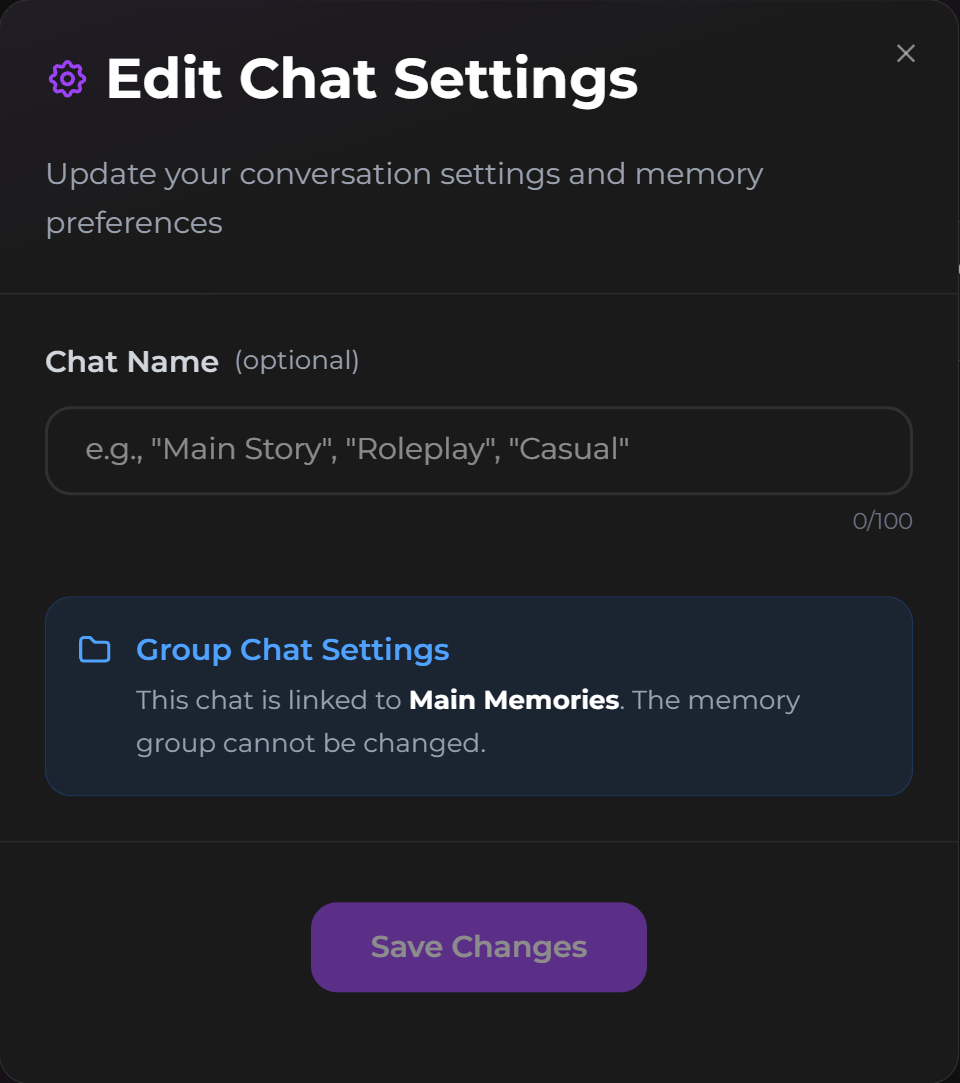
You can rename your chats at any time.
1. Open the chat you want to edit.
2. Click the **Edit (Pencil)** icon next to the chat name in the top header.
3. **Change Name**
### Frequently Asked Questions
**Q: If I delete a chat, do I lose its legacy memories?**
* **Private Chats (legacy memory):** Yes, memories specific to that chat are deleted.
* **Shared Groups:** No, memories stored in a Memory Group persist and remain accessible to other chats in that group.
**Q: Can I merge two private chats later?**
* You can’t merge message histories.
* For lorebook chats with the same companion, choose the same book to share its continuity. This does not merge books or message histories.
* For the older memory system, you can move both chats into the same Memory Group to share memories.
**Q: How many chats can I have?**
* You can create as many chats as you like, making it easy to explore every possible scenario with your favorite companions.
***
Next steps: See [Group Chats](/get-started/group-chats.md), [Memory System](/get-started/memory-system.md), and [Chat Features](/get-started/chat-features.md).