> For the complete documentation index, see [llms.txt](https://wiki.secrets.ai/llms.txt). Markdown versions of documentation pages are available by appending `.md` to page URLs; this page is available as [Markdown](https://wiki.secrets.ai/get-started/scenarios-and-reels.md).

# Scenarios & Reels

Find a story, watch its opening, choose your first reply, and continue with suggested replies or your own words.

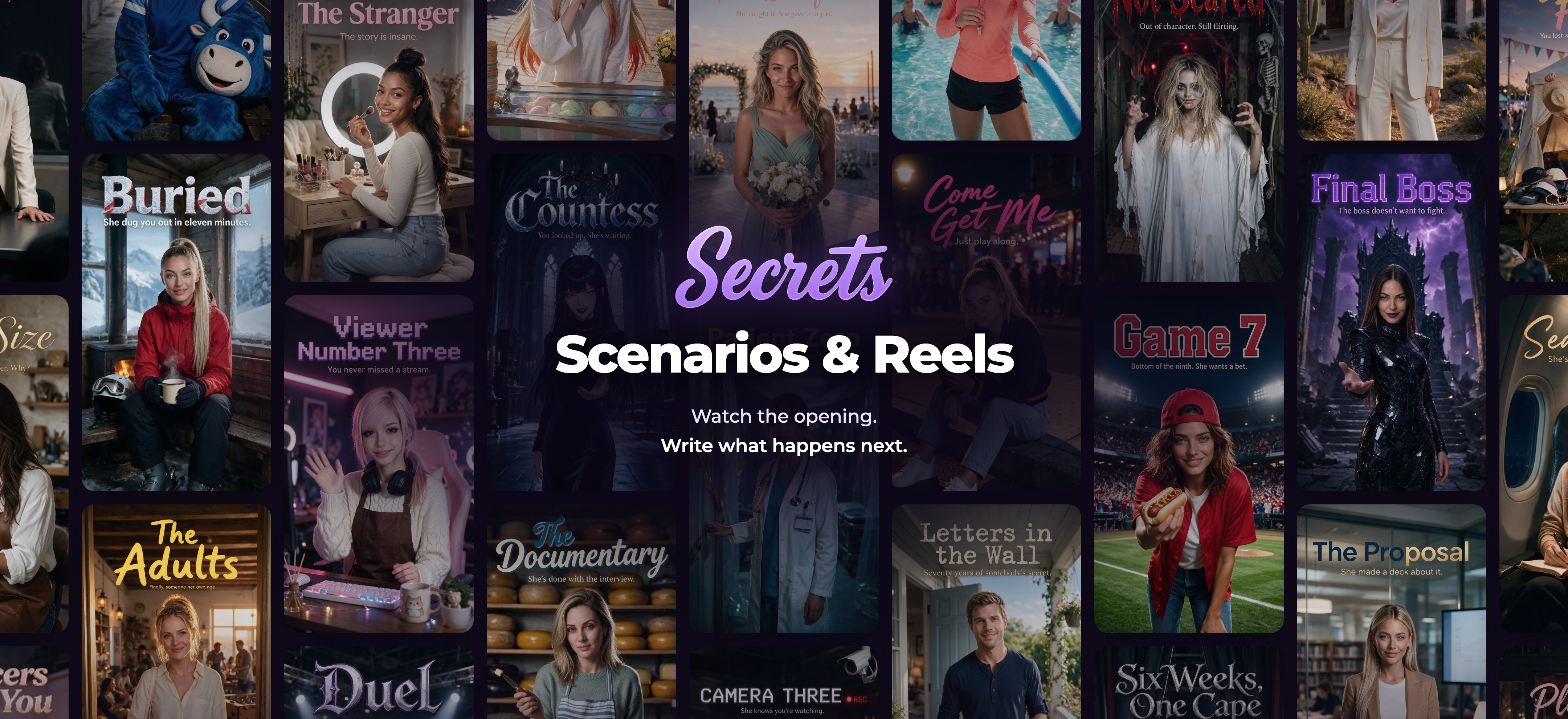
<figure><img src="https://3286776735-files.gitbook.io/~/files/v0/b/gitbook-x-prod.appspot.com/o/spaces%2F9ACKOAU4nFWSXPeE2B4s%2Fuploads%2Fgit-blob-829eb6c33a9b4743e3c75512c2c559718024d358%2Fscenarios-cover-wall.png?alt=media" alt="A wall of official Secrets scenario covers, including Buried, The Countess, Final Boss, Viewer Number Three, and Game 7, around the words Scenarios &#x26; Reels: Watch the opening. Write what happens next."><figcaption><p>From snowy rescues to fantasy encounters, pick an opening and make the next move yours.</p></figcaption></figure>

Scenarios give your conversation a starting situation. Watch a short opening, choose what you say next, and continue the story in chat. **Scenarios** helps you browse stories; **Reels** plays them in a vertical feed.

## Find a scenario

Open **Scenarios** from the navigation. You can also open a scenario from the homepage's **Watch now** row, or choose **Reels** to start watching. On a phone, look in the navigation menu for Reels.

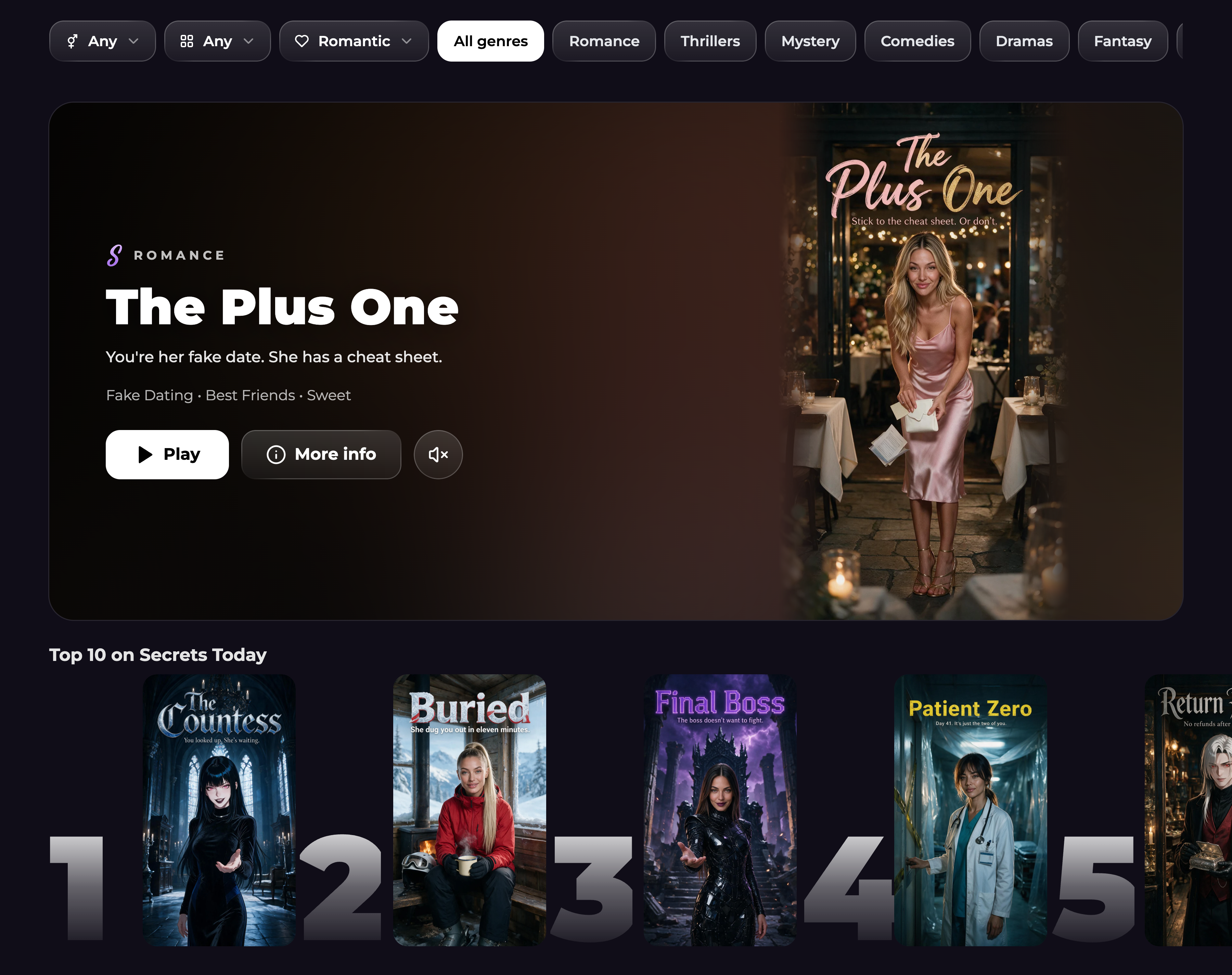
Use the filters at the top of Scenarios to narrow your choices:

| Control | What it changes                                                                                             |
| ------- | ----------------------------------------------------------------------------------------------------------- |
| Gender  | Choose Female, Male, Trans, or Any. Select Trans explicitly to browse trans companions.                     |
| Style   | Choose Realistic, Anime, or Any.                                                                            |
| Content | Choose Romantic, Spicy, or All. Sign in and accept the content notice when prompted to view spicy content.  |
| Genre   | Pick a genre such as Mystery, Romance, or Adventure. Select **All genres** to return to the full selection. |

Filters also carry between Scenarios and Reels. If you see fewer stories than expected, check both the filters and selected genre. Rows can include newly added stories, popular choices, collections, and stories you started watching.

<figure><img src="https://3286776735-files.gitbook.io/~/files/v0/b/gitbook-x-prod.appspot.com/o/spaces%2F9ACKOAU4nFWSXPeE2B4s%2Fuploads%2Fgit-blob-459fd6e2208d2379994efa0e14cb3b9e042043e2%2Fscenarios-browse.png?alt=media" alt="The Scenarios page with gender, style, content, and genre filters, The Plus One featured story, and official covers in the Top 10 row."><figcaption><p>Use the filters and genres to find the kind of opening you want.</p></figcaption></figure>

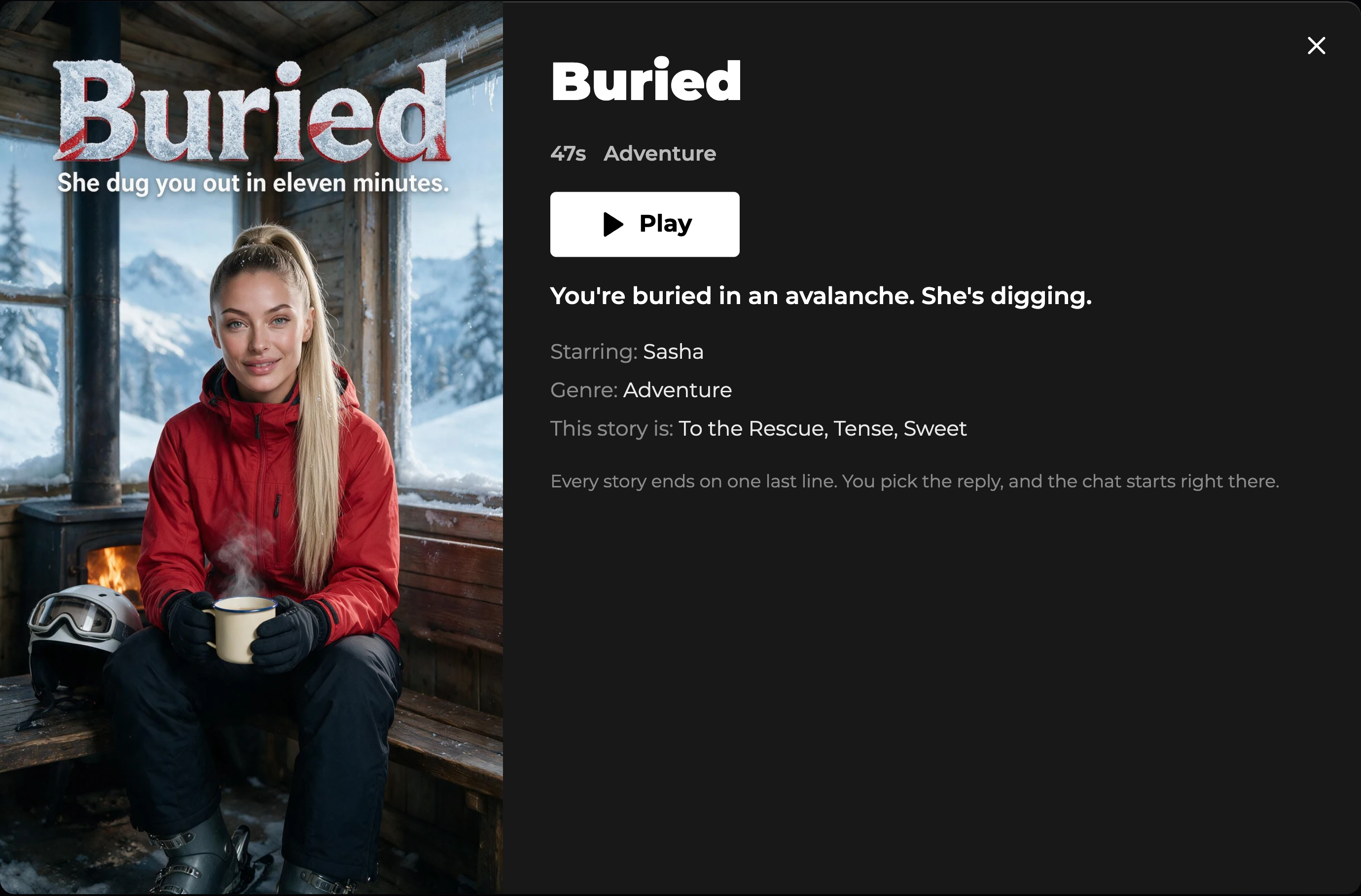
Select a cover to open its details. Read the setup, check the companion, genre, and running time, then choose **Play**. If you have already started watching, you may see **Resume**. Where available, **More like this** offers related stories.

<figure><img src="https://3286776735-files.gitbook.io/~/files/v0/b/gitbook-x-prod.appspot.com/o/spaces%2F9ACKOAU4nFWSXPeE2B4s%2Fuploads%2Fgit-blob-2b619975e019472d8df961b1c4862503ccb14ae9%2Fscenario-details.png?alt=media" alt="Buried scenario details with its official cover, Sasha, the 47-second running time, Adventure genre, and Play button."><figcaption><p>The details explain the situation before you enter the story.</p></figcaption></figure>

## Watch in Reels

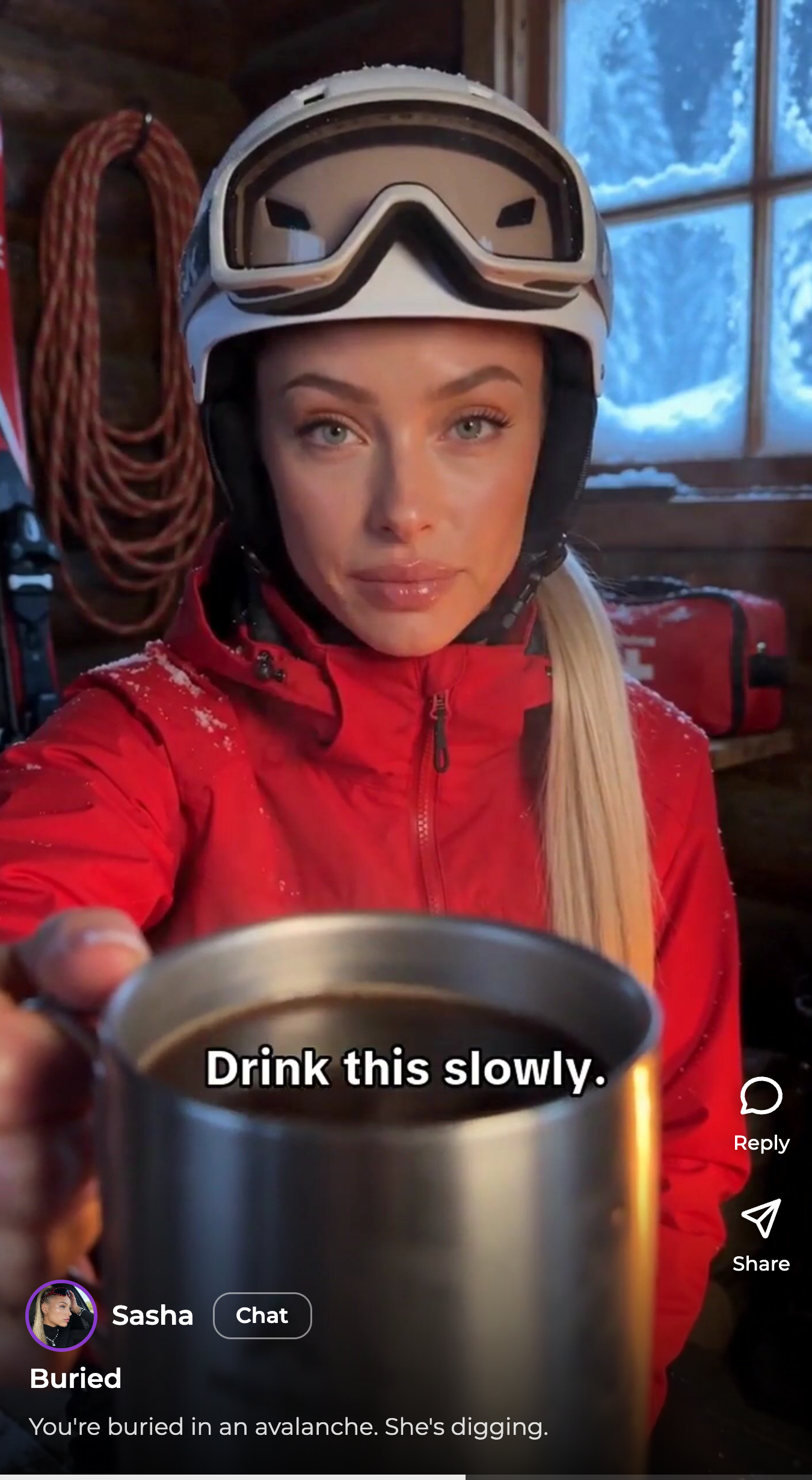
Swipe vertically on a phone or scroll on desktop to move between stories.

| Action                | How to use it                                                                                                                                                                                 |
| --------------------- | --------------------------------------------------------------------------------------------------------------------------------------------------------------------------------------------- |
| Pause or resume       | Tap or click the video. On desktop, Space also works when you are not typing or using another control.                                                                                        |
| Sound                 | Use the sound control to mute or unmute.                                                                                                                                                      |
| Jump within the video | Drag the progress bar at the bottom. With the bar focused, the left/right arrow keys move five seconds at a time.                                                                             |
| Watch faster          | Press and hold the playing video for **2×** speed; release to return to normal. Swipe down during the hold to lock the faster speed, or repeat to unlock it. Desktop also has a speed button. |
| Reply                 | Open **Reply** to see the choices before the ending.                                                                                                                                          |
| Replay                | From the choices, select **Watch again**.                                                                                                                                                     |
| Share                 | Use **Share** to copy or share a link to the current story.                                                                                                                                   |

Watch the opening through to its last line, or use the reply control to open the choices. You do not need to finish every video before moving to another.

<figure><img src="https://3286776735-files.gitbook.io/~/files/v0/b/gitbook-x-prod.appspot.com/o/spaces%2F9ACKOAU4nFWSXPeE2B4s%2Fuploads%2Fgit-blob-6a0519dfecbc9c43102d706729bc465f4e82df23%2Freels-player.png?alt=media" alt="Sasha in a snowy cabin during Buried, with the Reels title, companion, Reply and Share controls, and playback progress." width="450"><figcaption><p>Watch the opening, open Reply to join the scene, or swipe to another story.</p></figcaption></figure>

## Choose your first reply

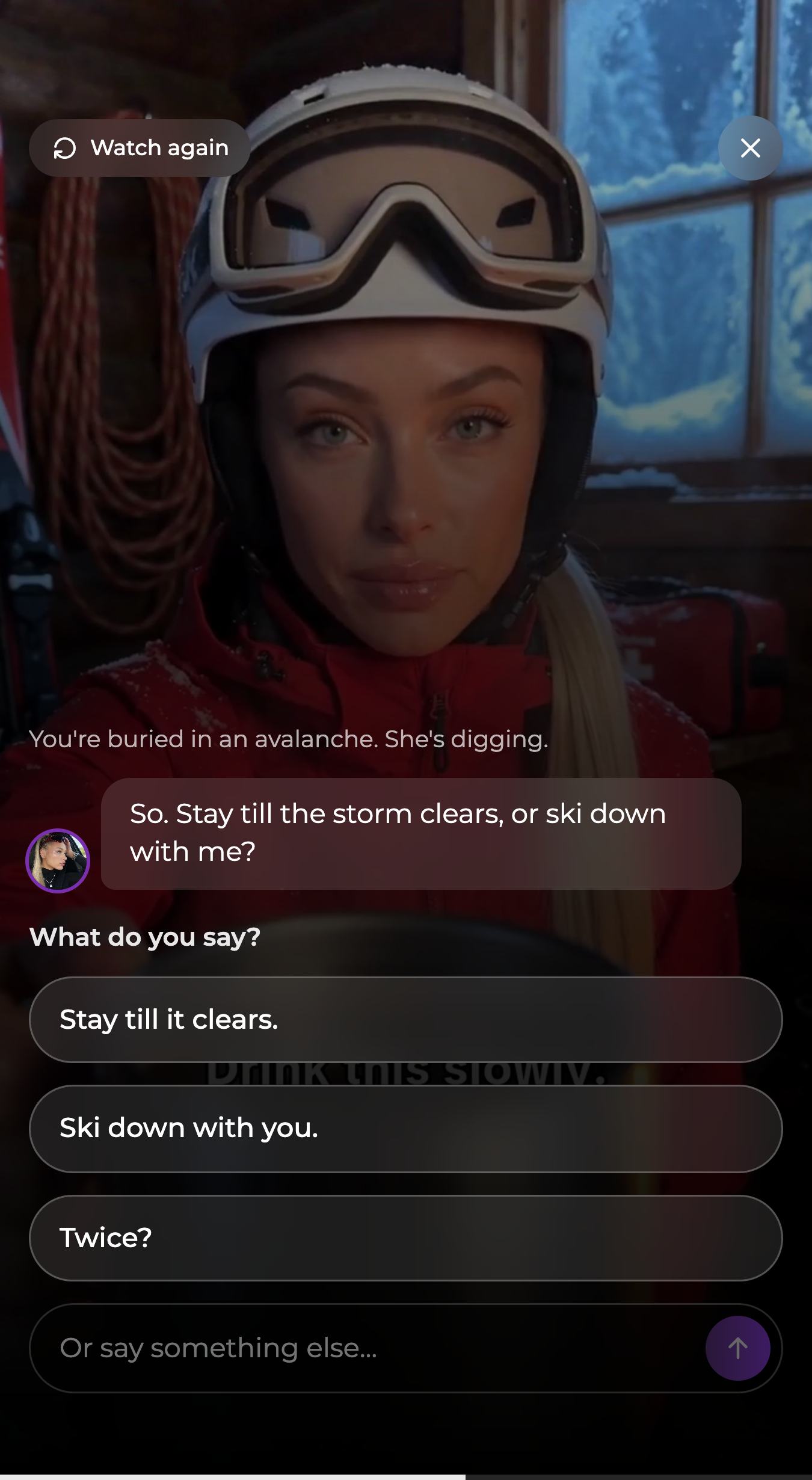
At the end of a scenario, **What do you say?** offers replies to the companion's opening line.

1. Read the opening and the suggested replies.
2. Select a reply to start the conversation with those words.
3. To write something different, use **Or say something else…**, then select the send arrow. This opening reply accepts up to **500 characters**.
4. Sign in, create an account, or verify your email if prompted. Your chosen reply is kept so you can continue after that step.

<figure><img src="https://3286776735-files.gitbook.io/~/files/v0/b/gitbook-x-prod.appspot.com/o/spaces%2F9ACKOAU4nFWSXPeE2B4s%2Fuploads%2Fgit-blob-7ab97971b2435b9f45265b2f269af5babb353fda%2Fscenario-first-reply.png?alt=media" alt="Buried with Watch again, Sasha&#x27;s opening line, the three replies Stay till it clears, Ski down with you, and Twice, and a field for writing a different reply." width="450"><figcaption><p>Selecting a choice sends it as your first message when the chat opens.</p></figcaption></figure>

Your conversation continues from the scenario's setup. You can keep writing normally, describe actions with `*asterisks*`, and steer the story as it develops. Your plan's normal chat access and message limits still apply. You can start a scenario on any plan; [personas](/get-started/personas.md) remain an optional Ultimate feature.

## Use suggested replies in chat

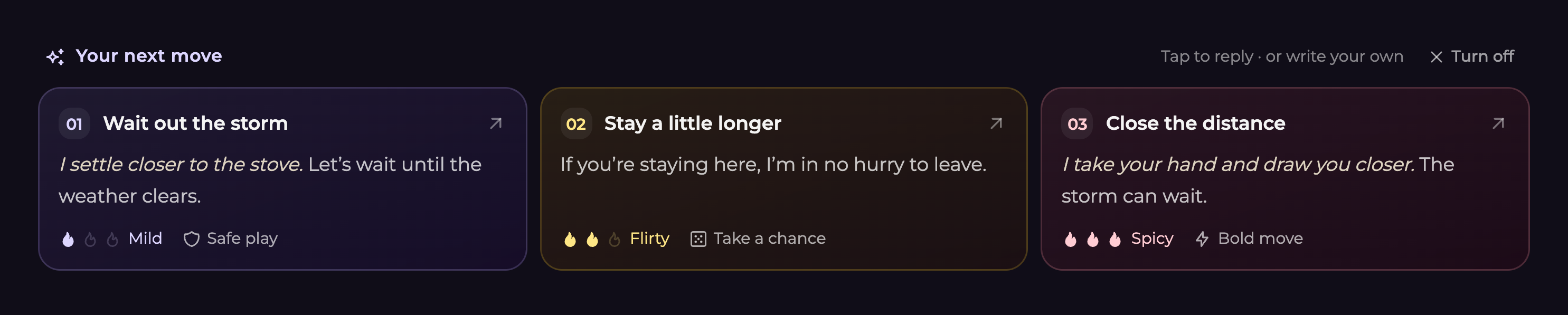
Scenario chats can show three ideas under **Your next move** after the companion replies. Select a card to **send that reply immediately**, or ignore the cards and write in the normal message box. On a phone, swipe sideways through the cards to read the other choices.

<figure><img src="https://3286776735-files.gitbook.io/~/files/v0/b/gitbook-x-prod.appspot.com/o/spaces%2F9ACKOAU4nFWSXPeE2B4s%2Fuploads%2Fgit-blob-e8b06c35b1e38680b9e73b6716fbf2aa5e7b8f64%2Fscenario-replies.png?alt=media" alt="Example replies for continuing the snowy cabin scene, with Mild, Flirty, and Spicy tones, story-risk labels, and a Turn off control."><figcaption><p>Read the whole card before selecting it. You can always write your own response.</p></figcaption></figure>

| Label                                     | How to use it                                                                                                        |
| ----------------------------------------- | -------------------------------------------------------------------------------------------------------------------- |
| **Mild / Flirty / Spicy**                 | A guide to the suggested reply's tone.                                                                               |
| **Safe play / Take a chance / Bold move** | A guide to how cautiously or boldly it approaches the fictional situation. These labels do not guarantee an outcome. |

The suggestions are optional. They do not limit the actions or words you can choose yourself.

### Turn suggestions off or on

* **This chat:** select **Turn off** beside **Your next move**, or change **Suggested replies** in the chat's settings and save. Turn them back on through those settings.
* **Across your account:** open **User Settings → Companion Preferences → Suggested replies**. This switch saves automatically.

Both the account preference and the conversation's preference must allow suggestions. Turning the account switch back on keeps chats you individually turned off disabled. Turning suggestions on inside a chat while the account switch is off also enables the account preference, so suggestions can return in other chats that still allow them.

See [User Settings](/extra/user-settings.md#suggested-replies) for the account controls.

## Troubleshooting

**I do not see any suggested replies.** Check that this is a scenario chat and that Suggested replies is enabled. Wait for the companion to finish responding. If a **Try again** control appears, use it, or continue by writing your own message.

**The available scenarios changed.** Check your gender, style, content, and genre filters. New stories and collections can also change what appears.

**The video has no sound.** Use the sound control in the player and check your device volume. Browse previews may start muted.

**I want to continue without choosing a card.** Type into the custom reply field at the opening, or use the normal message box once you're in chat.

**Does turning suggestions off end the scenario?** No. The conversation and its history stay available; you simply write your own replies.

Continue with [Chat Features](/get-started/chat-features.md), [Chat Modes & Thinking Levels](/get-started/chat-modes-and-thinking-levels.md), or [Personas](/get-started/personas.md).