> For the complete documentation index, see [llms.txt](https://wiki.secrets.ai/llms.txt). Markdown versions of documentation pages are available by appending `.md` to page URLs; this page is available as [Markdown](https://wiki.secrets.ai/lorebooks/chronicle.md).
# Chronicle
PREMIUM and ULTIMATE feature. Browse scenes, chapters, and arcs, correct past events, and understand what deleting a Chronicle item removes.
{% hint style="info" %}
**Available on PREMIUM and ULTIMATE.** Lorebooks are included for all subscribers on these [plans](/get-started/subscription-tiers-and-limits.md). On FREE, your companions use the [Memory System](/get-started/memory-system.md).
{% endhint %}
**Chronicle** records events as your conversation develops. It answers **“What happened, and how did the story get here?”** Use it to revisit a visit, a discovery, a celebration, a disagreement, or another meaningful scene.
Other sections describe ongoing information. Chronicle preserves the events behind it.
Chronicle belongs to **companion books**. A [Universe Book](/lorebooks/universe-books.md) has no Chronicle because no chat writes directly into it. After starting a chat from a Universe, open that chat's companion book to follow the events that develop.
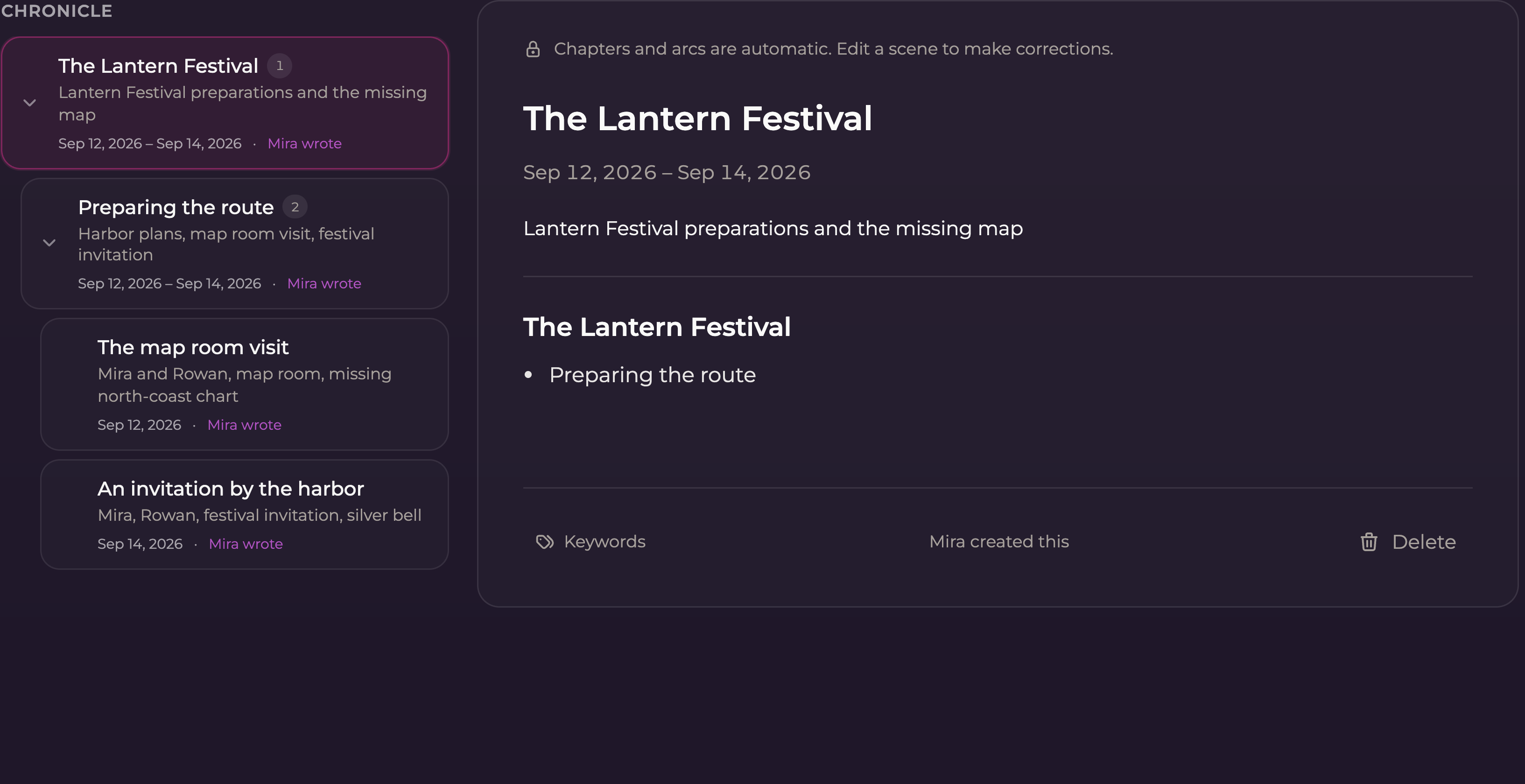
Expand the Chronicle to browse from an arc to a chapter and then its scenes.
## Scenes, chapters, and arcs
| Level | What it is | How you use it |
| ----------- | -------------------------------------------- | ------------------------------------------------------- |
| **Scene** | An account of something that happened | Read it or correct its title, description, and Content. |
| **Chapter** | An automatically organized group of scenes | Expand it to find the scenes inside. |
| **Arc** | An automatically organized group of chapters | Use it to navigate a longer stretch of the story. |
A small or recent book may show scenes without a large hierarchy. You do not need to create chapters or arcs yourself.
Chronicle does not have a **+ New** button. Scenes appear as you talk; it is not a place to enter future events as though they have already happened. You should not expect a separate scene for every individual message.
## Browse an event
1. Select **Chronicle**.
2. Use the expand arrow beside a chapter or arc to show its contents.
3. Select a scene title to read it.
4. Check the displayed date and text to confirm you have the event you intended.
Use **Search this book** if you remember a name, place, or phrase but not the event's title. On a phone, **All Chronicle** returns you from a scene to the list.
## What a useful scene contains
A scene should identify who was involved, where it happened, what changed, and any meaningful result.
For example:
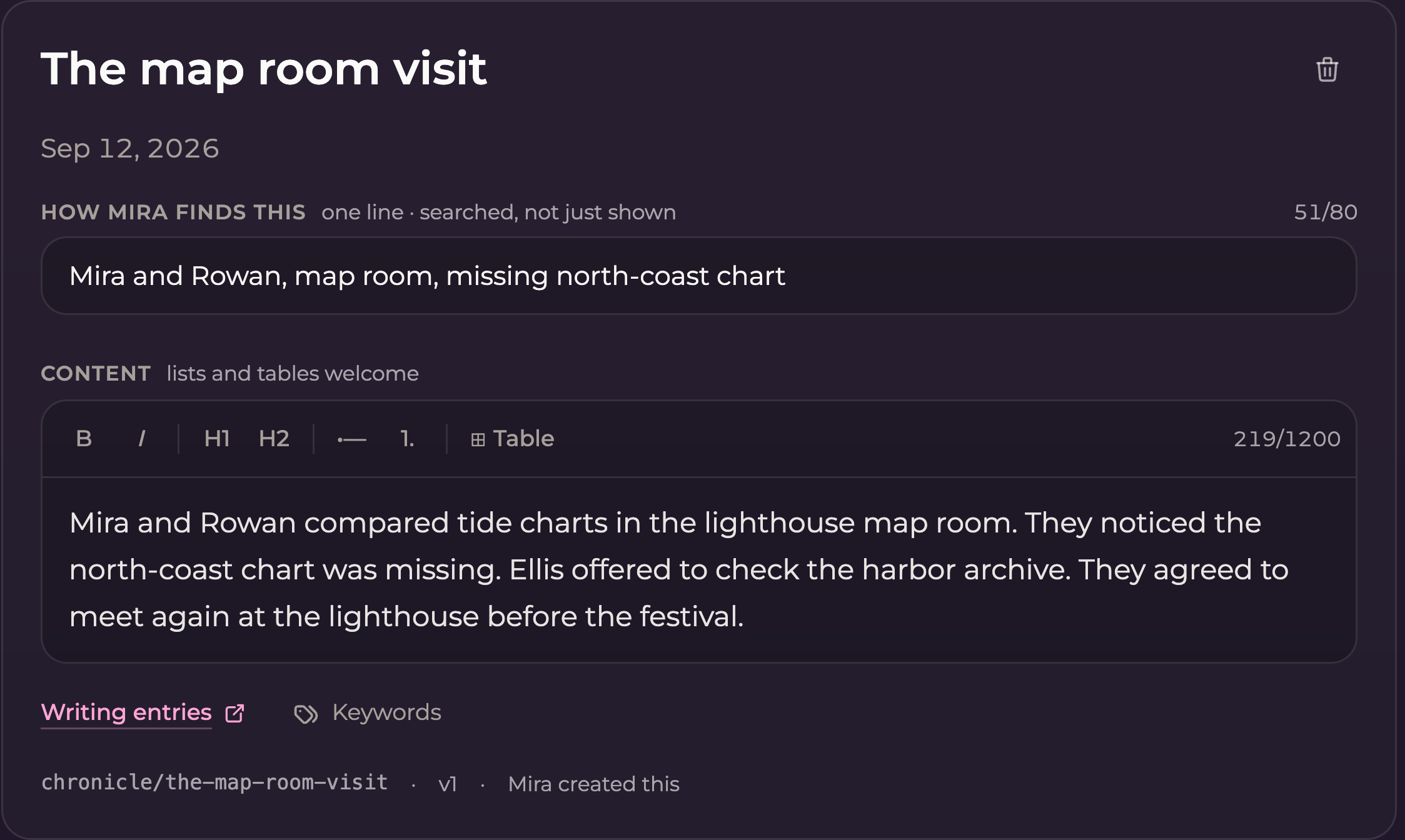
> Mira and Rowan compared tide charts in the lighthouse map room. They noticed the north-coast chart was missing. Ellis offered to check the harbor archive. They agreed to meet again at the lighthouse before the festival.
This captures the event without reproducing the full conversation. “They chatted about maps” loses the discovery and follow-up that made the scene important.
Edit the scene when an account needs correcting. Chapters and arcs are organized automatically.
## Correct a scene
Open the scene, edit the inaccurate fields, and select **Save**. Correct factual errors such as the wrong participant, an invented agreement, or an incorrect outcome.
Chapters and arcs are read-only organizational entries. If the issue concerns what happened, find and edit the scene inside the container. There is no editable date field in the scene editor.
A correction to a scene does not automatically mean every other entry now expresses the right current situation. If the scene wrongly claimed Rowan accepted an invitation, also check Relationship and Open threads for assumptions based on that claim.
## View or edit keywords
Select **Keywords** below an item's Content. On a **scene**, you can edit up to eight words or phrases and save them in the dialog. On a **chapter or arc**, the list is read-only because those entries are maintained automatically.
Use specific event references, such as `north-coast chart` or `harbor archive`. A scene's custom keyword list stays in place when its text changes, so review it after a substantial correction. See [Managing keywords](/lorebooks/keywords.md) for examples and save behavior.
## Keep past events separate from current information
| If you need to record… | Use… |
| ----------------------------------------------------- | ------------ |
| Rowan visited the lighthouse on a particular occasion | Chronicle |
| The lighthouse has a map room | World |
| Rowan and Mira are longtime friends | Relationship |
| Rowan prefers mint tea | Facts |
| Rowan still needs to return a chart | Open threads |
When the chart is returned, the completed event belongs in Chronicle and the outstanding task can leave Open threads. Keep lasting information in the relevant section so you do not need to treat an entire event as a permanent instruction.
## Pins, locks, and deletion
Chronicle does not offer the ordinary entry **pin** or **lock** toggles. If an event establishes a lasting rule or fact, write that information in the appropriate non-Chronicle section and use its controls there.
To remove an event, select its trash icon and read the confirmation. **Deleting a chapter or arc also removes its nested entries**, as described in the dialog. Choose the individual scene when that is all you intend to remove.
History is a record of changes, not an undo tool. Copy anything you need before confirming deletion. Removing a Chronicle entry does not remove the original messages from your chat.