> For the complete documentation index, see [llms.txt](https://wiki.secrets.ai/llms.txt). Markdown versions of documentation pages are available by appending `.md` to page URLs; this page is available as [Markdown](https://wiki.secrets.ai/lorebooks/entries.md).

# Writing & Editing Entries

PREMIUM and ULTIMATE feature. Create useful entries, format their content, save changes, search your book, and safely remove outdated information.

{% hint style="info" %}
**Available on PREMIUM and ULTIMATE.** Lorebooks are included for all subscribers on these [plans](/get-started/subscription-tiers-and-limits.md). On FREE, your companions use the [Memory System](/get-started/memory-system.md).
{% endhint %}

An entry is one manageable topic: a person, a place, a relationship, a preference, or an event. Give each topic enough detail to be useful, while keeping unrelated information in separate entries.

The same editor works in [Universe Books](/lorebooks/universe-books.md), where **your companion** replaces a specific companion's name in the labels. Universe entries become starting material for new copies; to correct an existing story, edit the companion book attached to its chat.

## Entry text and keywords

| Field                                       | What to put here                                                     | Example                                                                |
| ------------------------------------------- | -------------------------------------------------------------------- | ---------------------------------------------------------------------- |
| **Title**                                   | A short, recognizable name for the topic                             | `Lantern Lighthouse`                                                   |
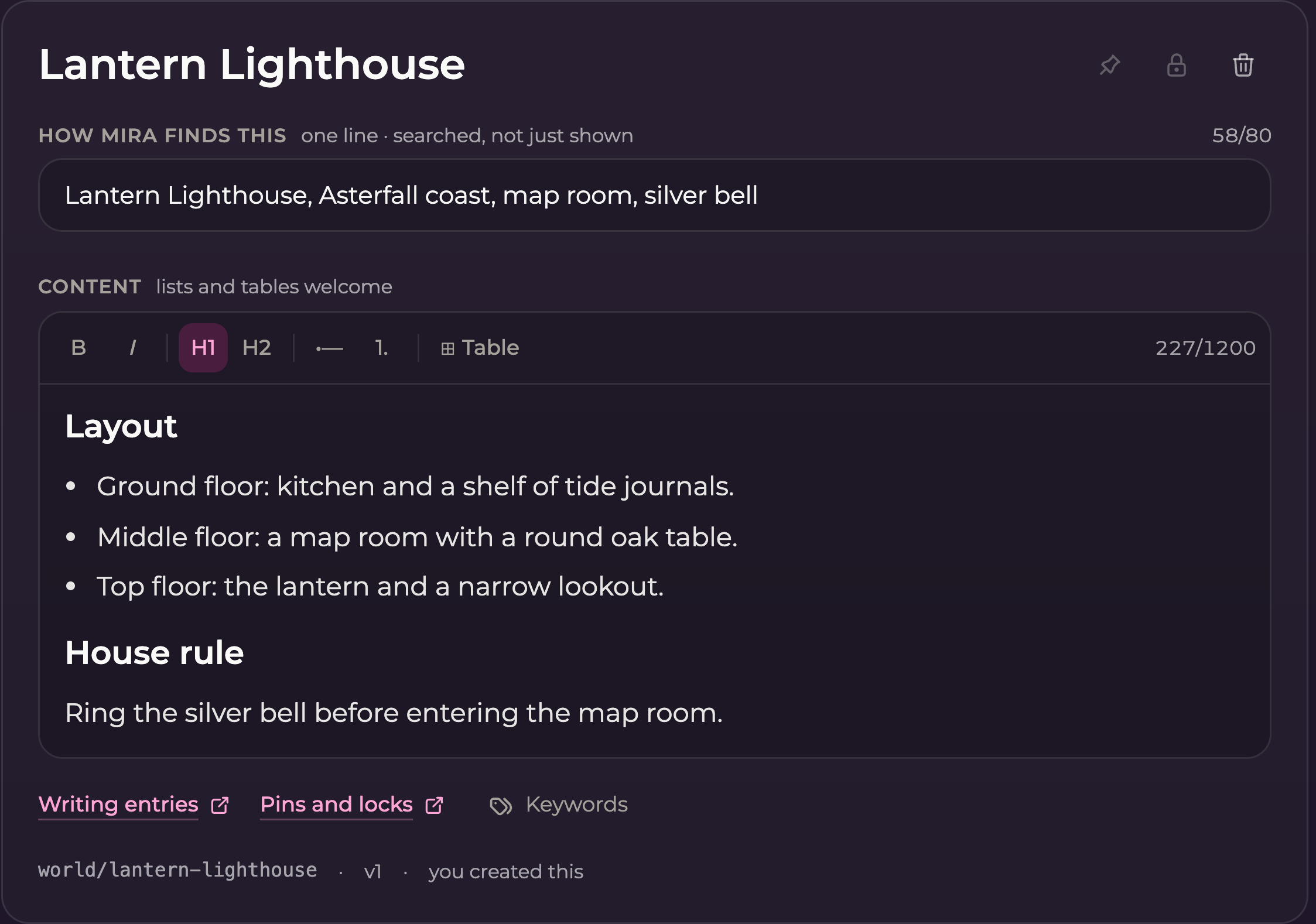
| **How \[companion] finds this**             | A specific one-line description with useful names and subjects       | `Lantern Lighthouse, Asterfall coast, map room, silver bell`           |
| **Content**                                 | The actual information the companion should know                     | The building's layout, what is in the map room, and the bell rule.     |
| **Keywords** (separate dialog after saving) | Up to eight words or phrases associated with the entry, one per line | `Lantern Lighthouse`, `map room`, and `silver bell` on separate lines. |

<figure><img src="https://3286776735-files.gitbook.io/~/files/v0/b/gitbook-x-prod.appspot.com/o/spaces%2F9ACKOAU4nFWSXPeE2B4s%2Fuploads%2Fgit-blob-de3ff0350109fdc2d2b022faa9ed4da9c2ab215b%2Fworld.png?alt=media" alt="World entry showing the Lantern Lighthouse title, description, Content formatting toolbar, pin, lock, and delete controls"><figcaption><p>The same entry fields are used throughout Cast, World, Relationship, and Facts.</p></figcaption></figure>

### Write a description that identifies the subject

Use names and concrete terms you might mention in conversation. A description is a compact explanation of the topic, not a second full entry.

| Too vague                   | More useful                                                |
| --------------------------- | ---------------------------------------------------------- |
| Important information       | Rowan, favorite tea, mint, no honey                        |
| Our place                   | Lantern Lighthouse, Asterfall coast, map room, silver bell |
| Things to remember about us | Mira and Rowan, friendship, teasing, mapmaking promise     |
| Someone we know             | Ellis Reed, harbor archivist, tide charts                  |

Avoid filling it with unrelated words. If the entry changes from mint tea to lemon tea, update the description as well as Content.

### Write Content that can stand on its own

Name the subject explicitly. “Rowan prefers mint tea” is clearer than “I like that drink.” State whether an event happened, is planned, or is merely possible.

Use short paragraphs for a simple description, bullets for several details, and small tables when the relationships between values matter. Leave out repetitive wording and details belonging to a different topic.

## Create an entry

1. Select **Cast**, **World**, **Relationship**, or **Facts**.
2. Select **+ New**.
3. Fill in the title, description, and Content.
4. Check any validation message or character counter.
5. Select **Save**. Wait for **Saved** before leaving.

<figure><img src="https://3286776735-files.gitbook.io/~/files/v0/b/gitbook-x-prod.appspot.com/o/spaces%2F9ACKOAU4nFWSXPeE2B4s%2Fuploads%2Fgit-blob-8da874cb0c25a0cb4af5073aaf1d8977da186db6%2Fnew-entry.png?alt=media" alt="Unsaved fictional Facts entry with a title, description, Content, and Save and Cancel controls"><figcaption><p>A new entry remains a draft until you save it. Pin, lock, delete, and Keywords controls appear after it exists.</p></figcaption></figure>

Selecting **+ New** does not immediately add an empty entry to your book. Canceling an unsaved new entry drops the draft. Chronicle is different: scenes are added as the conversation develops, and it has no **+ New** button.

## Edit an existing entry

Open the entry, change the relevant fields, then select **Save**. The save controls appear when you make changes. **Cancel** abandons your unsaved edits.

If you change the title, the editor may display a “Stored as” line. You do not need to type or manage this yourself. If it says the name is already used, choose a more distinct title or update the existing entry on that topic.

If you try to move away with unsaved edits, follow the prompt to stay or discard them. Save before switching sections, books, or chats.

## Manage keywords

On a saved entry, select **Keywords** below Content. Enter one keyword or phrase per line, with a maximum of **eight**, then select the dialog's **Save** button. Common English singular and plural forms match automatically, so one form is enough. Keywords are optional to customize; a new entry starts with an automatically generated list.

After you change and save a custom list, later text edits keep that list. Maintain it when the entry's subject changes. Saving keywords does not save any unsaved title, description, or Content edits; use the entry's own **Save** button for those.

[Managing keywords](/lorebooks/keywords.md) includes screenshots, examples, the automatic/custom distinction, and the read-only lists on Chronicle chapters and arcs.

## Format the Content

The toolbar supports **bold**, *italic*, headings, bullet lists, numbered lists, and tables. For tables, you can add rows or columns and remove the table.

Choose formatting that makes the entry easier to check:

* **Bullets:** a person's stable traits or several room features.
* **Headings:** separate a location's layout from its rules.
* **Numbered lists:** a fictional procedure whose order matters.
* **Tables:** a short schedule or compact comparison.

Formatting uses some of the displayed character allowance, so the count can be higher than the visible letters alone. If a table becomes cramped or exceeds the limit, use bullets or split the topic.

## Work within the displayed limits

| Field or section        | Current limit                                           |
| ----------------------- | ------------------------------------------------------- |
| Entry title             | 48 characters                                           |
| Short description       | 80 characters                                           |
| Keywords                | 8 words or phrases, one per line in the Keywords dialog |
| Cast Content            | 900 characters                                          |
| World Content           | 1,200 characters                                        |
| Relationship Content    | 1,200 characters                                        |
| Facts Content           | 900 characters                                          |
| Chronicle scene Content | 1,200 characters                                        |

Use the limits shown on your screen if they differ. A limit is a maximum, not a target. One accurate sentence can be a complete Facts entry.

If a topic is too long, split it at a natural boundary: `Lantern Lighthouse` and `Lighthouse maintenance rules`, for example. Give each new entry a description that explains its own subject.

## Find an entry

Use **Search this book** to search the current book. Results can include matches in titles, descriptions, and Content, and show which section an entry belongs to. Use the section filter to narrow the results, or clear the search to return to normal browsing.

<figure><img src="https://3286776735-files.gitbook.io/~/files/v0/b/gitbook-x-prod.appspot.com/o/spaces%2F9ACKOAU4nFWSXPeE2B4s%2Fuploads%2Fgit-blob-d61d2ca31fb0510442cc5fe7256962b3338930b4%2Fsearch.png?alt=media" alt="Search results for silver bell in the fictional lorebook, showing entries from different sections"><figcaption><p>Search helps you find a detail even when you do not remember its section.</p></figcaption></figure>

For larger books, use the previous and next page controls in entry lists. A page is only part of the book; an entry missing from the visible list may be elsewhere.

## Correct the section or remove duplicates

The entry editor does not offer a section-change field. To relocate information:

1. Copy the useful text.
2. Create an entry in the correct section with an appropriate title and description.
3. Save it and verify the result.
4. Delete the old entry if it is now redundant.

Before deleting duplicates, combine any unique details into the entry you are keeping. Do not leave contradictory versions active.

## Delete an entry

Select the entry's **trash icon**, read the confirmation, and confirm only when you mean to remove it from the book. The change affects every chat using that book. Deleting an entry does not edit your existing chat messages.

There is no restore button in History. For Chronicle chapters and arcs, deletion also removes the nested entries described in the confirmation. See [Chronicle](/lorebooks/chronicle.md) before deleting a group of events.

## Use the editor on a phone

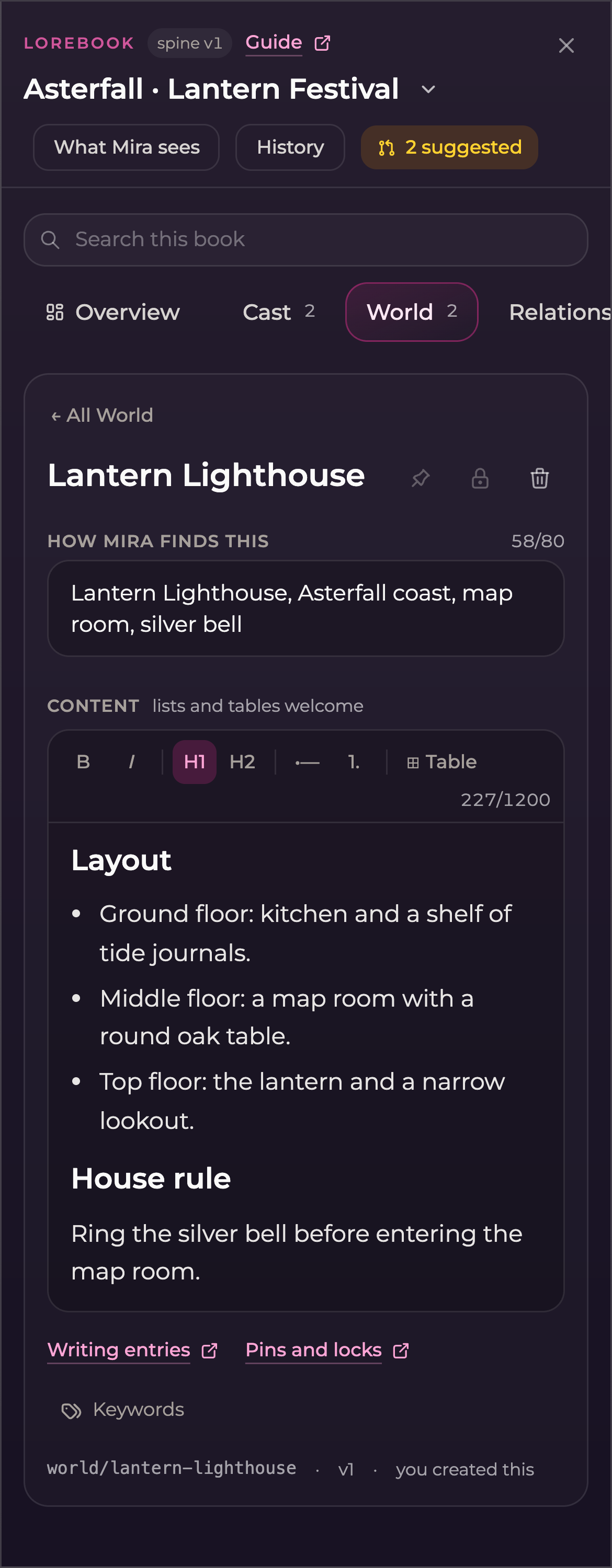
Select a section, then an entry. The entry opens as its own view; use **All \[section]** to return to the list. You may need to scroll to reach Content and the save controls.

<figure><img src="https://3286776735-files.gitbook.io/~/files/v0/b/gitbook-x-prod.appspot.com/o/spaces%2F9ACKOAU4nFWSXPeE2B4s%2Fuploads%2Fgit-blob-5e1d20ca65d3290c08613929f2db2dc799a0c153%2Fmobile-entry.png?alt=media" alt="Mobile entry editor for the fictional Lantern Lighthouse with the All World back control and readable Content" width="390"><figcaption><p>On a phone, the list and entry are separate views.</p></figcaption></figure>