> For the complete documentation index, see [llms.txt](https://wiki.secrets.ai/llms.txt). Markdown versions of documentation pages are available by appending `.md` to page URLs; this page is available as [Markdown](https://wiki.secrets.ai/lorebooks/keywords.md).

# Managing Keywords

PREMIUM and ULTIMATE feature. View and edit entry keywords, choose useful phrases, and understand automatic and custom keyword lists.

{% hint style="info" %}
**Available on PREMIUM and ULTIMATE.** Lorebooks are included for all subscribers on these [plans](/get-started/subscription-tiers-and-limits.md). On FREE, your companions use the [Memory System](/get-started/memory-system.md).
{% endhint %}

**Keywords** are short words or phrases associated with an entry. Use them for names, nicknames, places, and distinctive topics you might mention in conversation. They help connect those references with the relevant entry.

You can keep the automatically generated keywords or replace them with a list you choose. You do not need to customize every entry before chatting.

## Keywords, description, and Content

These parts of an entry have different jobs:

| Part                            | What belongs here                                                  | Lantern Lighthouse example                                                  |
| ------------------------------- | ------------------------------------------------------------------ | --------------------------------------------------------------------------- |
| **Title**                       | A clear name for the entry                                         | `Lantern Lighthouse`                                                        |
| **How \[companion] finds this** | A short description identifying the subject                        | `Lantern Lighthouse, Asterfall coast, map room, silver bell`                |
| **Content**                     | The actual details to remember                                     | The lighthouse layout and the rule about ringing the silver bell.           |
| **Keywords**                    | Individual names, terms, or phrases you might use for this subject | `Lantern Lighthouse`, `map room`, `silver bell`, entered on separate lines. |

A keyword does not add a fact to Content. For example, adding `silver bell` does not explain when someone should ring it; write that rule in Content. Keywords also do not pin or lock an entry, and they do not guarantee that a particular response will mention it.

## Open the keyword list

1. Open the correct book and select an entry.
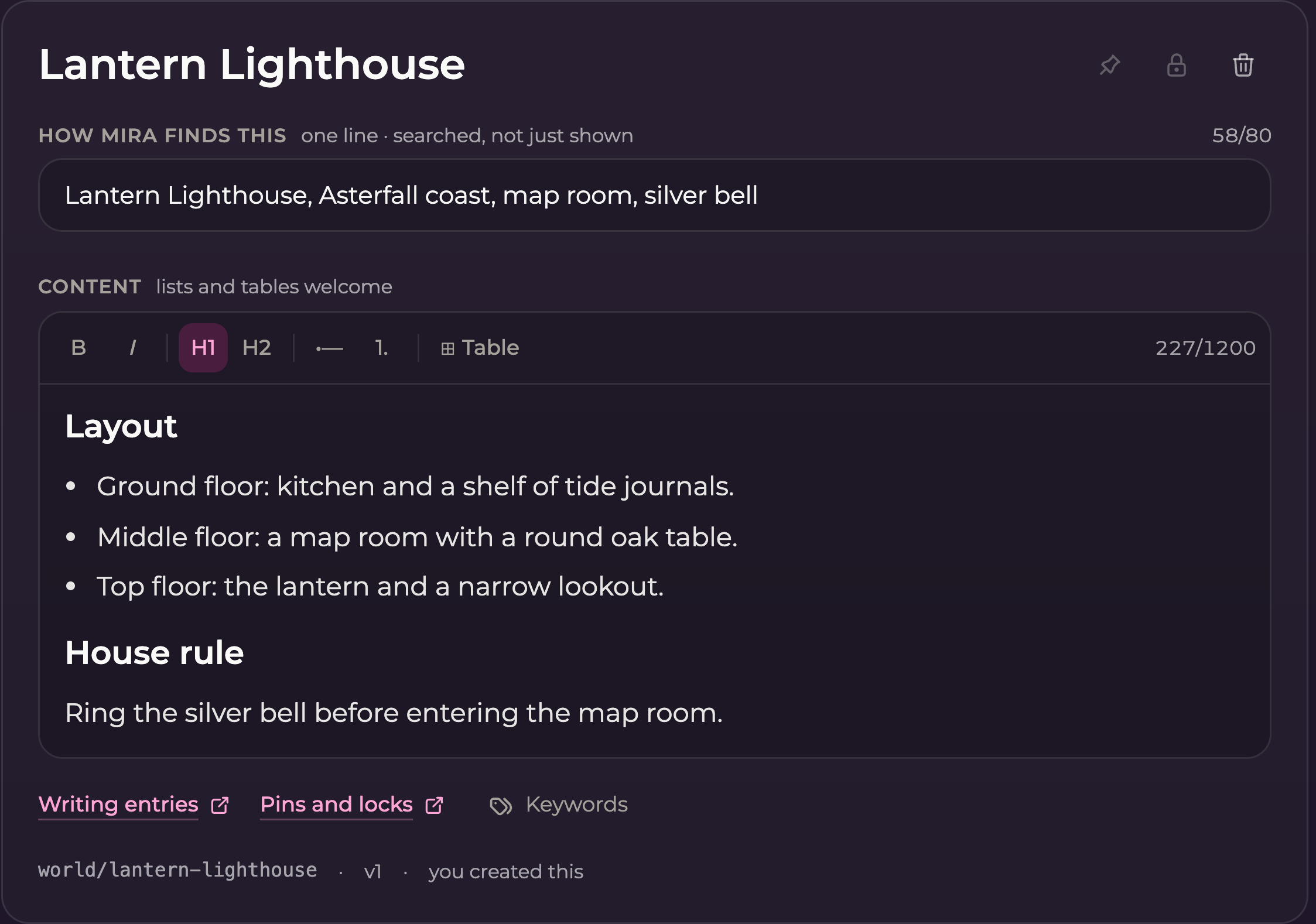
2. If it is a new entry, fill in its text and **Save** it first.
3. Scroll below **Content** and select **Keywords**.
4. Check the entry title at the top of the dialog before editing.

<figure><img src="https://3286776735-files.gitbook.io/~/files/v0/b/gitbook-x-prod.appspot.com/o/spaces%2F9ACKOAU4nFWSXPeE2B4s%2Fuploads%2Fgit-blob-de3ff0350109fdc2d2b022faa9ed4da9c2ab215b%2Fworld.png?alt=media" alt="Lantern Lighthouse entry with the Keywords button below Content"><figcaption><p>Open Keywords below a saved entry's Content. New, unsaved entries do not show this button yet.</p></figcaption></figure>

Keywords can be edited on saved **Cast**, **World**, **Relationship**, and **Facts** entries, and on **Chronicle scenes**. Chronicle chapters and arcs let you view their keywords but do not let you edit them.

## Add, replace, or remove keywords

In the **Keywords** dialog:

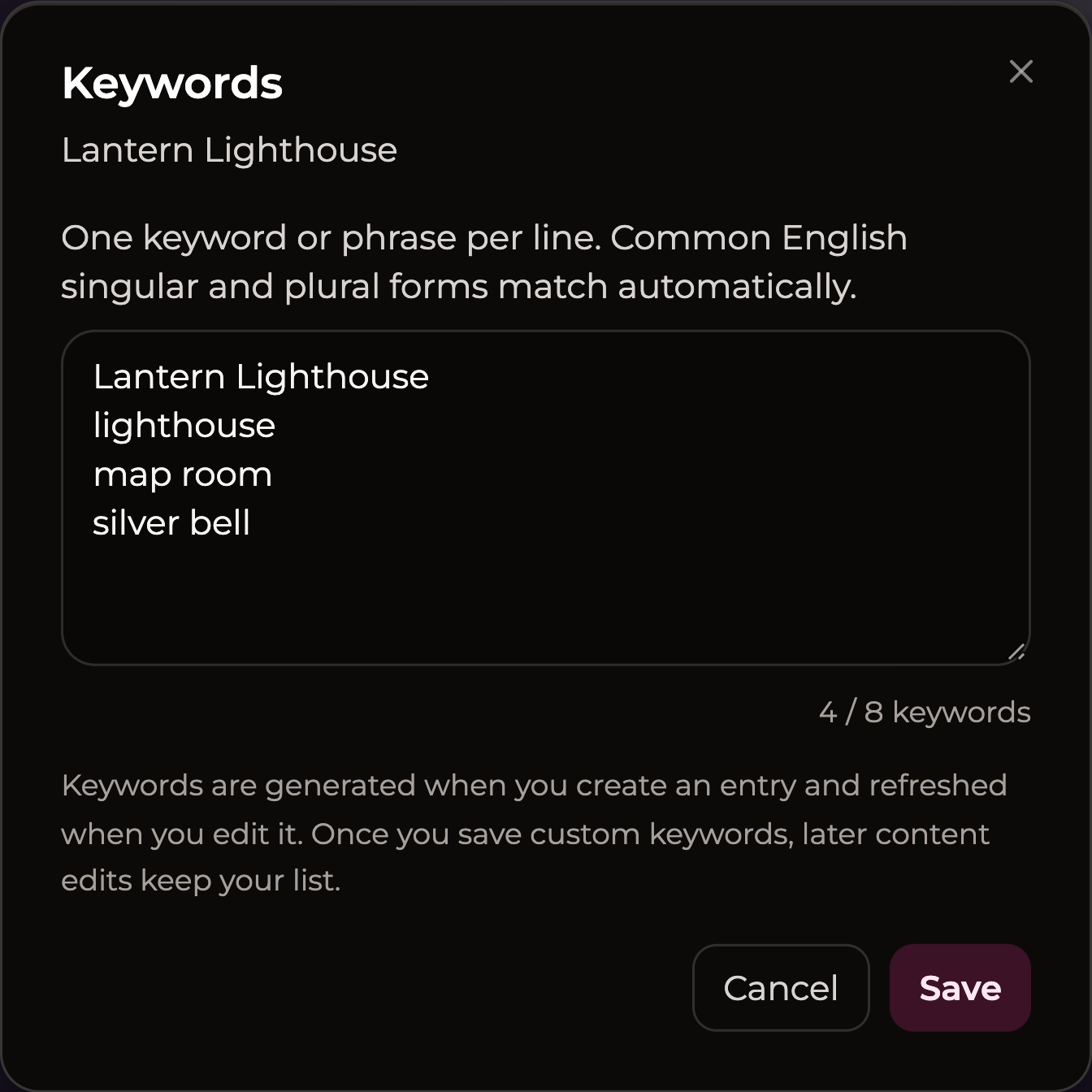
1. Enter **one keyword or phrase per line**. Press Enter to start another line.
2. Edit a line to replace a keyword, or delete the whole line to remove it.
3. Keep the list at **eight keywords or fewer**, using the displayed counter.
4. Select the dialog's **Save** button. After a successful save, the dialog closes.
5. Reopen **Keywords** if you want to check the saved list.

A phrase such as `map room` counts as one keyword. Do not put a comma-separated list on one line expecting separate keywords; use separate lines instead. Blank lines and repeated identical lines do not add to the count, and spaces at the beginning or end of a line are removed.

<figure><img src="https://3286776735-files.gitbook.io/~/files/v0/b/gitbook-x-prod.appspot.com/o/spaces%2F9ACKOAU4nFWSXPeE2B4s%2Fuploads%2Fgit-blob-c9a1130288da5bbb1543618c7cec4808edba39ff%2Fkeywords-edit.png?alt=media" alt="Keywords dialog for Lantern Lighthouse with four words or phrases on separate lines and a 4 of 8 counter"><figcaption><p>Each line is one keyword. The counter shows how much of the eight-keyword allowance is in use.</p></figcaption></figure>

The example shown contains:

```
Lantern Lighthouse
lighthouse
map room
silver bell
```

Common English singular and plural forms match automatically. For example, `map room` also covers `map rooms`, so you only need one form in the list. You do not need to fill all eight slots.

**Cancel**, the close button, or Escape closes the dialog without saving your keyword edits. While a save is in progress, wait for it to finish.

## Choose useful keywords

Choose terms that identify this entry and match how you refer to its subject.

| Entry                  | Useful choices                                      | Why they help                                                    |
| ---------------------- | --------------------------------------------------- | ---------------------------------------------------------------- |
| Mira Vale              | `Mira Vale`, `lighthouse keeper`, `brass compass`   | Her name, role, and a distinctive possession.                    |
| Lantern Lighthouse     | `Lantern Lighthouse`, `map room`, `silver bell`     | The place's name and recognizable features.                      |
| Mira and Rowan         | `Mira and Rowan`, `North Star`, `mapmaking promise` | The people, a meaningful nickname, and an established agreement. |
| Rowan's tea preference | `Rowan`, `mint tea`, `tea preference`               | The person and the specific topic.                               |
| The map room visit     | `map room`, `north-coast chart`, `harbor archive`   | Specific places and subjects involved in the event.              |

Use a nickname only if it actually refers to the entry's subject. Prefer a specific phrase such as `harbor archive` over a broad word such as `place`. Avoid adding the same long list of general words to every entry.

Keep sentences, instructions, and background details in Content. A keyword list should be easy to scan and maintain.

## Automatic and custom keywords

Keywords are generated when an entry is created. While you leave that list automatic, editing the entry's text can refresh it.

Once you **change and save** the keywords yourself, that entry keeps your custom list through later text edits. Opening the dialog or canceling an edit does not make the list custom.

Review custom keywords when the entry changes substantially. If Rowan switches from mint tea to lemon tea:

1. Correct Content and the short description, then save the entry.
2. Open **Keywords**.
3. Replace `mint tea` with `lemon tea` if it is in your custom list.
4. Save the keywords separately.

Accepting a suggested content change does not refresh a custom list for you. The same check is useful after renaming a person or place.

### Remove all keywords

You can clear the list and save it. This removes those keywords; it does not delete the entry or its Content.

Saving an empty custom list does **not** switch the entry back to automatic keywords. The current dialog has no reset-to-automatic button. Add and save the words you want to use instead.

## Keywords have their own Save action

The **Save** button in the keyword dialog saves only keywords. If you have unsaved changes to the entry's title, description, or Content, those edits remain in the editor and still need the entry's own **Save** button.

Similarly, saving the entry's text is not a substitute for saving a keyword edit in the dialog. For a straightforward workflow, finish and save the entry text first, then adjust its keywords.

Changing only keywords does not accept or dismiss a pending content suggestion. Continue to use **Accept / Dismiss** or **Keep / Discard** in the review panel for those decisions.

Saved keyword changes appear in **History** as **Keywords** changes. Like other edits to a shared book, they apply to every chat using that book.

## Chronicle chapters and arcs

Open **Keywords** in a chapter or arc to inspect its list. The text is read-only and the dialog has a **Close** button instead of Save and Cancel.

<figure><img src="https://3286776735-files.gitbook.io/~/files/v0/b/gitbook-x-prod.appspot.com/o/spaces%2F9ACKOAU4nFWSXPeE2B4s%2Fuploads%2Fgit-blob-797de22d08d6bbdc02f00085f54d232ea2a50a04%2Fkeywords-readonly.png?alt=media" alt="Read-only Keywords dialog for The Lantern Festival arc with three keywords, an explanation that chapters and arcs are automatic, and a Close button"><figcaption><p>Chapter and arc keywords are maintained automatically. Open an individual scene to edit that scene's keywords.</p></figcaption></figure>

If you need to correct an event or its keywords, expand the chapter or arc and open the relevant **scene**. See [Chronicle](/lorebooks/chronicle.md) for the difference between these levels.

## If something does not save

| What you see                                  | What to do                                                                                                                 |
| --------------------------------------------- | -------------------------------------------------------------------------------------------------------------------------- |
| No Keywords button on a new entry             | Save the entry first, then look below Content.                                                                             |
| Save is disabled                              | Check whether the list has changed and whether it exceeds eight keywords. A save in progress also disables it.             |
| The counter is lower than the number of lines | Blank lines and repeated identical lines are ignored.                                                                      |
| Read-only text with a Close button            | You opened a Chronicle chapter or arc. Open a scene to edit its keywords.                                                  |
| An older-version message                      | Copy the keyword draft and any unsaved entry text you need, reopen the book, and apply your changes to the latest entry.   |
| A save error                                  | Keep a copy of your keyword draft, check the message and connection, and retry. The dialog stays open after a failed save. |
| Old keywords remain after a text change       | Check whether you previously saved a custom list. Custom keywords need to be maintained separately.                        |

If your companion still misses information, also check the book selection, description, and Content. [Troubleshooting](/lorebooks/troubleshooting.md#my-companion-is-missing-a-detail) walks through those checks.