> For the complete documentation index, see [llms.txt](https://wiki.secrets.ai/llms.txt). Markdown versions of documentation pages are available by appending `.md` to page URLs; this page is available as [Markdown](https://wiki.secrets.ai/lorebooks/overview.md).

# Overview, Premise & Open Threads

PREMIUM and ULTIMATE feature. Use Overview to manage the book's starting situation, unresolved plans, section navigation, and review queue.

{% hint style="info" %}
**Available on PREMIUM and ULTIMATE.** Lorebooks are included for all subscribers on these [plans](/get-started/subscription-tiers-and-limits.md). On FREE, your companions use the [Memory System](/get-started/memory-system.md).
{% endhint %}

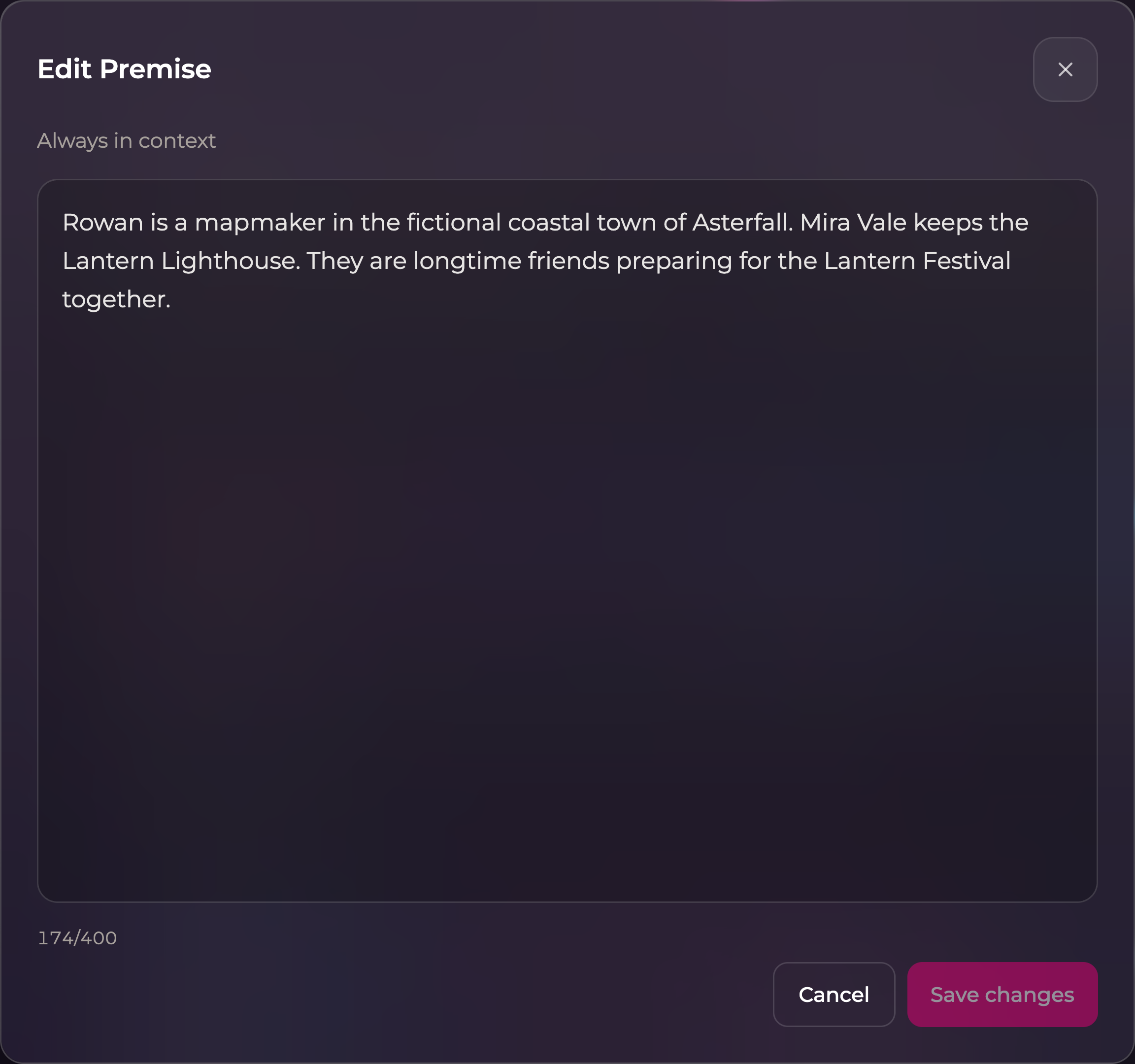
**Overview** is the home screen for the whole book. Use it to check which book you are editing, review pending items, and keep the overall situation current.

<figure><img src="https://3286776735-files.gitbook.io/~/files/v0/b/gitbook-x-prod.appspot.com/o/spaces%2F9ACKOAU4nFWSXPeE2B4s%2Fuploads%2Fgit-blob-a70608d75e9a411f2361feb26093b725116f8d39%2Foverview.png?alt=media" alt="Overview of the fictional Lantern Festival lorebook, with two chats, eleven entries, and two items to review"><figcaption><p>Overview brings the book's identity, pending reviews, Premise, and Open threads together.</p></figcaption></figure>

## Read the Overview

| Area                                               | What it tells you                                                  | What to do here                                                      |
| -------------------------------------------------- | ------------------------------------------------------------------ | -------------------------------------------------------------------- |
| Book name and companion                            | Which story and companion this book belongs to                     | Check these before editing, especially when you have several books.  |
| **Change cover**                                   | The book's identifying image                                       | Choose one of your generated images, or return to the default cover. |
| Entries, chats, and pinned counts                  | How much is in the book and how widely it is used                  | Remember that edits affect all chats using this book.                |
| **Waiting on you**                                 | New entries and suggested changes needing your attention           | Select **Review** to open the relevant entry.                        |
| **Premise**                                        | The starting point that applies across the book                    | Write a concise statement of the setting and established situation.  |
| **Open threads**                                   | Plans, questions, and tensions that remain unresolved              | Keep the current unfinished items here.                              |
| **What's in the book**                             | The five sections and their counts                                 | Select a section to read or edit its entries.                        |
| **What \[companion] sees** / **Always in context** | A preview and space indicators for the book's standing information | Use this when checking essential information or available pin space. |

On a phone, these areas stack vertically. Scroll within the book to reach the lower cards.

In a [**Universe Book**](/lorebooks/universe-books.md), there is no attached companion, Chronicle, or companion review queue. Its preview is labelled **What a new chat sees**. Edit its starting material for future copies; open a companion book from its chat to change an existing story.

## Change a book's cover

1. On **Overview**, select **Change cover** in the book's banner. You can also find it in the book card's **Book actions** menu in Lorebooks.
2. Browse your generated images. Use the recent/favorites sorting and tag filters to narrow the choices; use **Load more** when offered.
3. Select an image. A checkmark shows the selection.
4. Select **Save cover**.

A **companion book** offers your images for that companion. A **Universe** can use your generated images from any companion and includes a companion filter. This picker uses existing images; it does not upload a new file or generate an image.

Once you have set a custom cover, **Use default cover** removes that choice and restores the default. **Cancel** closes the picker without saving a newly selected image. If no images appear, clear filters or create an image with the appropriate companion first.

The cover helps you identify the book. It does not change its entries, the companion's appearance, or the image references used in chat. A Universe's cover is not copied to the companion books created from it.

## Premise: the starting point

The Premise answers: **“What should my companion understand before any scene begins?”** It is always available to the companion in chats using this book.

Include the few facts that define the overall situation:

* Who you are in this story.
* Who the companion is to you.
* Where or when the story takes place.
* The broad situation that is already true.

For example:

> Rowan is a mapmaker in Asterfall, a fictional coastal town. Mira keeps its lighthouse. They are longtime friends preparing for the Lantern Festival together.

A Premise is most useful when it establishes a situation. “Make every reply amazing and remember absolutely everything” does not establish one. “Mira and Rowan have been friends for years” does.

Keep detailed room layouts in **World**, biographies in **Cast**, and the finer points of your dynamic in **Relationship**. If your story changes fundamentally, update the Premise to match the new situation.

## Open threads: unfinished business

Open threads answer: **“What is still hanging over this conversation or story?”** Use a short list of specific unresolved items.

```
- Find the missing north-coast chart before the festival.
- Ask Ellis whether the archive has a spare copy.
- Meet Mira at the lighthouse to finish the route.
```

Other suitable items include an unanswered question, a promised visit, a disagreement to revisit, or a decision that has not been made.

Write the remaining action clearly. “The chart” is vague; “Ask Ellis where the missing chart was last seen” gives the companion something meaningful to remember.

### Close a thread when it is resolved

If Ellis finds the chart:

1. Remove the “find the chart” thread.
2. Keep any remaining task, such as finishing the festival route.
3. Check **Chronicle** for the event's account and correct it if needed.
4. Update a lasting fact only if the event changed something permanent.

You do not need to preserve a completed task in Open threads. The past event and the current to-do serve different purposes.

## Edit either field

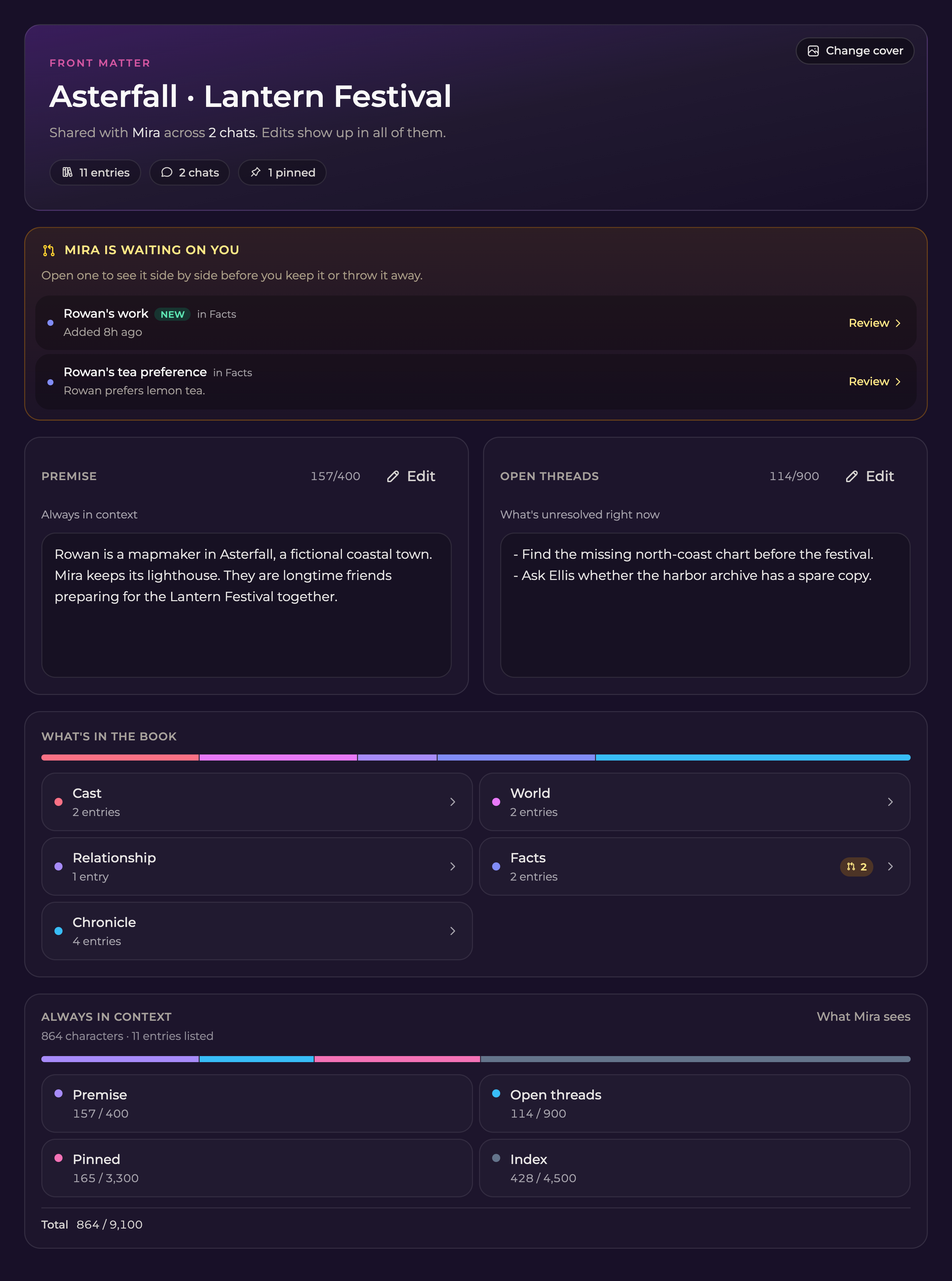
1. On Overview, select **Edit** beside the field, or select its text area.
2. Make your changes in the expanded editor.
3. Check the character counter.
4. Select **Save changes**.

<figure><img src="https://3286776735-files.gitbook.io/~/files/v0/b/gitbook-x-prod.appspot.com/o/spaces%2F9ACKOAU4nFWSXPeE2B4s%2Fuploads%2Fgit-blob-a31c56f7821e717976ee960b53c280959753be28%2Fpremise-editor.png?alt=media" alt="Expanded Premise editor showing fictional text, its character counter, and Save changes"><figcaption><p>Edit Premise and Open threads in their own expanded editors, then save your changes.</p></figcaption></figure>

Closing with unsaved changes offers a choice to discard them or keep editing. Clicking elsewhere is not a substitute for **Save changes**.

The current limits are **400 characters for Premise** and **900 for Open threads**. Treat the counter in your editor as the final guide. If the text is too long, move supporting detail into section entries and keep only the essential situation or unfinished action here.

## Understand the space indicators

Premise, Open threads, Pinned, and Index have separate displayed amounts. **Pinned** is the one to check when another entry cannot be pinned. Spare room in a different area does not mean another pin will fit.

The preview is useful for checking what is always present; it is not a list of every detail your companion can use. Unpinned entries remain in the book. You do not need to manage the Index yourself.

Continue with [writing entries](/lorebooks/entries.md) or [pins and locks](/lorebooks/pins-and-locks.md).