> For the complete documentation index, see [llms.txt](https://wiki.secrets.ai/llms.txt). Markdown versions of documentation pages are available by appending `.md` to page URLs; this page is available as [Markdown](https://wiki.secrets.ai/lorebooks/reviewing-changes.md).

# Reviewing Changes

PREMIUM and ULTIMATE feature. Compare suggested edits, keep or discard new entries, and check the book's change history.

{% hint style="info" %}
**Available on PREMIUM and ULTIMATE.** Lorebooks are included for all subscribers on these [plans](/get-started/subscription-tiers-and-limits.md). On FREE, your companions use the [Memory System](/get-started/memory-system.md).
{% endhint %}

Your companion can add information and suggest edits as you talk. Review these items from **Overview**, under **\[companion] is waiting on you**, or select the suggested-items count in the book's header.

Select **Review** on an item to open its entry. The review card appears above the entry it concerns.

## Notice changes from the chat

A **purple dot** on **Open Lorebook** means a book used by the chat has changes to review. It appears on the profile action and the mobile Lorebook button where those controls are shown.

<figure><img src="https://3286776735-files.gitbook.io/~/files/v0/b/gitbook-x-prod.appspot.com/o/spaces%2F9ACKOAU4nFWSXPeE2B4s%2Fuploads%2Fgit-blob-6d85f1f39e1e4b146f77fdce568255a7e7ba0901%2Freview-indicator.png?alt=media" alt="Open Lorebook action with a purple dot indicating changes to review" width="252"><figcaption><p>The purple dot points you to changes waiting in a chat's book.</p></figcaption></figure>

Open the book and check **Waiting on you**. In a group, check the companion tabs: the indicator can refer to any member's book. Opening the window alone does not settle reviews; use **Accept / Dismiss** or **Keep / Discard** until the relevant queues are clear.

The original **Universe Book** has no companion review queue. If you started from a Universe, review the companion book opened from the chat.

## Two kinds of review

These actions have different effects:

| What you see                                                       | Is the new information already in the book?                            | Positive action                        | Negative action                                                |
| ------------------------------------------------------------------ | ---------------------------------------------------------------------- | -------------------------------------- | -------------------------------------------------------------- |
| **\[Companion] suggests a change**, with **Now** and **Suggested** | The proposed edit is not applied yet. The existing entry stays in use. | **Accept** applies the suggested edit. | **Dismiss** drops the suggestion and keeps the existing entry. |
| **\[Companion] created a new entry**                               | Yes. The newly created entry is already available to the companion.    | **Keep** confirms the entry.           | **Discard** removes it after confirmation.                     |

{% hint style="info" %}
A review badge does not mean every item behind it is waiting to become usable. New entries are already in the book; edits to existing entries wait for acceptance.
{% endhint %}

## Review a suggested edit

<figure><img src="https://3286776735-files.gitbook.io/~/files/v0/b/gitbook-x-prod.appspot.com/o/spaces%2F9ACKOAU4nFWSXPeE2B4s%2Fuploads%2Fgit-blob-3682c8e5a32144881faf5dfd5ed2e2387901968e%2Freview-edit.png?alt=media" alt="Suggested edit changing Rowan&#x27;s tea preference from mint to lemon, shown in Now and Suggested columns with Accept and Dismiss"><figcaption><p>Compare the current entry with the proposed wording before accepting.</p></figcaption></figure>

1. Open the item from Overview.
2. Read the explanation above the comparison, when one is shown.
3. Compare **Now** with **Suggested** for every displayed field.
4. Check whether the suggestion matches what was established in the conversation.
5. Select **Accept** to apply it or **Dismiss** to leave the current entry unchanged.
6. Read the saved entry afterward to confirm it says what you intended.

In the example, the suggestion changes Rowan's preferred tea from mint to lemon and updates the short description too. Accept if Rowan actually changed that preference. Dismiss if Rowan only tried lemon tea once.

A suggestion may cover only a description or only Content. Check both fields afterward if one has become inconsistent with the other. If you have saved a custom keyword list for the entry, review [Keywords](/lorebooks/keywords.md) too; accepting a text change keeps your custom list.

Saving only keyword changes does not accept or dismiss the pending suggestion. Use the review buttons to settle it.

### Keep only part of a suggestion

The review card does not have a partial-accept button. If the suggestion mixes a useful correction with an incorrect addition, dismiss it and edit the entry yourself with the wording you want, then **Save**.

Dismissing a suggestion does not prevent the companion from suggesting another change later. Use a [lock](/lorebooks/pins-and-locks.md) when you want to prevent companion changes to a settled entry.

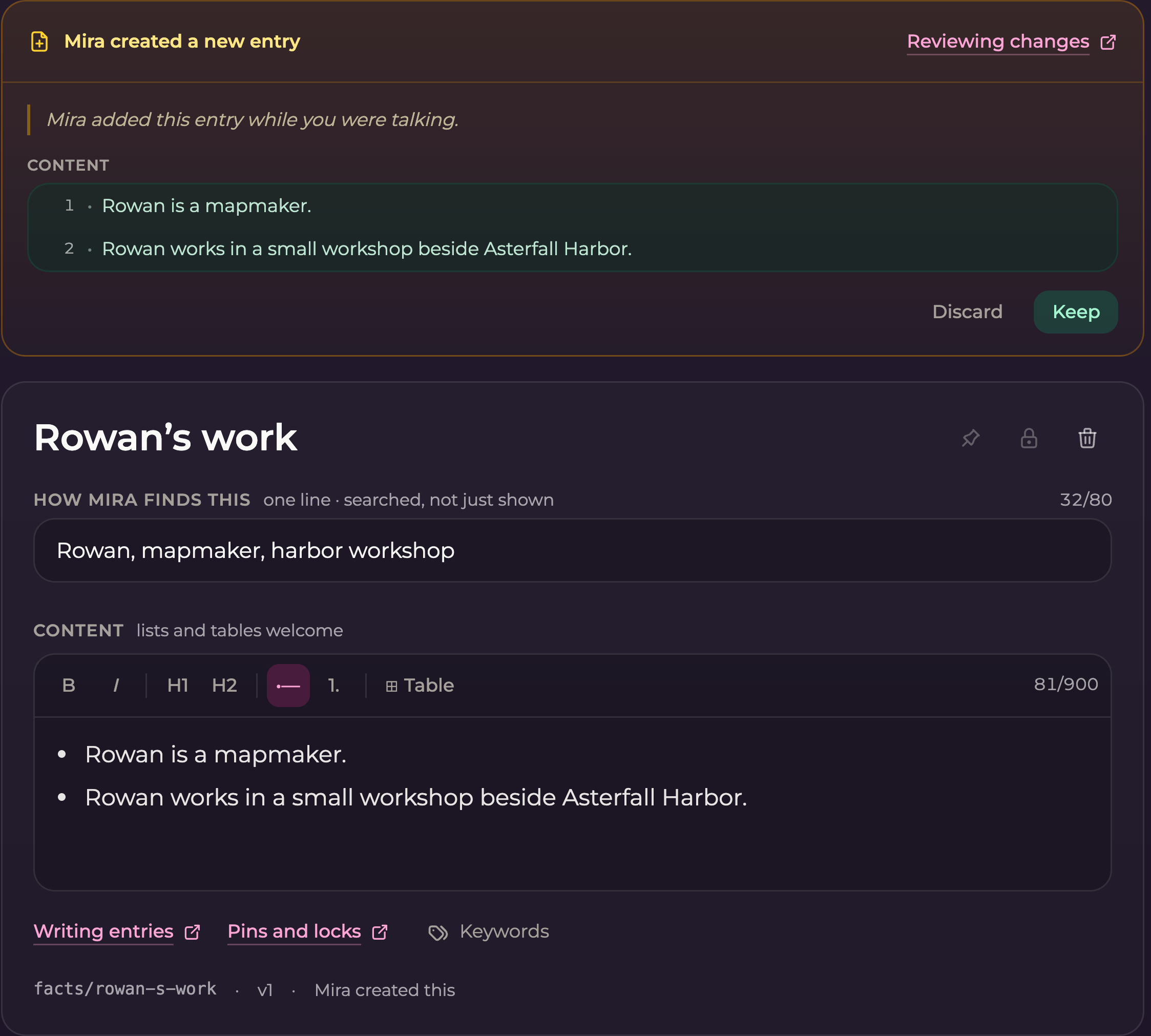
## Review a new entry

<figure><img src="https://3286776735-files.gitbook.io/~/files/v0/b/gitbook-x-prod.appspot.com/o/spaces%2F9ACKOAU4nFWSXPeE2B4s%2Fuploads%2Fgit-blob-50f34bdfbc61dc45c4f32fcc851c7ea5ab1657c4%2Freview-new.png?alt=media" alt="New fictional Facts entry about Rowan&#x27;s work with Keep and Discard actions"><figcaption><p>Keep confirms a new entry that already exists. Discard removes that entry.</p></figcaption></figure>

Check these points before choosing:

* Is the subject correct?
* Is the information established, rather than guessed?
* Does it belong in this section?
* Does another entry already contain it?
* Are the title and description specific enough to identify it later?

Select **Keep** when the entry is useful. If it needs a small correction, keep it, edit the inaccurate fields, and save. If it should not exist, select **Discard** and read the confirmation before removing it.

If both a new entry and a rewrite of it are pending, the rewrite can be shown first. Dismissing the rewrite may reveal the original new-entry review underneath. Read the button labels to see which decision you are making.

## Use History to see what changed

Select **History** in the book's header. It shows recent changes, the affected entry or book field, who made the change, and when.

<figure><img src="https://3286776735-files.gitbook.io/~/files/v0/b/gitbook-x-prod.appspot.com/o/spaces%2F9ACKOAU4nFWSXPeE2B4s%2Fuploads%2Fgit-blob-a0c1ecd3efccd2926b84c95c83acbd0ceefdcf94%2Fhistory.png?alt=media" alt="Lorebook History panel alongside a fictional World entry, showing a companion-created entry and a user edit"><figcaption><p>History helps you identify recent changes and open entries that still exist.</p></figcaption></figure>

Custom keyword edits appear as **Keywords** changes in History.

History is a change log. It does not offer a version-restore or undo button. An item marked **No longer in the book** cannot be restored from this panel.

## A manageable review routine

Review after a meaningful scene or when you notice the waiting count. Correct important names, preferences, and relationship assumptions first, then remove duplicates and check unresolved plans.

If more than one of your chats uses the book, review with all of them in mind. Accepting an edit changes the shared book, not just the chat where the suggestion originated.