> For the complete documentation index, see [llms.txt](https://wiki.secrets.ai/llms.txt). Markdown versions of documentation pages are available by appending `.md` to page URLs; this page is available as [Markdown](https://wiki.secrets.ai/lorebooks/upgrading-memory.md).

# Upgrading Existing Memories

PREMIUM and ULTIMATE feature. Choose what to carry forward when moving an existing chat from the older memory system to a lorebook.

{% hint style="info" %}
**Available on PREMIUM and ULTIMATE.** Lorebooks are included for all subscribers on these [plans](/get-started/subscription-tiers-and-limits.md). On FREE, your companions use the [Memory System](/get-started/memory-system.md).
{% endhint %}

On PREMIUM or ULTIMATE, use **Upgrade memory** when an existing chat still uses the older memory system and you want it to use a lorebook. The dialog shows what is available and lets you choose a destination.

If you have a Universe `.json` file on your device, use [Import Universe](/lorebooks/import-and-export.md#import-a-universe-file) in Lorebooks instead. That creates a new Universe from the file; it does not convert a chat's existing memories.

Open the companion's profile/menu in the chat and select **Upgrade memory** when it is offered. If the chat already shows **Open Lorebook**, it is already using a book.

## Choose the right upgrade option

The choices do different things. Read the explanation under the option before starting.

| Option                                | What happens                                                                                                                                              | Best when…                                                                      |
| ------------------------------------- | --------------------------------------------------------------------------------------------------------------------------------------------------------- | ------------------------------------------------------------------------------- |
| **Create a new Lorebook**             | Builds a new book using the memories this chat currently uses and its conversation history.                                                               | You want to carry this chat's existing continuity into its own book.            |
| A book **From the same memory group** | Adds this chat's conversation history to the selected book and uses it. Legacy memories added or edited since the original import are not imported again. | Related chats previously used the same memory group and one already has a book. |
| **Other Lorebooks for \[companion]**  | Connects this chat to the selected existing book. Its legacy memories and saved conversation history are not imported into that book.                     | You want the chat to use that book's existing continuity.                       |
| **Start from a Universe**             | Creates and connects a new companion book copied from the selected Universe. The chat's legacy memories and saved conversation history are not imported.  | You want the chat to start using a prepared setting.                            |

Only the choices relevant to your chat appear. A book marked **building…** is still being prepared and cannot yet be selected for use.

## Create a new book from the chat

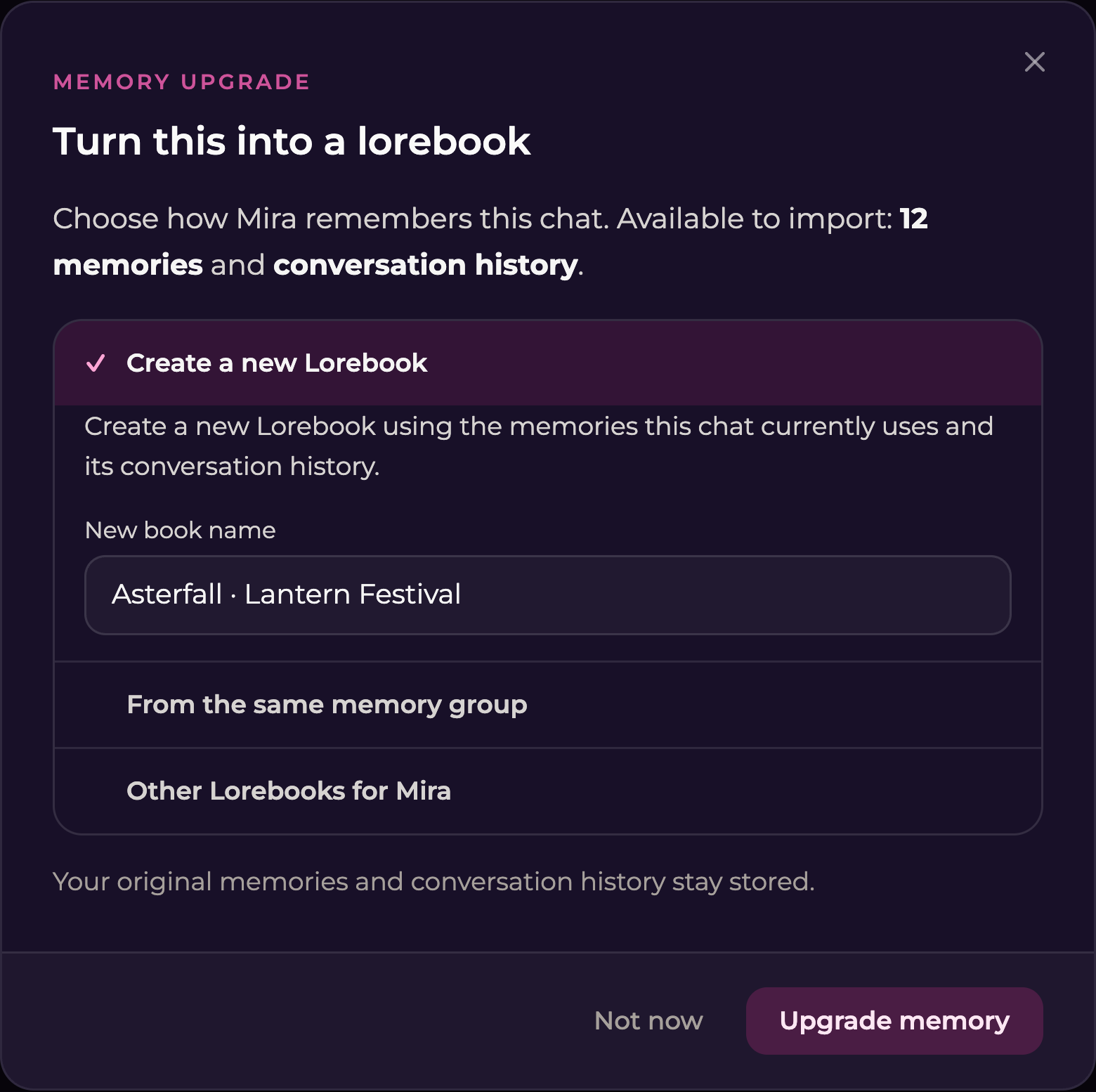
<figure><img src="https://3286776735-files.gitbook.io/~/files/v0/b/gitbook-x-prod.appspot.com/o/spaces%2F9ACKOAU4nFWSXPeE2B4s%2Fuploads%2Fgit-blob-feca9840b6577380364f805082431faf8477634c%2Fupgrade-new.png?alt=media" alt="Memory upgrade dialog with fictional memory counts, Create a new Lorebook selected, a book name, and Upgrade memory"><figcaption><p>Creating a new book here imports the chat's existing memory and history. This differs from starting an empty separate book in chat settings.</p></figcaption></figure>

1. Select **Create a new Lorebook**.
2. Enter a recognizable name, up to 60 characters.
3. Check the summary of what is available to import.
4. Select **Upgrade memory**.
5. Wait for the progress to finish.
6. Select **Open it** and review the book.

If the dialog says there is nothing to import, the chat has no saved memory or history available for this conversion. Do not expect it to invent background details; add your desired starting information yourself.

Your original memories and conversation history stay stored. The upgrade organizes information into lorebook entries; check the result rather than expecting a word-for-word copy of every message.

## Use a book from the same memory group

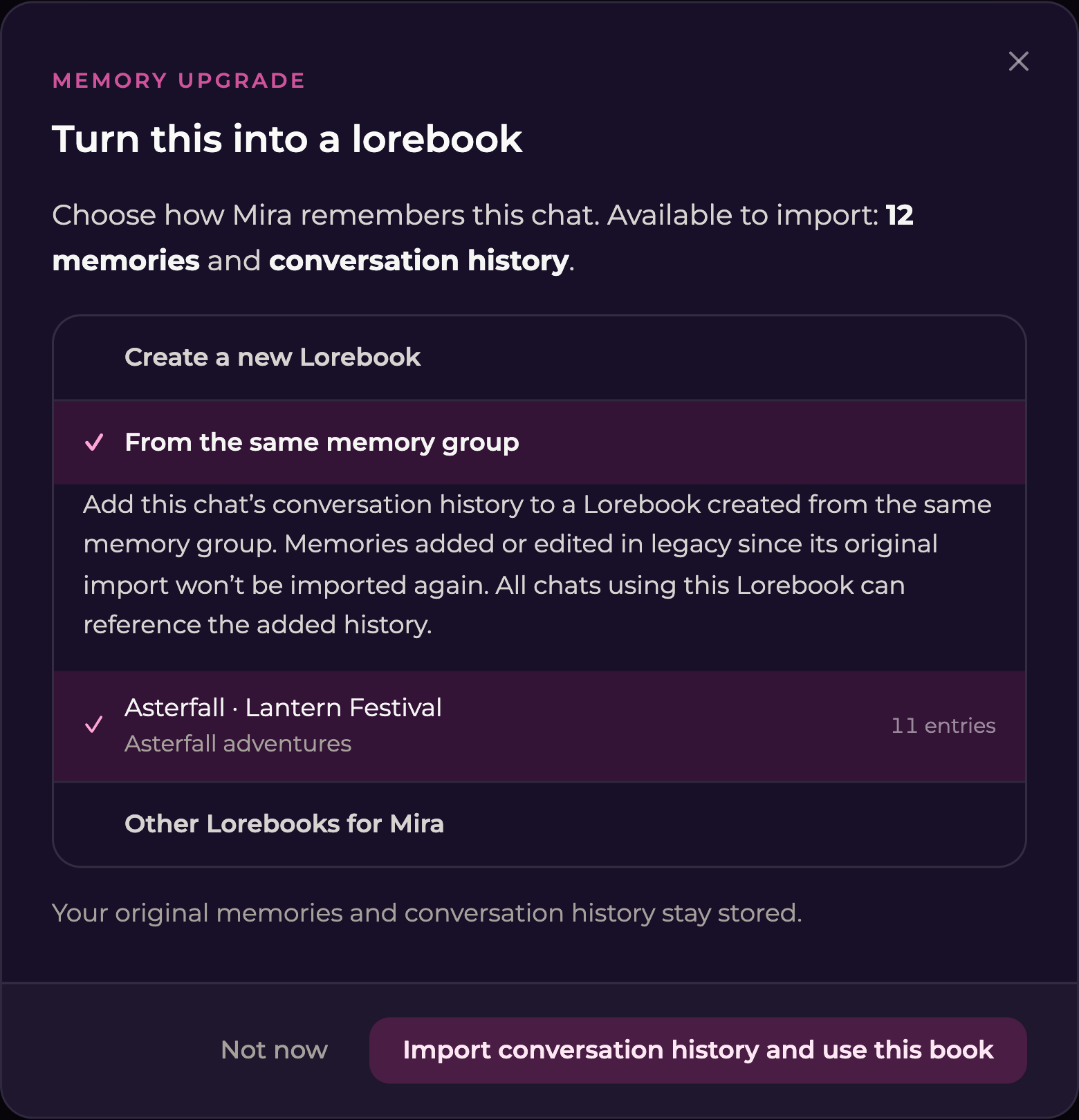
<figure><img src="https://3286776735-files.gitbook.io/~/files/v0/b/gitbook-x-prod.appspot.com/o/spaces%2F9ACKOAU4nFWSXPeE2B4s%2Fuploads%2Fgit-blob-fa6abae83548c4d2664580ef4e798288ea4c507c%2Fupgrade-existing.png?alt=media" alt="Same-memory-group upgrade option explaining history import and showing the fictional Lantern Festival book"><figcaption><p>The same-group option brings this chat's history into the existing book; it does not re-import later edits to legacy memories.</p></figcaption></figure>

1. Expand **From the same memory group**.
2. Select the intended book.
3. Read the history-import explanation.
4. Select **Import conversation history and use this book**.
5. Wait for completion, then review the added Chronicle material and other relevant entries.

**All chats using the selected book can reference the added history.** Use a new book instead if this chat's events should stay separate.

If you corrected a legacy memory after the group's original import, check that correction in the book yourself. This option does not repeat that memory import.

## Use another existing book

Expand **Other Lorebooks for \[companion]**, select the book, and choose **Use this book**.

This is a change of book, not an import or merge. The selected book keeps its own contents. The chat's previous legacy memories and saved conversation history are not brought into that book or used as its historical memory after switching.

Your visible chat messages are not deleted by selecting a different book. For a completely fresh storyline, use a [new chat with a separate book](/lorebooks/managing-books.md#start-a-separate-book).

## Start from a Universe

Expand **Start from a Universe**, select a book, and choose **Use this Universe**. This option appears when you have an available Universe.

The chat gets a new copy for its companion. Later edits to the original Universe do not update that copy. The chat's existing legacy memories and saved conversation history are not imported or used as its historical memory after switching; visible messages remain.

Use an import option instead if you want to carry over the old continuity. See [Universe Books](/lorebooks/universe-books.md#use-a-universe-when-upgrading-an-older-chat) for the illustrated walkthrough.

## While an upgrade is running

The dialog may show **Queued**, **Reading through your history…**, or **Finishing up**. Larger histories can take longer. You can close the dialog and return to check progress; closing it does not cancel the upgrade.

Wait for completion before judging the contents of the new book. If you return and it is still building, continue checking the same upgrade instead of trying to create duplicate books.

## Review the result

After opening the finished book:

1. Check **Premise** for the correct identities and starting situation.
2. Check **Cast** for names and recurring people.
3. Check **Relationship** for the current dynamic and established agreements.
4. Check **Facts** for important preferences and details.
5. Browse **Chronicle** for major past events.
6. Remove completed tasks from **Open threads** and correct anything inaccurate.

Edit missing or incorrect information directly. The [section guides](/lorebooks/lorebooks.md#choose-a-section) explain how to choose the right home for each detail.

## Upgrade a group chat

[Group Chats](/get-started/group-chats.md) require **ULTIMATE**. Upgrading memory in a private chat is available on both PREMIUM and ULTIMATE.

Open the group's **Upgrade memory** option to see the companions individually. You can upgrade eligible companions together or one at a time.

For each member, choose whether to create a new book or use an available book. The same distinctions apply: a new conversion imports that member's available continuity, a same-group option adds history as described, and another existing book is a switch without importing the old material.

Choosing **Start from a Universe** gives that member a separate copy without importing the old material. Two members choosing the same Universe still receive different books.

Start the selected upgrades and follow each member's progress. A member who already has a book is shown as reading it. The group can contain both memory systems while you work through its members. When ready, use **Open book** to inspect the result.

## If the upgrade fails

If the dialog reports a failure, read the message. The original memories remain untouched. Use **Try again** when offered.

If it says the chat is too large to convert automatically, follow the displayed instruction to contact support. Repeating the same oversized conversion is not a substitute for that assistance.

For other issues, see [Troubleshooting](/lorebooks/troubleshooting.md).